Legion Go SSD Upgrade: Clone Windows to a Bigger Drive
The Legion Go ships with a small M.2 drive, and a handful of large games can fill it. Cloning keeps Windows, your saves and your launchers while you move to a larger SSD, so you do not have to reinstall anything.
The handheld has only one M.2 slot, so both drives cannot sit inside at the same time. The practical order is to clone over USB, swap the drive, then confirm the boot before you erase the original.
PAGE CONTENT
- Check the Slot Before You Buy
- Clone Over USB to the New Drive
- Swap the Drive and Check the Boot
- Clone with Qiling Disk Master
- Handle Recovery and Driver Pitfalls
- Legion Go SSD Questions
- Back Up Before You Clone
Check the Slot Before You Buy
- Drive length. The Legion Go uses a short M.2 drive in a compact slot. The supported length can change between models, so check your model and measure the installed drive before you order a replacement.
- Slot count. There is a single M.2 slot, which is why a USB enclosure is part of this plan. Do not expect to run two internal drives at the same time.
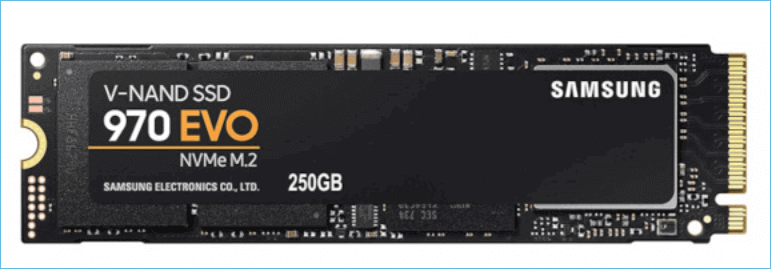
- Interface. The slot is PCIe NVMe. Match the interface of the original drive, because a SATA M.2 drive will not deliver the same speed even when it fits.
- Capacity. Pick a size that leaves room for games and updates. A target that is almost full slows writes and leaves no space for a page file.
- Heat. Handhelds run warm. A drive with a thin label or a slim heat spreader fits more easily than one with a tall heatsink, and the original shield often has to be reused.
Write the model, the drive length and the interface on a note before you shop. Those three facts prevent most wrong purchases.
Clone Over USB to the New Drive
- Enclosure. Put the new SSD in a USB NVMe enclosure and connect it to the Legion Go. The enclosure provides the second slot that the handheld does not have.
- Format. New drives often arrive unformatted, and Windows may offer to initialize them. You can accept that step, because the clone will rewrite the layout anyway.
- Clone mode. Use an intelligent clone that copies used data and can resize partitions, since the new drive is larger than the old one.
- Verify. After the copy, confirm that the target shows the expected partitions and that the EFI system partition was included.
- Free space. Leave some unused space on the target for the page file and updates. Filling the whole drive with one partition is not required on day one.
Keep the enclosure connected until the tool reports success, and never unplug the cable while the copy is running.
Swap the Drive and Check the Boot
- Power down. Shut the handheld down completely, then hold the power button until it is off. Sleep mode is not a safe state for hardware work.
- Battery. Open the back cover and disconnect the battery before you touch the drive. This protects the board and prevents accidental shorts.
- Shield. Remove the thin shield or thermal pad above the drive and keep the screws in a labeled cup so none are lost.
- Install. Seat the new drive at the same angle as the old one, then replace the shield and the cover.
- First boot. Power on and open the boot menu to confirm that Windows loads from the new drive. If it does, check the drive letter and the reported capacity.
Reconnect the battery last, and check that every screw is back in place before you close the shell.
Clone with Qiling Disk Master
Qiling Disk Master can clone a disk or a single partition, resize the result, and verify the copy without asking you to reinstall Windows. It also runs the backup and restore steps shown at the end of this guide.
Watch the video tutorial below to clone the drive step by step with Qiling Disk Master.
Step 1. Open Qiling Disk Master, choose Clone, and then select Disk Clone.

Step 2. Select the source disk and click Next.

Step 3. Select the destination SSD and confirm that its data will be replaced.

Step 4. Choose the clone mode and adjust the partition size if the target is larger.

Step 5. Click Proceed, wait for the copy to finish, then shut the machine down before you remove any cable.

Handle Recovery and Driver Pitfalls
- Cloud recovery. A factory recovery image rebuilds Windows and wipes the new drive, so treat it as a fallback only and do not run it just to be safe.
- BitLocker. If encryption is on, suspend protection or unlock the volume before you clone, and store the recovery key somewhere other than the handheld.
- Drivers. Handheld drivers are tuned per model. If a device shows a warning after the swap, install the vendor driver package for your exact model.
- Activation. A hardware change can trigger a reactivation prompt. Confirm the activation state before you format the old drive.
- Updates. Run Windows Update after the first boot, since firmware and controller updates can improve stability on the new drive.
Treat the old drive as a backup until the new one has booted twice and completed its updates.
Legion Go SSD Questions
Can I clone to a bigger drive than the one inside the Legion Go?
Yes. The clone tool can copy the used data and expand the main partition later. Keep the target within the capacity that your model supports, and check the specifications before you buy.
Do I have to open the handheld before cloning?
No. The clone happens over USB while the old drive is still installed. Opening the shell is only needed for the physical swap, which comes after the copy finishes.
Why does the new drive show less space than its label?
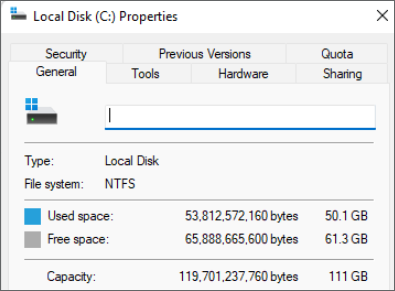
Drive makers count in decimal units while Windows counts in binary units, so a 1 TB drive shows roughly 931 GB. Recovery and EFI partitions also take a small slice.
What if the Legion Go shows a black screen after the swap?
Reseat the drive, check the boot order, and confirm that the EFI partition was copied. If the old drive still boots, the problem is usually the clone rather than the hardware.
Does opening the device affect the warranty?
Policies vary by region and model, and some regions treat an opened case as a repair exception. Check your model and local terms before you remove a single screw.
Back Up Before You Clone
A clone can fail in ways that leave neither drive usable: a loose cable, a power loss, or a missed system partition. A system image on a separate drive gives you a working path back, and it costs only the space of the image file.
Watch the video tutorial below to back up Windows and restore it if the clone fails.
Step 1. Open Qiling Disk Master and select System Backup to include the boot partitions.

Step 2. Save the image to a drive other than the target disk and start the backup.

Step 3. Click Proceed to start the system backup and wait patiently until it finishes. You can also tick Shut down the computer when the operation is completed to power off automatically.

Step 4. If the clone fails, restore the image and check the source disk before you retry.

Conclusion
A Legion Go upgrade is a three-step job: clone over USB, swap the single M.2 drive, and confirm the boot before you erase the old drive. Check the drive length for your model, disconnect the battery while you work, and give the new drive a couple of clean boots before you trust it.
For related guides, see Clone an NVMe SSD to a Larger NVMe SSD, Clone an SSD to a Larger SSD, SSD Not Detected After Cloning, and Best Free SSD Cloning Software.
Related Articles
- Clone the ROG Ally SSD to a Larger Drive
Clone the ROG Ally drive over USB, swap the single M.2 SSD, and check the boot before you retire the original drive. - Clone an M.2 SSD When the PC Has One Slot
Use a USB enclosure to copy the only M.2 drive, then swap it and verify that Windows still boots from the new SSD. - Clone a 2230 NVMe SSD
Small 2230 drives need the right enclosure and a clone tool that can resize partitions after the copy. - Clone a Drive with an NVMe Enclosure
An NVMe enclosure adds a temporary USB slot, which is the simplest way to clone on a handheld with one M.2 port. - Fix a Cloned Drive That Will Not Boot
Check the boot order, the EFI partition and the clone mode when a copied drive refuses to start Windows.
Products
Articles & Tutorials
- Data Recovery
- Data Backup
- File Recovery
- File Backup
- System Backup and Restore
- Disk and Partition Clone
- Technical articles
- Mobile articles
- Disk Master Help
- Windows Data Recovery Tutorials
- Windows Secure Delete Tutorials
- Windows Partition Management Tutorials
- Windows File Backup and Restore Tutorials
- Windows System Backup and Restore Tutorials
- Windows Disk Backup and Restore Tutorials
- Windows Clone Tutorials