Disk Clone Stuck at 0% or 99%: Causes and Fixes
A clone that never leaves 0% or that hangs at 99% is one of the most frustrating problems in disk migration. The progress bar looks frozen, the estimated time keeps rising, and the machine appears to do nothing at all.
Both stalls have predictable causes: the job cannot read the source, cannot write the target, or cannot finish the final bookkeeping step. This article explains each one and shows how to get the copy moving again.
PAGE CONTENT
- Why a Clone Stalls at 0% or 99%
- Prepare the Machine Before Retrying
- Clear the Blockage
- Finish the Clone with Qiling
- Verify the Copy Really Finished
- FAQs About Frozen Clones
- Back Up Before You Retry
Why a Clone Stalls at 0% or 99%
- Read errors on the source. Bad sectors force the tool to retry the same block forever.
- Too little free space. The job stops before the first write if the target is smaller than the data.
- USB link drops. A power-saving port or hub resets the transfer and the counter never moves.
- Antivirus scanning. Real-time protection locks the files the tool is trying to copy.
- A slow final step. At 99% the tool writes boot records and checksums, not bulk data.
0% means the job never started reading, while 99% means the data is already copied and only the closing work remains. The two numbers point to different fixes.
Prepare the Machine Before Retrying
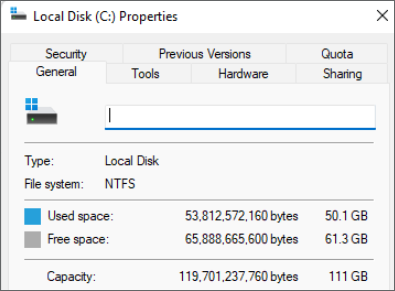
- Free up space. Delete temporary files so the data fits well inside the target.
- Use a rear USB port. Connect the enclosure directly, never through a hub.
- Pause protection. Disable real-time antivirus for the duration of the copy.
- Swap the cable. Replace the SATA or USB cable with a known good one.
- Adjust the power plan. Disable USB selective suspend and disk sleep.
These changes remove the most common external blockers, so that a second attempt can show whether the disk itself is the cause.
Clear the Blockage
- Restart the tool. A 0% stall often clears after a clean restart of the software.
- Pick the right mode. An intelligent clone skips empty space and avoids weak areas.
- Repair the file system. Run chkdsk /f on the source, then retry the copy.
- Wait at 99%. Give the final step ten minutes before you call it frozen.
- Clone offline. Boot from WinPE when Windows itself is holding the volume open.
These fixes help with healthy drives, but they cannot rescue a disk that is physically failing. If the progress stops at the same block every time, image the source with a tool built for damaged media instead of retrying the clone.
Finish the Clone with Qiling
A tool that reports progress per partition and retries gracefully will often complete a copy that another program abandoned at 0%.
Watch the video tutorial below to clone the drive step by step with Qiling Disk Master.
Step 1. Open Qiling Disk Master, choose Clone, and then select Disk Clone.

Step 2. Select the source disk and click Next.

Step 3. Select the destination SSD and confirm that its data will be replaced.

Step 4. Choose the clone mode and confirm the system partition gets the C letter on the target.

Step 5. Click Proceed, wait for the copy to finish, then shut the machine down before you remove any cable.

Verify the Copy Really Finished
- Compare the sizes. The target should report roughly the same used space.
- Browse the folders. Open key directories and look for missing files.
- Test the boot. Disconnect the old disk and start Windows from the new one.
- Run a disk check. chkdsk on the new disk confirms the volume is clean.
- Keep the source untouched. Never wipe it until the clone is verified.
A progress bar that reaches 100% is not proof of success. Only a readable volume and a working boot confirm that the stall was solved rather than skipped.
FAQs About Frozen Clones
Is a clone stuck at 99% finished?
The data is usually copied. The tool is writing boot records, so give it a few more minutes before you stop it.
Can I cancel a clone at 0% safely?
Yes. Nothing has been written yet, so cancel, restart the tool, and retry with more free space.
Why does the copy freeze at the same point every time?
A bad sector or a failing cable stops the transfer at that block, so the fault is localised and repeatable.
Does antivirus really block a clone?
Often. Real-time scanning locks files the tool needs, so disable it during the copy and re-enable it afterwards.
Should I use a USB hub for the target disk?
No. Hubs drop under load. Connect the enclosure to a rear port on the machine instead.
Back Up Before You Retry
Repeated clone attempts put stress on a weak source disk, and a failed job can leave the target half written. Create a system image first so the data is safe whatever happens next.
Watch the video tutorial below to back up Windows and restore it if the clone fails.
Step 1. Open Qiling Disk Master and select System Backup to include the boot partitions.

Step 2. Save the image to a drive other than the target disk and start the backup.

Step 3. Click Proceed to start the system backup and wait patiently until it finishes. You can also tick Shut down the computer when the operation is completed to power off automatically.

Step 4. If the clone or the boot repair fails, restore the image and then reassign drive letters or rebuild the boot records from Windows Recovery.

Conclusion
A frozen 0% is a start-up blocker such as space, a cable or a locked file, while 99% is usually the final boot-record step. Fix the environment first and only then blame the disk. When the clone keeps stalling, use Qiling Disk Master and verify the volume before you retire the old drive.
For more on slow or failing copies, see How Long Does a Disk Clone Take, Clone a Hard Drive with Bad Sectors, Clone a Failing HDD Before It Dies, and Clonezilla Failed to Clone Bad Sectors.
Related Articles
- Fix an Acronis Clone Disk Failure
Recover when the job aborts. - Clone an SSD with Bad Sectors
Copy around unreliable blocks. - Sector by Sector vs Intelligent Clone
Pick the mode that fits the disk. - SSD Slow After Cloning
Speed up a cloned drive. - Clone a Failing Drive with ddrescue
Rescue data from weak media.
Products
Articles & Tutorials
- Data Recovery
- Data Backup
- File Recovery
- File Backup
- System Backup and Restore
- Disk and Partition Clone
- Technical articles
- Mobile articles
- Disk Master Help
- Windows Data Recovery Tutorials
- Windows Secure Delete Tutorials
- Windows Partition Management Tutorials
- Windows File Backup and Restore Tutorials
- Windows System Backup and Restore Tutorials
- Windows Disk Backup and Restore Tutorials
- Windows Clone Tutorials