How to Download Windows 11 23H2 ISO File
How to Download Windows ISO Safely on Your PC
Microsoft released Windows 11 23H2 on October 31, 2023, featuring significant new features and improvements. If you're looking to download the Windows 11 23H2 ISO file, this article will guide you through the process, either by downloading directly from Microsoft or using Qiling Disk Master, a professional Windows 11 23H2 ISO downloader and Media Creation Tool.
You can download a Windows 11 ISO file for free, but to do so safely without losing data during the downloading process, consider using professional backup software like Qiling Disk Master to create a system image beforehand. This free backup tool can protect almost everything on your PCs, ensuring your data remains safe while you download the ISO file.
To download the Windows 11 2023 update ISO file, go to the Microsoft website and navigate to the Windows 11 download page. Click on the "Download Now" button, then select your language and architecture (32-bit or 64-bit) from the dropdown menus.
| Comparison | 👍Pros | 👎Cons |
|---|---|---|
| 1️⃣Using Qiling Disk Master |
|
|
| 2️⃣Directly Download from Microsoft |
|
|
| 3️⃣Using Windows Media Creation Tool |
|
|
Method 1. Download Windows 11 23H2 ISO with Qiling Disk Master
You might wonder why Qiling Disk Master tops the list to get a full version free download of Windows 11 23H2 ISO file. This is because it is an all-in-one and easy-to-use Windows To Go creator that allows you to download Windows 11 ISO files and create a Windows 11 bootable USB from ISO easily and quickly, making it a convenient tool for getting a Windows 11 23H2 ISO download on your computer.
Qiling Disk Master You can use this tool to download the Windows 11 64-bit ISO full version for free, which can help you bypass the Windows 11 requirements and install it without secure boot and TPM. This tool can also help you create a Windows ISO on a USB drive and run it on your Windows or Mac computers.
With Qiling Disk Master, you can benefit from:
- Downloading Windows 11/10/8/7 ISO files and creating bootable media
- Cloning your Windows operating system to a USB drive allows you to create a portable version of Windows that can be run on any compatible computer without the need for a physical hard drive. This process, also known as a "live USB," enables you to boot up a fully functional Windows environment from a USB drive, making it a convenient option for troubleshooting, testing, or even using Windows on a machine that doesn't have a working hard drive.
- Installing Windows 11 without a Microsoft account without hassle
- To run Windows apps on a Mac or play a Windows game on a Mac, you can use a virtualization software called Boot Camp, which comes pre-installed on Macs running macOS High Sierra or later. Boot Camp allows you to create a separate partition on your Mac's hard drive to run Windows, and then you can install Windows on that partition.
- To install Windows 11 on your Windows 10 PC, you can use the built-in feature called "Dual Boot" or install a virtual machine software like VMware or VirtualBox to run Windows 11 as a virtual machine within Windows 10. This way, you can have both operating systems running on the same computer without having to partition your hard drive or replace your existing OS.
If you're looking to download a full version of Windows ISO file, whether 32-bit or 64-bit, and create a bootable USB drive to help you install Windows 11, Qiling Disk Master can be a suitable choice. This tool offers various features to help you achieve your goal, and you can try it out by downloading it to get started with your Windows 23H2 ISO download.
Share this post on your social media to help more people.
Method 2. Directly Download Windows 11 23H2 from Microsoft
To download the Windows 11 23H2 update directly from Microsoft, follow these steps:
Step 1. Go to the Windows 11 download page.
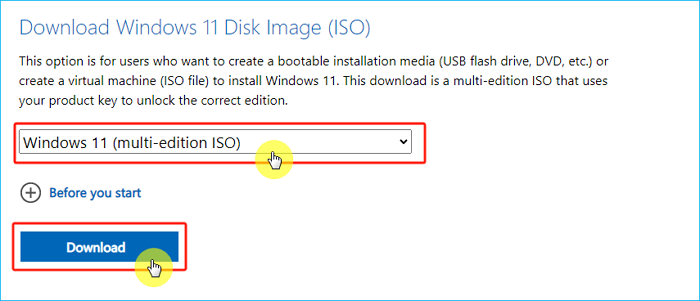
Step 2.Download the Windows 11 ISO file by selecting the "Windows 11 (multi-edition ISO)" option under the "Download Windows 11 Disk Image (ISO)" section and clicking the "Download" button.
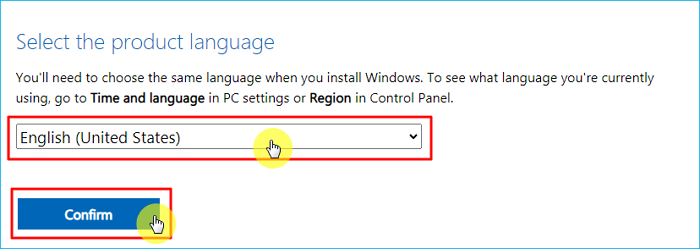
Step 3. Set the installation language and click Confirm.
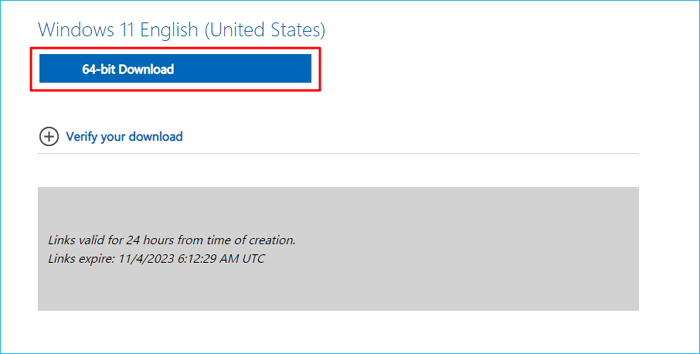
Step 4. To download the Windows 11 23H2 ISO, tap the 64-bit download button.
Method 3. Download 23H2 ISO via Windows Media Creation Tool
The Windows Media Creation Tool allows you to download the Windows 11 ISO and create Windows installation media. The tool automatically downloads the latest version of the Windows 11 ISO file available, making it a convenient option for users who want to access the most up-to-date version of the operating system.
- Notice:
- The Media Creation Tool is currently downloading Windows 11 22H2 Build 22621.1702 instead of the intended Windows 11 23H2. To resolve this, users are advised to download the 23H2 ISO directly from Microsoft or use Qiling Disk Master, until Microsoft fixes the issue on November 15, 2023.
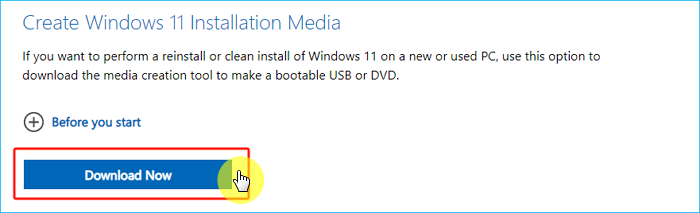
Step 1.Go to the Windows 11 download page and click Download now under the Create Windows 11 installation media section.
Step 2. Open the ISO file and then launch the setup.exe file.
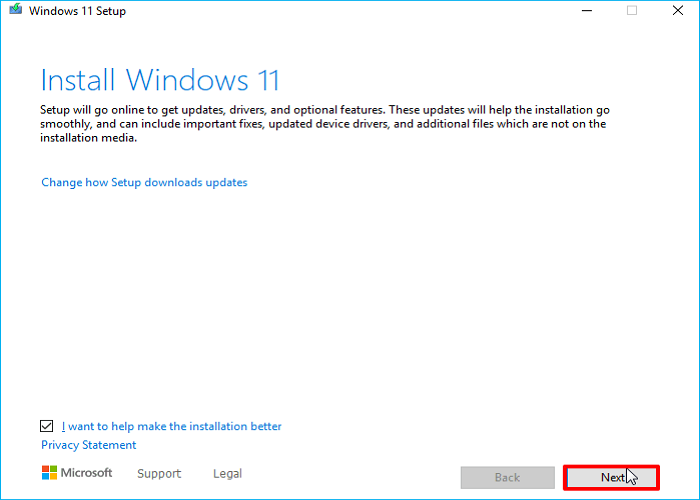
Step 3. Under the Install Windows 11 page, click Next.
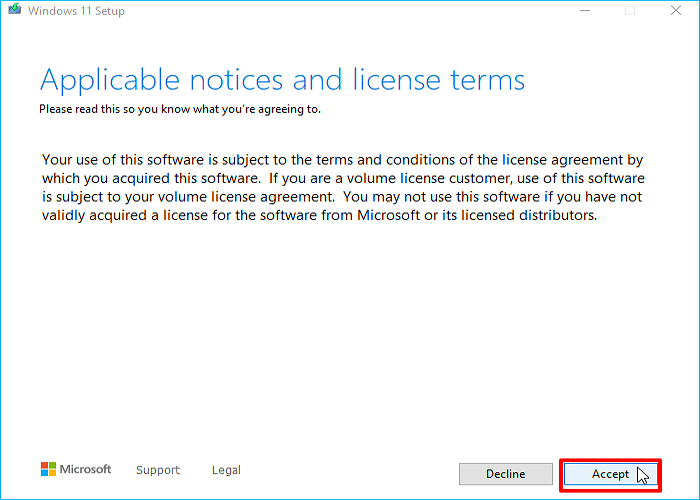
Step 4. Under Applicable notices and license terms, click Accept.
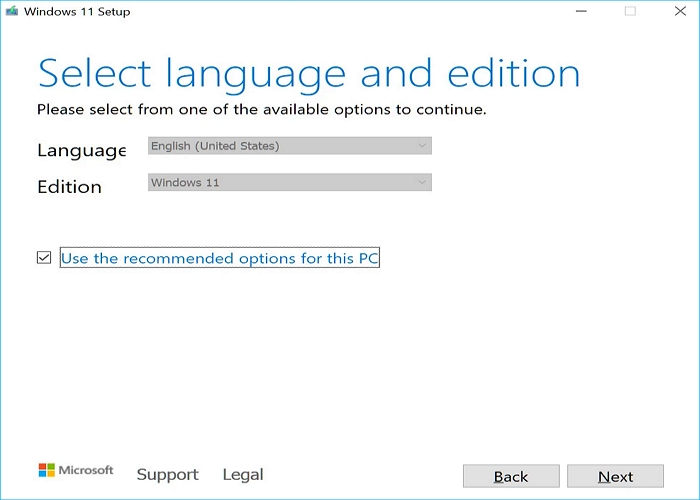
Step 5. Check the selected ISO details, such as language and Windows Edition, and click Next.
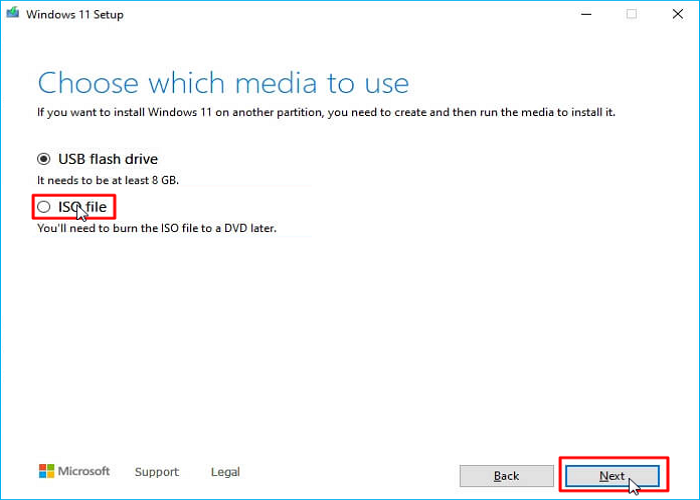
Step 6. Choose the ISO file option and click Next.
Step 7. After clicking "Save", the Windows 11 H2 23 ISO file will be downloaded to the chosen location, and the download process will begin.
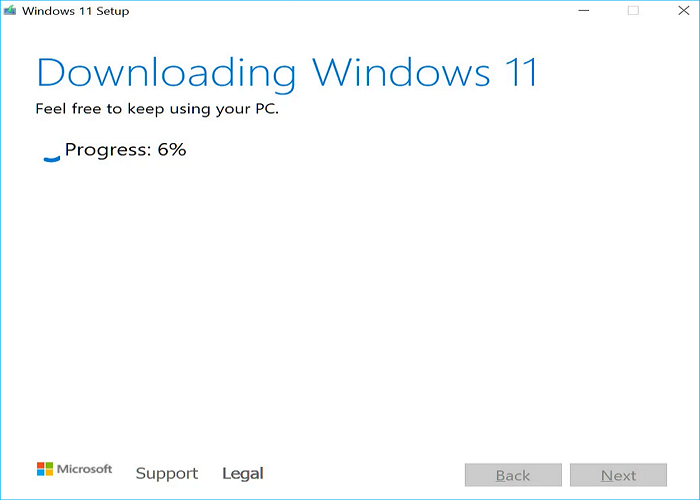
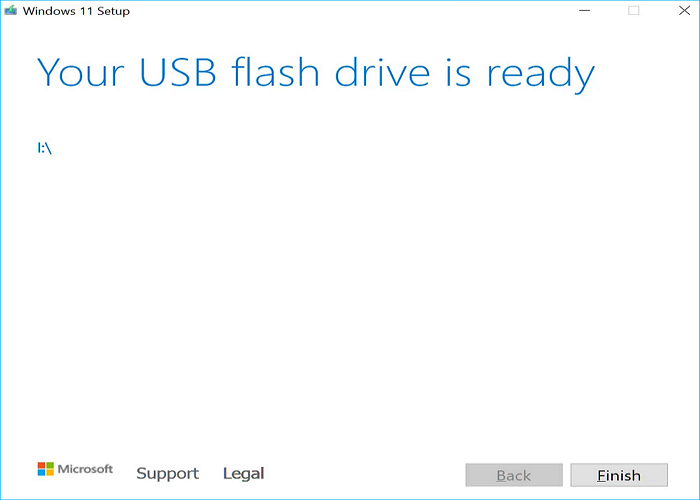
Step 8. When finished, the tool will display a message indicating that the ISO file has been downloaded or the bootable USB has been created, prompting you to click Finish to close the program.
What to Prepare Before Downloading Windows 11 23H2 ISO
Before downloading Windows 11 23H2 ISO, ensure that you have prepared the necessary items to ensure a smooth process on your computer.
- Ensure you have enough storage space. The Windows 11 2023 Update ISO file is 6.1GB and requires sufficient storage space for download and storage.
- Ensure you have a good internet connection. A stable internet connection is crucial for a smooth and successful downloading process.
- Ensure your computer meets the To upgrade to Windows 11, ensure your PC meets the system requirements, which are necessary for a successful installation, especially if you're upgrading from an older version.
- Ensure you have backed up important files. Having a backup in advance can help avoid data loss caused by Windows update issues or a clean installation. Free backup software like Qiling Disk Master can assist with this.
To Wrap Things Up
How to download Windows 11 23H2 ISO fileYou can get a free Windows 11 23H2 ISO image file by following one of three methods: downloading it from Microsoft's official website, using a third-party tool to create a bootable USB drive, or using a Windows 11 upgrade tool to upgrade to the latest version.
The Windows Media Creation Tool is not compatible with the latest Windows 23H2 ISO. Instead, use Qiling Disk Master or download the Windows 11 23H2 ISO directly from Microsoft's website.
FAQs on How to Download Windows 11 23H2 ISO File
1. Why can't I download Windows 11 ISO from Microsoft?
This error occurs due to various reasons such as poor internet connection, insufficient disk space, USB file system, or antivirus programs. To resolve it, disable your VPN, third-party antivirus, or browser extensions, and ensure your system meets the required specifications before downloading.
2. Can I install Windows directly from ISO?
You can install Windows 10 directly from the ISO file without a CD-ROM or pen drive by mounting the ISO file as a virtual disk and launching the setup.exe file from within.
3. Can you boot from ISO file on USB?
Download the Windows ISO file, transfer it to a USB or DVD drive, and then use the Windows USB/DVD Download Tool to create a bootable file. This allows you to install Windows directly onto your computer using the drive.
Related Articles
- How to Create a Windows To Go USB Stick?
- How to Create Windows Bootable USB with Rufus, and Another Easier Way
- The Best Windows Server 2012 (R2) Disk Cleanup Tool
This article describes how to enable disk cleanup in Windows Server 2012 (R2) as well as the best Windows Server 2012 (R2) disk cleanup tool. Please read on. - Best Way to Backup Outlook Emails to Thumb Drive Easily
Backup Outlook emails to thumb drive can save your important files from accidental issues. This guide will explain the best way to do the task with a few clicks. - How to Install Two Operating Systems on One Computer
To install two operating systems on one computer, you can use a professional tool called Qiling Disk Master to install multiple Windows operating systems on your laptop. - Windows 11 23H2 End of Support: November 10, 2026 Guide
Products
Articles & Tutorials
- Data Recovery
- Data Backup
- File Recovery
- File Backup
- System Backup and Restore
- Disk and Partition Clone
- Technical articles
- Mobile articles
- Disk Master Help
- Windows Data Recovery Tutorials
- Windows Secure Delete Tutorials
- Windows Partition Management Tutorials
- Windows File Backup and Restore Tutorials
- Windows System Backup and Restore Tutorials
- Windows Disk Backup and Restore Tutorials
- Windows Clone Tutorials