How to Restore QuickBooks to New Computer with 2 Easy Ways
Why Do You Need to Restore QuickBooks to New Computer
QuickBooks is an accounting software developed by Intuit, providing desktop and online accounting applications, as well as cloud-based solutions for processing bills and business payments. Its ease of use and robust reporting functionality make it a popular choice among users.
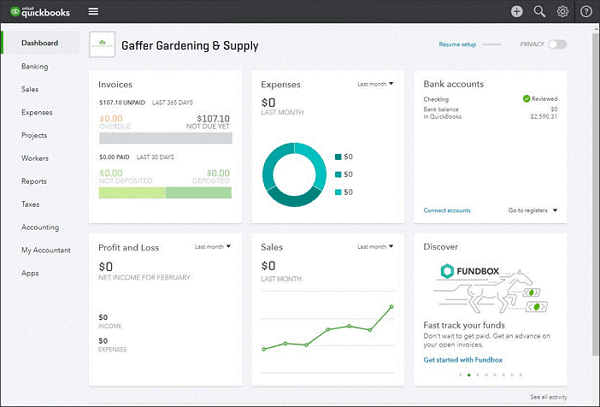
If your computer crashes or you want to transfer QuickBooks to your new computer to undo or edit recent changes, the steps in this article can help restore your accounting data.
Below are the ways you can restore QuickBooks backup file to a new computer.
2 Ways to Restore QuickBooks Backup File to a New Computer
If you're switching to a new computer, restoring your QuickBooks backup file is a crucial step to ensure your data remains intact. This process allows you to transfer your financial information and settings from your old computer to the new one, minimizing the risk of losing important financial data.
Here are two options for restoring a QuickBooks backup file to a new computer.
Method 1. Using Professional Universal Restore Software
To restore a QuickBooks backup file to a new computer, one option is to use professional universal restore software, such as Qiling Disk Master.
Qiling Disk Master Pro is a practical backup and recovery tool that allows you to easily transfer files and settings from one computer to another, including your QuickBooks backup file. It enables you to create comprehensive image file backups or essential file backups of your system within minutes, and also lets you automatically back up your files, systems, disks, partitions, and computer apps. Additionally, the software allows you to schedule full, incremental, and differential backups to meet your diverse backup needs.
To restore QuickBooks on a new computer, follow these steps. First, ensure you have the QuickBooks software installed on the new computer.
Part 1. Create a backup of your QuickBooks
Step 1. To use Qiling Disk Master, download and install it on your computer, then navigate to the main tab page labeled "Backup and recovery".
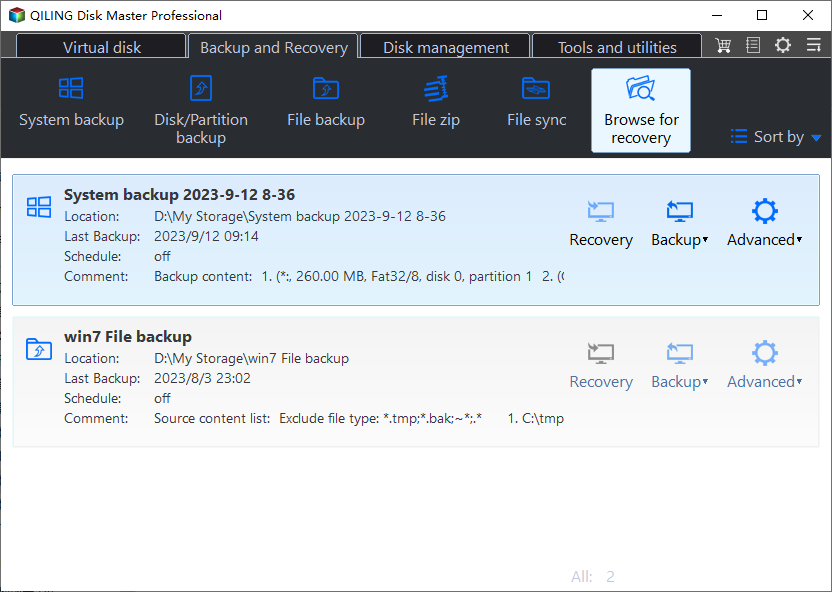
Step 2. Click on "File backup" to make a backup of your software applications.

Step 3. The screen shows a list of apps that can be backed up, including Outlook, which is now supported. More apps, such as games and other mailboxes like Thunderbird, Gmail, and Microsoft 365 apps, will be developed and supported in the future. Scroll down to find the app you need to back up.

Step 4. Choose a secure location, such as a cloud service, NAS, or external hard drive, to store your backup and avoid losing data in case of computer failure or crash.

Step 5. You can set customized backup by clicking the "Option" button, which allows you to schedule backups daily, weekly, monthly, or upon an event, and choose between differential or incremental backup.

Step 6. When you've finished setting up, click "Proceed" to initiate the backup process. The duration will be influenced by the size of your source data, but it should be relatively quick.
Part 2. Restore the QuickBooks backup file to a new PC
Step 1. Launch Qiling Disk Master, click "Browse for Recovery".
Step 2. Choose the backup file you want to recover, which is a pbd file created by Qiling Disk Master.
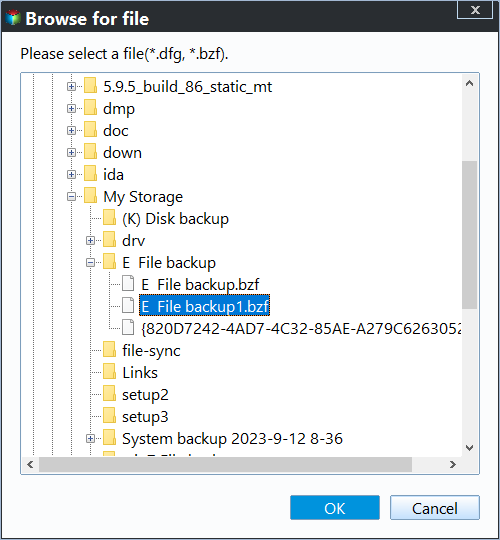
Step 3. You can choose to recover data to a specific location or back to its original location.
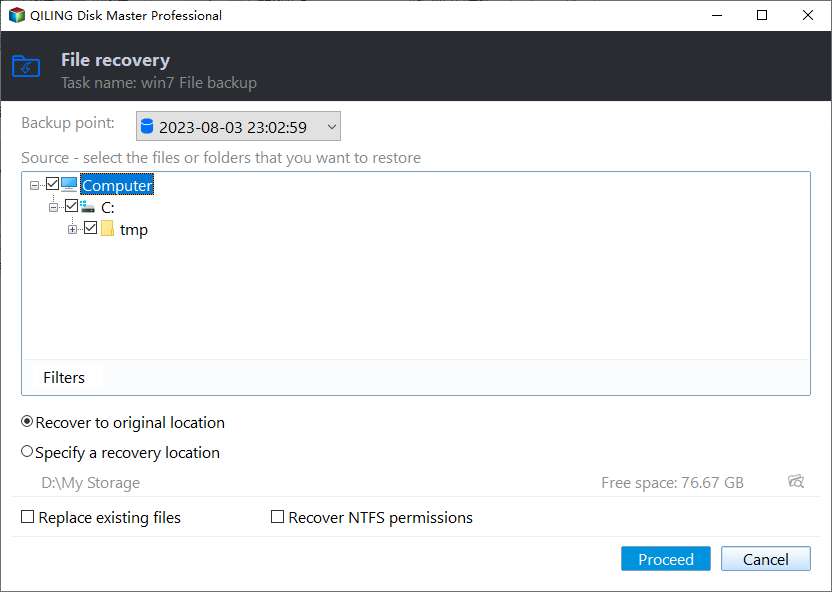
Step 4. Click "Proceed" and the recovery would start.
Method 2. Using QuickBooks Built-in Tool
With QuickBooks' built-in tool, you can transfer backup files to a new computer using the built-in QuickBooks tool, allowing you to restore your data without additional software. The process is straightforward and can be completed in just a few steps: first, back up your QuickBooks data, and then restore it to the new computer. This tool enables you to quickly and easily get your QuickBooks up and running on the new computer.
How to Backup QuickBooks
Follow the following steps to back up your QuickBooks:
Step 1. To access QuickBooks in single-user mode, first log in while only allowing one user, and if you're already logged in, switch to single-user mode from the File menu.
Step 2: Select the Back Up Company option under the File menu.
Step 3. Choose Create Local Backup and select Local Backup.
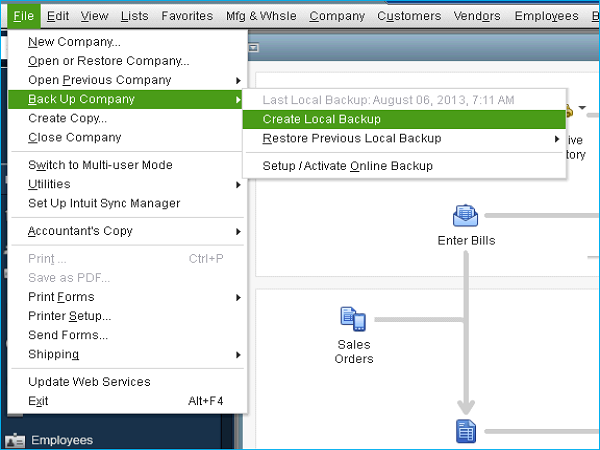
Step 4. To back up your data, click the Options button and select a location for the backup. It is advisable to store it online or on an external hard drive.
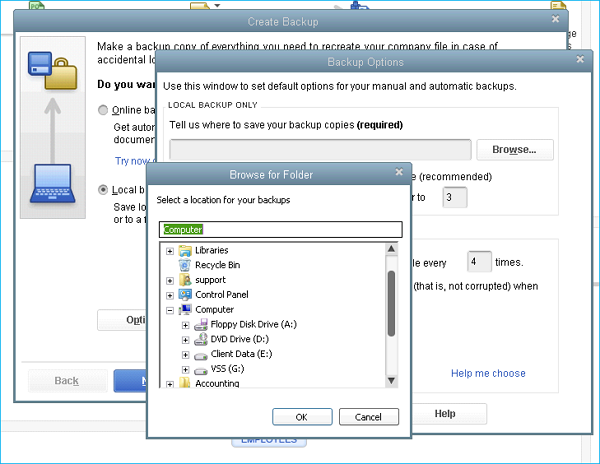
Step 5. Press the OK button, then press the Next button.
Step 6. To start the backup process, select the "Save it now" option and click "OK".
How to Restore the QuickBooks to a New Computer
To restore QuickBooks on a new computer, transfer the data file from the old computer to the new one and install the QuickBooks software on the new computer.
Here are the steps to follow:
Step 1. Install QuickBooks on your new computer.
Step 2. To locate the backup file on an old computer, navigate to the QuickBooks folder on the Local Disk (C:) and look for the listed backup file. The exact name of the file should be recalled.
Step 3. Once you've located the backup file, copy it to a USB drive or other external storage device to transfer the file to the new computer.
Step 4. Connect the external flash drive to your new PC, then copy the files from the flash drive to the new QuickBooks Data folder you just created on your computer.

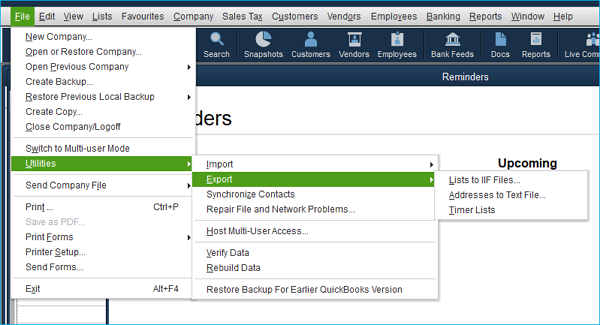
Step 5. To restore QuickBooks on your new computer, open the software and select File > Utilities > Restore.
To restore the backup file on the new computer, locate the backup file and select it, then follow the prompts to complete the restoration process.
The Bottom Line
Restoring QuickBooks to a new computer is easy as long as you have a recent backup of your company file and the appropriate installation files. With the help of a tool like Qiling Disk Master Pro, you can ensure your QuickBooks data is properly transferred, allowing you to use it on your new computer without any problem.
To restore QuickBooks to a new computer, follow the steps outlined in this article, ensuring your financial information remains safe and secure. Regularly backing up your company file is crucial to protect against potential data loss. By doing so, you can transfer your QuickBooks data to the new computer with confidence.
FAQs
1. Why can't I restore my QuickBooks backup?
The inability to restore a QuickBooks backup can be due to various reasons, including issues with the backup file itself, problems with the QuickBooks software or installation, or conflicts with other programs or system settings. Additionally, the backup file may be corrupted or incomplete, or the restore process may be interrupted by a system crash or other technical issues.
1. The backup file is corrupt or damaged, possibly due to improper saving or software issues like glitches or bugs.
2. An existing company file is being restored over the backup.
3. The backup file is not compatible with your current QuickBooks version. Ensure you're using the correct QuickBooks version that matches the backup file.
2. Can I uninstall QuickBooks and reinstall without losing my data?
To uninstall and reinstall QuickBooks on your PC, first, create a backup of your QuickBooks data file to avoid losing any important information. Then, go to the Control Panel, select "Programs and Features" (in Windows 10), or "Add or Remove Programs" (in older Windows versions), and find QuickBooks in the list. Click on it and select "Uninstall.
3. Can QuickBooks files be stored in OneDrive?
You can back up QuickBooks data and store it in OneDrive. This allows you to upload the files to your OneDrive account and access them when needed.
4. Does QuickBooks keep your data?
QuickBooks stores and keeps your financial data in the software, which can be stored on your computer or USB flash drive, or accessed through QuickBooks Online, a cloud-based option.
Related Articles
- Suggestions for SD Card Backup Devices [Hot in 2024]
- Two Ways: Encrypt Backup Drive to Protect Your Data
- Why Do My Favorites Keep Disappearing in Outlook 365[Cause & Solution]
- For Backup Beginners: Windows 11 Backup vs Windows 10 Backup vs Qiling Disk Master
- Tips for Clean Install Windows 10 without Losing Data
- How to Create Clonezilla Bootable USB in Windows [Quick & Easy]🔥
- How to Backup Photos to pCloud on Various Devices [Solved]🔥
PCloud is an efficient and secure cloud storage service compared to its contemporaries. If you want to know how to back up photos to pCloud on various devices and access from there, here's a detailed guide. Find the step-by-step guides for various devices.
Products
Articles & Tutorials
- Data Recovery
- Data Backup
- File Recovery
- File Backup
- System Backup and Restore
- Disk and Partition Clone
- Technical articles
- Mobile articles
- Disk Master Help
- Windows Data Recovery Tutorials
- Windows Secure Delete Tutorials
- Windows Partition Management Tutorials
- Windows File Backup and Restore Tutorials
- Windows System Backup and Restore Tutorials
- Windows Disk Backup and Restore Tutorials
- Windows Clone Tutorials