Best RAM Disk Software for Windows 11 in 2026
A RAM disk turns part of your computer's memory into an ultra-fast virtual drive. It is ideal for temporary files, browser cache, and editing scratch space, because RAM is many times faster than even the quickest SSD. Windows 11 does not include a built-in RAM disk tool, so you need third-party software. The challenge is choosing the right one — some are free and open-source, others are commercial with advanced features, and a few double as full system utilities.
This guide reviews the best RAM disk software for Windows 11 in 2026, compares them on the features that matter, and shows how to create your first RAM disk using Qiling Disk Master, our top pick for combining a one-click RAM disk with system backup and partition tools.
PAGE CONTENT
- What to Look for in a RAM Disk Tool
- Best RAM Disk Software Compared
- 1. Qiling Disk Master — Best Overall
- 2. ImDisk Toolkit — Best Free and Open Source
- 3. SoftPerfect RAM Disk — Best for Power Users
- 4. Primo Ramdisk — Best for Advanced Features
- 5. OSFMount and Other Options + FAQs
- Back Up Windows Before You Change Settings
What to Look for in a RAM Disk Tool
Not every RAM disk tool is equal. Keep these factors in mind when comparing options:
- Ease of use — a one-click setup is far easier than editing configuration files.
- Maximum size — some tools cap the RAM disk size unless you pay or register.
- File systems — support for NTFS, FAT32, and exFAT covers all common needs.
- Auto-mount at startup — the disk should be ready as soon as Windows boots.
- Persistence — some tools can save the RAM disk to an image file and restore it on boot.
- Extra tools — backup, partition, and migration features add value to a system utility.
Balancing these factors is what separates a good RAM disk tool from a frustrating one.
Best RAM Disk Software Compared
| Tool | Price | Best For | Highlights |
|---|---|---|---|
| Qiling Disk Master | Free tier + paid | All-in-one users | One-click RAM disk, backup, partition tools |
| ImDisk Toolkit | Free | Open-source fans | No size limit, persistent images |
| SoftPerfect RAM Disk | Paid (trial) | Power users | Up to many disks, dynamic allocation |
| Primo Ramdisk | Paid (trial) | Advanced needs | Dynamic memory, image files, fine control |
| OSFMount | Free | Image mounting | Mounts images and creates RAM disks |
The sections below explain each option and who it suits best.
1. Qiling Disk Master — Best Overall
Qiling Disk Master is our top pick because it combines a one-click RAM disk with a full suite of disk and backup utilities. You do not need a separate tool for RAM disks, partitions, and backups — it is all in one place. The free edition includes the RAM disk feature, so you can try it without cost.
Why it stands out:
- One-click RAM disk creation with a simple dialog
- Choose your own drive letter, size, and file system (NTFS, FAT32, exFAT)
- Auto-mounts the RAM disk early in the boot process
- Bundled backup, restore, and partition management tools
- Clean, beginner-friendly interface
How to create a RAM disk with Qiling Disk Master:
Step 1. Download and install Qiling Disk Master.
Step 2. Open the program and go to the Tools and Utilities page.
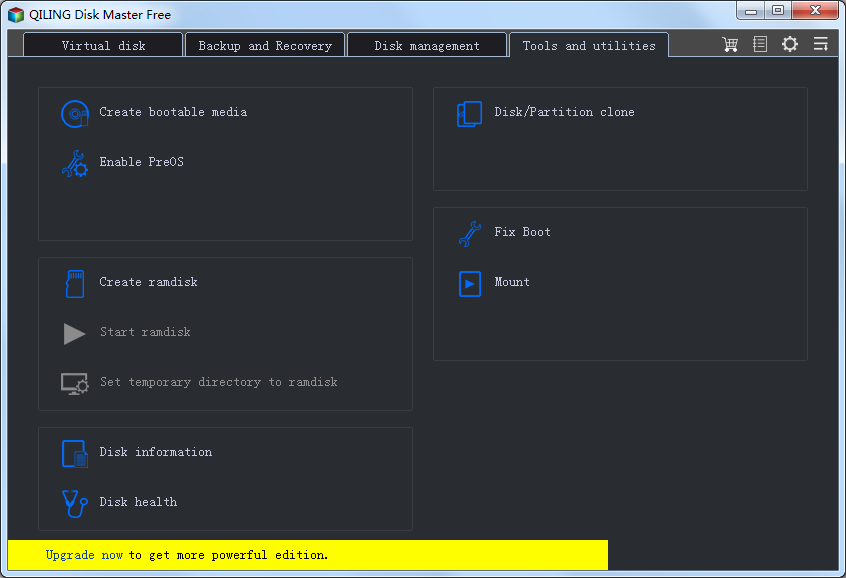
Step 3. Click Create ramdisk to open the configuration dialog.
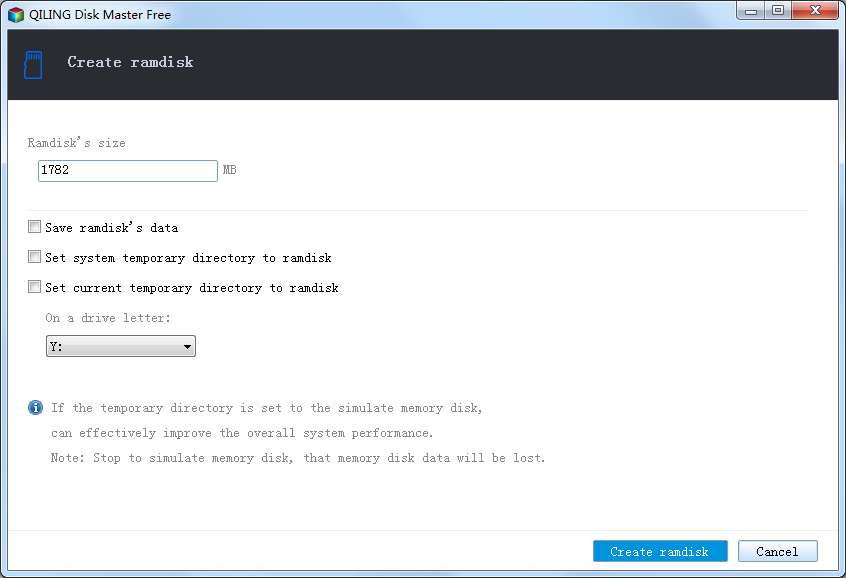
Step 4. Set the size, choose a drive letter, select NTFS, and enable auto-mount at startup.
Step 5. Click the Create ramdisk button. The new drive is ready in File Explorer.
For a full step-by-step walkthrough, see How to Create a RAM Disk in Windows 11.
2. ImDisk Toolkit — Best Free and Open Source
ImDisk Toolkit is a popular free and open-source option. It is digitally signed, works on 64-bit Windows without test mode, and places no practical limit on RAM disk size. It can also save the RAM disk to an image file and restore it at boot, which is useful if you want data to survive restarts.
Best for: users who prefer free, auditable software and want advanced control.
Trade-offs: the interface is more technical than commercial tools, and there are fewer hand-holding guides. It focuses on virtual disks and images rather than system backup.
3. SoftPerfect RAM Disk — Best for Power Users
SoftPerfect RAM Disk is a commercial tool aimed at power users. It supports creating many RAM disks at once, uses dynamic memory allocation so RAM is consumed only as files are written, and can persist contents through image files. It supports FAT, FAT32, exFAT, and NTFS including compression.
Best for: users who run multiple RAM disks and want fine-grained control.
Trade-offs: it is paid after a trial, and it does not include backup or partition tools.
4. Primo Ramdisk — Best for Advanced Features
Primo Ramdisk offers deep configuration: dynamic memory management, image files for persistence, and detailed performance tuning. It is designed for users who want to squeeze the most from a RAM disk and are comfortable with more options.
Best for: advanced users who need maximum control over memory behavior.
Trade-offs: commercial license, steeper learning curve, and features many everyday users will never touch.
5. OSFMount and Other Options + FAQs
OSFMount is a free tool from PassMark that mounts disk images and can also create RAM disks. It is a good fit if your main need is working with image files rather than a permanent RAM disk. Other tools such as AMD Radeon RAMDisk and Dataram RAMDisk exist but are older and free only up to a limited size, so they are less compelling in 2026.
Which RAM disk tool is best for beginners?
Qiling Disk Master. Its one-click RAM disk dialog and bundled utilities make it the easiest to set up and the most useful day to day.
Which is the best free RAM disk tool?
For open-source fans, ImDisk Toolkit is excellent and unrestricted. Qiling Disk Master also offers a free edition that includes the RAM disk feature.
Do I need a paid RAM disk tool?
Not necessarily. Free tools cover most needs. Paid tools add features like unlimited disks, dynamic allocation, and persistence, which matter mainly to power users.
Can these tools replace an SSD?
No. A RAM disk is volatile and limited by your spare memory. It complements an SSD for temporary data; it cannot store your operating system or important files permanently.
Back Up Windows Before You Change Settings
Creating a RAM disk is safe, but a backup protects your system if you also change other settings. Qiling Disk Master creates a full Windows image you can restore from if anything goes wrong.
Part 1: Create a Full System Backup
Step 1. Install and open Qiling Disk Master. On the home screen, open "Backup and Recovery" and choose "System Backup". This option automatically includes Windows and the hidden boot partitions, so you do not have to select them one by one.

Step 2. Check the source. The disk where Windows is installed and its system partitions are already ticked for you. If you only need your personal documents, run a separate "File Backup" task instead.

Step 3. Click the destination box and choose where the image should be saved. Use an external HDD or SSD, a NAS, or any drive other than the one Windows is installed on, and make sure it has enough free space.

Step 4. Review the task summary and click "Proceed". Wait until the progress bar reaches 100%. Do not unplug the drive or turn off the PC while the backup is running.

Part 2: Restore Windows from the Backup
Step 1. Open Qiling Disk Master again, go to "Backup and Recovery", and select the recovery option. Your backup images are listed, so pick the one you created before the changes began.

Step 2. Choose the target disk or partition. Normally you restore to the original system disk. If the drive was replaced, select the new disk instead, and the restore rebuilds Windows together with its boot partitions.

Step 3. Preview the restore plan, click "Proceed", and confirm the warning. The PC restarts to finish the job, and Windows comes back exactly as it was on the day the image was created, with your files and programs intact.

- Note
- Keep the backup image on a separate drive, and refresh it before installing new system utilities.
Conclusion
The best RAM disk software for Windows 11 depends on your needs. Qiling Disk Master is the best overall choice: it offers a one-click RAM disk, a clean interface, and bundled backup and partition tools in one package. ImDisk Toolkit is the best free, open-source option with no size limit. SoftPerfect RAM Disk and Primo Ramdisk suit power users who want dynamic allocation and persistence, while OSFMount is handy for image work. Whatever you choose, create a RAM disk of 2-8 GB, use NTFS, and enable auto-mount at startup for the smoothest experience.
Protect your PC with Qiling Backup—create a system image before your next round of settings changes.
For more Windows 11 performance guides, see How to Create a RAM Disk in Windows 11, SSD Cache vs RAM Disk, Move TEMP Folder to RAM Disk, Use a RAM Disk for Video Editing, and Windows 11 Fast Cache.
Related Articles
- SoftPerfect RAM Disk vs Qiling RAM Disk: Which Is Better?
- How to Move Browser Cache to RAM Disk in Windows 11
- Windows 11 Guide: Features, Upgrade Tips and What to Know
- How to Speed Up Programming Builds with a RAM Disk on Windows 11
- Is a RAM Disk Worth It? An Honest Look at Speed and Risk
- What to Do with a Spare SSD: 5 Practical Uses
Products
Articles & Tutorials
- Data Recovery
- Data Backup
- File Recovery
- File Backup
- System Backup and Restore
- Disk and Partition Clone
- Technical articles
- Mobile articles
- Disk Master Help
- Windows Data Recovery Tutorials
- Windows Secure Delete Tutorials
- Windows Partition Management Tutorials
- Windows File Backup and Restore Tutorials
- Windows System Backup and Restore Tutorials
- Windows Disk Backup and Restore Tutorials
- Windows Clone Tutorials