Is a RAM Disk Worth It? An Honest Look at Speed and Risk
A RAM disk turns part of your memory into a drive that is faster than any SSD on the market. That sounds like free performance, and for some workloads it genuinely is. For others it is a waste of memory that makes the PC slower overall. The honest answer is that a RAM disk is worth it when three conditions are met at the same time: you have memory to spare, the data is temporary, and the workload is storage-bound. This guide shows you how to tell whether that describes your PC.
PAGE CONTENT
- What a RAM Disk Actually Gives You
- The Real Cost: Memory You Cannot Use Elsewhere
- When a RAM Disk Is Clearly Worth It
- When a RAM Disk Is a Waste
- RAM Disk vs SSD Cache vs More RAM
- How to Try It Without Regret
- FAQs About RAM Disk Value
- Back Up Windows Before You Change Settings
What a RAM Disk Actually Gives You
A RAM disk takes a slice of your memory and exposes it as a normal drive letter. Windows can format it, applications can save to it, and its speed is measured in tens of thousands of megabytes per second with essentially no latency, compared with a few thousand for a fast NVMe SSD.
Three benefits come from that speed:
- Extreme throughput for temporary data — scratch files, caches, and intermediate output.
- No wear on your SSD, because constant small writes go to memory instead of flash storage.
- A clean slate at every boot, since the contents disappear at shutdown, so temporary files never accumulate.
Two limitations come with it:
- The memory is no longer available to Windows or your applications. A 8 GB RAM disk on a 32 GB machine leaves 24 GB for everything else.
- Everything is lost at shutdown or on a power failure. Not just inconvenient — fatal, if the only copy of a file lives there.
The Real Cost: Memory You Cannot Use Elsewhere
The speed of a RAM disk is easy to see in a benchmark. The cost is easy to miss, because it does not show up in a single measurement — it shows up as paging.
Windows uses free memory for two important jobs: caching files you read and keeping application data resident. When you shrink that pool to build a RAM disk, two things can happen. First, the system may start paging to disk more often, and paging is far slower than the RAM you just removed. Second, applications that used to stay fully in memory may now have to reload parts of themselves.
The result is a familiar pattern: the RAM disk looks incredibly fast in a test, while the machine as a whole feels no better and sometimes feels worse. The way to avoid it is to leave a healthy margin. A practical rule is to keep at least 8 GB for Windows and your applications, and to build a RAM disk only from what remains.
- Note
- If you are short of memory, a RAM disk makes the problem worse, not better. Add RAM first; then decide whether a RAM disk is still worth it.
When a RAM Disk Is Clearly Worth It
A RAM disk pays off when the data is disposable, heavily rewritten, and repeatedly read. Common cases:
- Browser cache — thousands of small writes a day, none of which matter after you close the browser. See Move Browser Cache to a RAM Disk.
- The Windows TEMP folder — installers, extractors, and editors fill and empty it constantly. See Move the TEMP Folder to a RAM Disk.
- Application scratch space — photo and video editors writing temporary render data.
- Compiler and build output — object files and package caches regenerated on every build. See Speed Up Programming Builds with a RAM Disk.
- Test and benchmark workspaces — scenarios where you want repeatable, storage-independent results.
In all of these, a power failure costs you nothing you cannot recreate, and the memory you spend is buying real time back.
When a RAM Disk Is a Waste
- Machines with 8 GB of RAM. Windows and a browser already fill that. There is nothing left to give a RAM disk safely.
- Storing documents, photos, or projects. Volatile storage is the wrong place for the only copy of anything. SSD wear from saving documents is negligible.
- The page file. A RAM disk page file uses the memory it is supposed to supplement. See Should You Put the Page File on a RAM Disk?.
- Installing games or large applications. They do not fit in a sensible RAM disk, and they are installed once, so there is no repeated-write benefit.
- Fixing CPU or GPU-bound slowness. If the bottleneck is not storage, faster storage changes nothing.
- A PC that already has a fast NVMe SSD. The gain shrinks considerably, because the drive you are bypassing is already quick.
RAM Disk vs SSD Cache vs More RAM
| RAM disk | SSD cache | More RAM | |
|---|---|---|---|
| Speeds up | Apps you point at the RAM disk | Everything on the cached drive | Everything, until memory runs out |
| Survives a reboot | No, always empty | Yes, cache stays warm | Not applicable |
| Uses memory | Yes, the full size you allocate | Optionally, a small slice | No, it adds memory |
| Requires purchasing hardware | No | Only if you lack a spare SSD | Yes, memory modules |
| Best for | Temp files, caches, scratch data | Slow system or data drives | Machines that are paging heavily |
These options are not mutually exclusive. A common, sensible combination is more RAM if the machine pages constantly, an SSD cache for the drive that holds your system and projects, and a small RAM disk for temporary files.
How to Try It Without Regret
Step 1. Check how much memory you actually have free. Open Task Manager, look at the Performance tab, and note the available memory at a typical workload.
Step 2. Download and install Qiling Disk Master. The free edition includes the RAM disk feature.
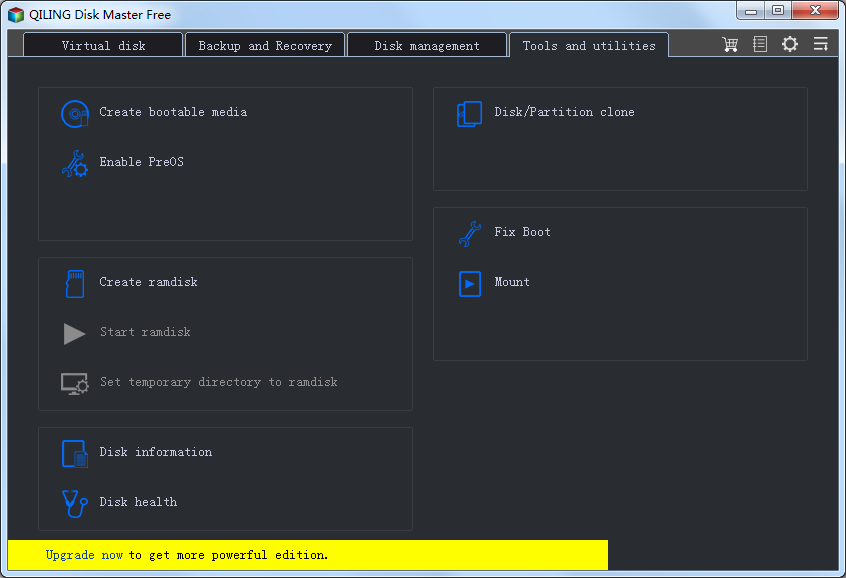
Step 3. Open the Tools and Utilities page and click Create ramdisk.
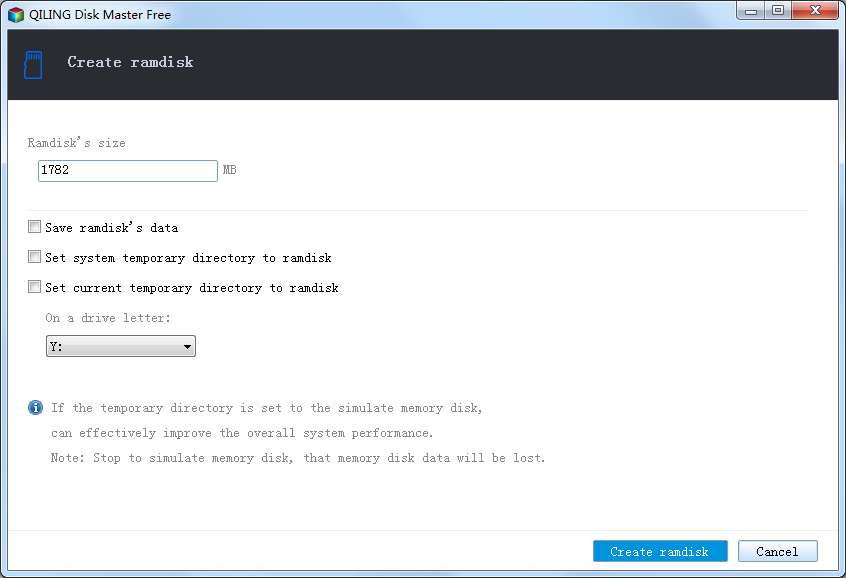
Step 4. Allocate no more than half of your available memory, choose a drive letter such as R:, pick NTFS, and enable mounting at startup.
Step 5. Move one workload to it, not five. Start with the browser cache or the TEMP folder so you can measure a single change.
Step 6. Use the PC normally for a few days. If everything feels the same or worse, delete the RAM disk and reclaim the memory — you have lost nothing but a test.
FAQs About RAM Disk Value
How much RAM do I need for a RAM disk to be worth it?
16 GB is the practical minimum for a small RAM disk, and 32 GB or more is comfortable. Below that, Windows usually needs all the memory you have.
Does a RAM disk really make Windows faster?
It makes the workloads you place on it faster. Windows as a whole only speeds up if those workloads were waiting on storage, and it can slow down if the missing memory forces more paging.
Will a RAM disk extend my SSD's life?
It can, by moving repeated temporary writes into memory. For typical use the effect is modest, but for heavy write workloads such as builds and video scratch files it is measurable. See How to Extend Your SSD Lifespan.
Is a RAM disk better than a caching tool like Fast Cache?
They solve different problems. A RAM disk gives applications a fast place to put files you explicitly send there; a cache accelerates the drive you already use without moving anything. Many users run both.
What happens to my data when the PC restarts?
It is gone. A RAM disk is recreated empty at every boot, which is a feature for temporary files and a trap for anything else.
Can I make a RAM disk persist across reboots?
Some tools can save and restore a disk image, but that adds complexity and startup time, and it defeats the purpose of using memory for disposable data. Treat a RAM disk as volatile storage.
Back Up Windows Before You Change Settings
Creating a RAM disk is safe, but if you also move environment variables or system paths, a backup protects your setup. Qiling Disk Master creates a full Windows image you can restore from if anything goes wrong.
Part 1: Create a Full System Backup
Step 1. Install and open Qiling Disk Master. On the home screen, open "Backup and Recovery" and choose "System Backup". This option automatically includes Windows and the hidden boot partitions, so you do not have to select them one by one.

Step 2. Check the source. The disk where Windows is installed and its system partitions are already ticked for you. If you only need your personal documents, run a separate "File Backup" task instead.

Step 3. Click the destination box and choose where the image should be saved. Use an external HDD or SSD, a NAS, or any drive other than the one Windows is installed on, and make sure it has enough free space.

Step 4. Review the task summary and click "Proceed". Wait until the progress bar reaches 100%. Do not unplug the drive or turn off the PC while the backup is running.

Part 2: Restore Windows from the Backup
Step 1. Open Qiling Disk Master again, go to "Backup and Recovery", and select the recovery option. Your backup images are listed, so pick the one you created before the changes began.

Step 2. Choose the target disk or partition. Normally you restore to the original system disk. If the drive was replaced, select the new disk instead, and the restore rebuilds Windows together with its boot partitions.

Step 3. Preview the restore plan, click "Proceed", and confirm the warning. The PC restarts to finish the job, and Windows comes back exactly as it was on the day the image was created, with your files and programs intact.

- Note
- Keep the backup image on a separate drive, and refresh it before changing environment variables or system paths.
Conclusion
A RAM disk is worth it when you have spare memory, the data you put there is disposable, and the workload is limited by storage. It is a waste when the machine is short of memory, when you are trying to protect real files, or when the bottleneck is not the disk. Allocate at most half of your available memory, start with one workload such as the browser cache or the TEMP folder, and keep at least 8 GB for Windows. If you want acceleration without spending memory, let Qiling Fast Cache use a spare SSD as a persistent cache instead, and reserve the RAM disk for genuinely temporary data.
Protect your PC with Qiling Backup—create a system image before your next round of settings changes.
For more Windows 11 performance guides, see How to Create a RAM Disk in Windows 11, How to Use Extra RAM to Speed Up Your PC, SSD Cache vs RAM Disk, What Is Cache Warm-Up?, and Cache vs Buffer.
Related Articles
- How to Create a RAM Disk in Windows 11: Step-by-Step Guide
Create the drive and see what it is best used for. - How to Use Extra RAM (16GB/32GB) to Speed Up Your PC
Memory sizing guidance before you commit RAM to a virtual drive. - SSD Cache vs RAM Disk: Which Speeds Up Windows 11 More?
- Should You Put the Page File on a RAM Disk?
- Cache vs Buffer: What's the Difference?
- How to Speed Up an Old Laptop with a Disk Cache
Products
Articles & Tutorials
- Data Recovery
- Data Backup
- File Recovery
- File Backup
- System Backup and Restore
- Disk and Partition Clone
- Technical articles
- Mobile articles
- Disk Master Help
- Windows Data Recovery Tutorials
- Windows Secure Delete Tutorials
- Windows Partition Management Tutorials
- Windows File Backup and Restore Tutorials
- Windows System Backup and Restore Tutorials
- Windows Disk Backup and Restore Tutorials
- Windows Clone Tutorials