How to Use Extra RAM (16GB/32GB) to Speed Up Your PC
If you recently upgraded to 16 GB or 32 GB of RAM, you may have noticed that most of it sits idle. During everyday tasks like browsing, office work, and light gaming, a modern PC rarely uses more than 8 GB. That leaves a large chunk of very fast memory doing nothing. Fortunately, you can put it to work and make your whole system feel faster.
This guide explains why extra RAM goes unused and then shows three practical ways to turn it into speed: creating a RAM disk with Qiling Disk Master, using RAM as a disk cache with Qiling Fast Cache, and moving temporary and cache files into memory. Each method comes with clear steps and guidance on how much memory to allocate.
PAGE CONTENT
- Why Extra RAM Sits Unused
- Three Ways Extra RAM Can Speed Up Your PC
- Method 1: Create a RAM Disk
- Method 2: Use RAM as a Disk Cache
- Method 3: Move TEMP and Browser Cache to RAM
- How Much RAM to Allocate
- Best Practices + FAQs
- Back Up Windows Before You Change Settings
Why Extra RAM Sits Unused
RAM is fast but it is not a storage drive. Windows uses memory for running programs, and once your open apps have what they need, the rest just sits there. Unlike storage, unused RAM cannot be "filled" with files the way an empty SSD can. That is why adding more RAM does not automatically make a PC faster — it only helps when you actually use the extra capacity.
Modern PCs also have a lot of headroom. If your typical workload uses 6-8 GB, then a 32 GB machine leaves more than 20 GB idle. That unused memory is wasted potential, and it is exactly the resource that RAM disks and RAM caches are designed to exploit.
Three Ways Extra RAM Can Speed Up Your PC
There are three main ways to convert spare RAM into real speed gains:
- RAM disk — a virtual drive in memory for temporary files, browser cache, and scratch data. Extreme speed, wiped on reboot.
- RAM cache — a cache that keeps frequently read data from your drives in memory, speeding up repeat reads on a slow drive.
- Relocating temp and cache — pointing Windows TEMP and your browser cache at a RAM disk so those writes happen in memory, not on your SSD.
The three methods work together. The sections below show how to set up each one.
Method 1: Create a RAM Disk
A RAM disk is the most direct use of spare memory: it becomes a real drive that reads and writes at memory speed.
Step 1. Download and install Qiling Disk Master.
Step 2. Open the Tools and Utilities page.
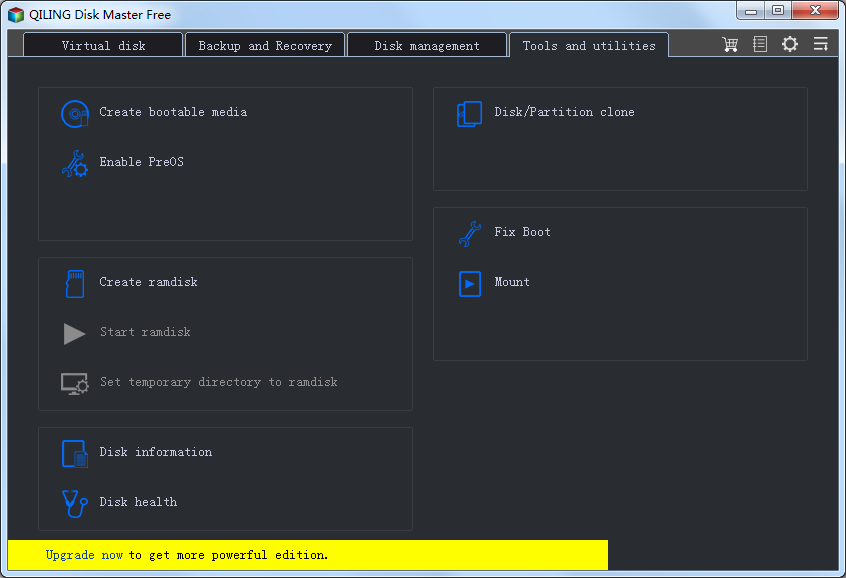
Step 3. Click "Create ramdisk".
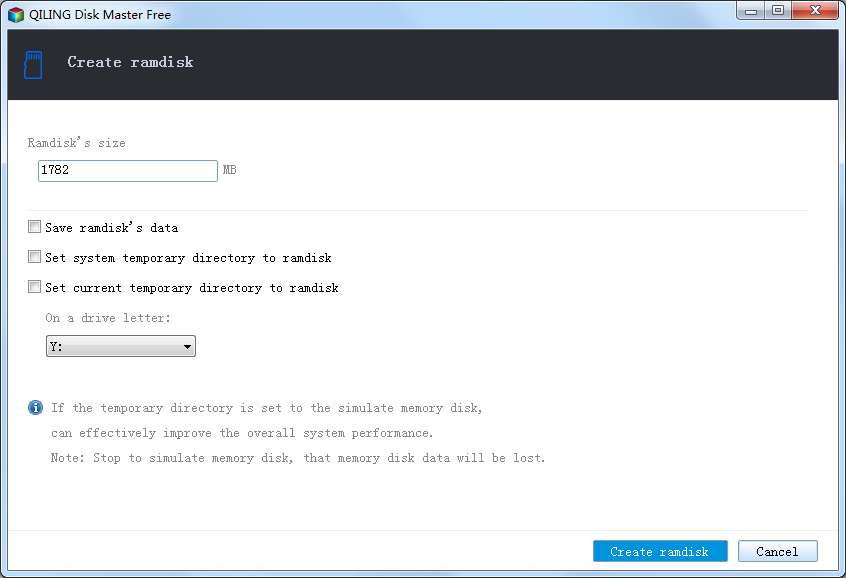
Step 4. Set the size. With 16 GB total, use 2-4 GB. With 32 GB, use 4-8 GB. Leave at least half your RAM for Windows and your apps.
Step 5. Choose a drive letter and file system. Pick an unused letter like R: and choose NTFS. Enable auto-mount at startup, then click the Create ramdisk button.
Step 6. Use the new drive. You can now move temp files, browser cache, or scratch data to it. For full details, see How to Create a RAM Disk in Windows 11.
Method 2: Use RAM as a Disk Cache
If your bottleneck is a slow hard drive, a RAM cache speeds up repeat reads across the whole drive, without you having to move any files.
Step 1. Download and install Qiling Fast Cache.
Step 2. Open the app and click the + button to create a cache task.

Step 3. Select RAM as the cache type and enter a size. With 16 GB, use 2-4 GB; with 32 GB, use 4-8 GB.
Step 4. Choose the drive to accelerate — usually the HDD holding Windows or your data — and click OK.

Step 5. Watch the hit rate. The main window shows how much data is cached and how often reads come from the cache. A hit rate above 50% is a good sign.

For the full guide, see Windows 11 Fast Cache: Speed Up HDD with RAM and SSD Cache.
Method 3: Move TEMP and Browser Cache to RAM
Once you have a RAM disk, the easiest wins are moving the Windows TEMP folder and your browser cache onto it.
Windows TEMP folder:
- Create a folder on the RAM disk, such as R:\TEMP.
- Press Win + R, type sysdm.cpl, and open Advanced > Environment Variables.
- Change the user and system TEMP and TMP variables to R:\TEMP and restart.
Full steps: How to Move Windows TEMP Folder to a RAM Disk.
Browser cache:
- For Chrome and Edge, add
--disk-cache-dir="R:\Cache"to the shortcut Target. - For Firefox, set
browser.cache.disk.parent_directoryto R:\Cache inabout:config.
Full steps: How to Move Browser Cache to RAM Disk in Windows 11.
How Much RAM to Allocate
The golden rule is to leave at least half your RAM for Windows and your applications. Use this table as a guide.
| Total RAM | RAM disk | RAM cache | Keep free |
|---|---|---|---|
| 16 GB | 2-4 GB | 2-4 GB | At least 8 GB |
| 32 GB | 4-8 GB | 4-8 GB | At least 16 GB |
| 64 GB | 8-16 GB | 8-16 GB | At least 32 GB |
If you are unsure, start small. A 2 GB RAM disk plus a 2 GB cache is enough to feel the benefit, and you can increase the sizes later once you confirm the system stays responsive.
Best Practices + FAQs
- Do not allocate too much. If Windows starts using the page file heavily, you have taken too much memory. Reduce the sizes.
- Use one cache tool per drive. Do not stack multiple caching tools on the same disk.
- Keep important files on real drives. RAM disk contents vanish on shutdown, so store only temporary or replaceable data there.
- Recreate folders at startup. Add a small startup script so cache and temp folders on the RAM disk exist after every reboot.
Will adding more RAM alone make my PC faster?
Not by itself if your current RAM is already enough. The speedup comes from using the spare memory, for example as a RAM disk or RAM cache.
Is it safe to use so much RAM for a disk and cache?
Yes, as long as you leave enough free. The rules above keep at least half your RAM available, which is plenty for Windows and typical apps.
Can I use a RAM disk and a RAM cache together?
Yes. They complement each other: the cache speeds up reads from your existing drives, while the RAM disk provides a fast location for temporary writes.
Do I still need an SSD if I have lots of RAM?
Yes. RAM is volatile and small, so you still need an SSD or HDD for your operating system and files. The RAM disk and cache only supplement your real storage.
Will these methods reduce SSD wear?
Moving temp files and browser cache to a RAM disk does reduce writes to your SSD, which helps extend its life.
Back Up Windows Before You Change Settings
Creating a RAM disk and cache is safe, but if you are also changing environment variables or storage settings, a backup protects your system. Qiling Disk Master creates a full Windows image you can restore from if anything goes wrong.
Part 1: Create a Full System Backup
Step 1. Install and open Qiling Disk Master. On the home screen, open "Backup and Recovery" and choose "System Backup". This option automatically includes Windows and the hidden boot partitions, so you do not have to select them one by one.

Step 2. Check the source. The disk where Windows is installed and its system partitions are already ticked for you. If you only need your personal documents, run a separate "File Backup" task instead.

Step 3. Click the destination box and choose where the image should be saved. Use an external HDD or SSD, a NAS, or any drive other than the one Windows is installed on, and make sure it has enough free space.

Step 4. Review the task summary and click "Proceed". Wait until the progress bar reaches 100%. Do not unplug the drive or turn off the PC while the backup is running.

Part 2: Restore Windows from the Backup
Step 1. Open Qiling Disk Master again, go to "Backup and Recovery", and select the recovery option. Your backup images are listed, so pick the one you created before the changes began.

Step 2. Choose the target disk or partition. Normally you restore to the original system disk. If the drive was replaced, select the new disk instead, and the restore rebuilds Windows together with its boot partitions.

Step 3. Preview the restore plan, click "Proceed", and confirm the warning. The PC restarts to finish the job, and Windows comes back exactly as it was on the day the image was created, with your files and programs intact.

- Note
- Keep the backup image on a separate drive, and refresh it before changing environment variables or storage settings.
Conclusion
Extra RAM is only useful when you put it to work. With 16 GB or 32 GB installed, you can turn spare memory into real speed in three ways: create a RAM disk with Qiling Disk Master for temporary files and scratch data, use RAM cache with Qiling Fast Cache to accelerate a slow drive, and move the Windows TEMP folder and browser cache into memory. The key is to leave at least half your RAM free. Start with a 2-4 GB RAM disk and a 2-4 GB cache, watch how your system responds, and increase the sizes if you have headroom. The result is faster load times, snappier browsing, and less wear on your SSD.
Protect your PC with Qiling Backup—create a system image before your next round of settings changes.
For more Windows 11 performance guides, see How to Create a RAM Disk in Windows 11, Windows 11 Fast Cache, SSD Cache vs RAM Disk, Best RAM Disk Software for Windows 11, and Speed Up Windows 11 with RAM and SSD Cache.
Related Articles
- How to Create a RAM Disk in Windows 11: Step-by-Step Guide
Full walkthrough for creating and sizing a RAM disk with Qiling Disk Master. - Speed Up Windows 11 with RAM Cache and SSD Cache
- Windows 11 Guide: Features, Upgrade Tips and What to Know
- Should You Put the Page File on a RAM Disk? (Short Answer: No)
- How to Speed Up 3D Rendering with a RAM Disk and Disk Cache
- How to Speed Up an Old Laptop with a Disk Cache
Products
Articles & Tutorials
- Data Recovery
- Data Backup
- File Recovery
- File Backup
- System Backup and Restore
- Disk and Partition Clone
- Technical articles
- Mobile articles
- Disk Master Help
- Windows Data Recovery Tutorials
- Windows Secure Delete Tutorials
- Windows Partition Management Tutorials
- Windows File Backup and Restore Tutorials
- Windows System Backup and Restore Tutorials
- Windows Disk Backup and Restore Tutorials
- Windows Clone Tutorials