Fixes for "An Error Occurred While PowerPoint Was Saving the File" in 2023
If you're experiencing the "an error occurred while PowerPoint was saving the file" error, you won't be able to save your file. To resolve this issue, you'll need to troubleshoot the problem, which may be caused by a corrupted file, a problem with your computer's system resources, or an issue with the file itself. Once you've identified the root cause, you can take steps to fix it and save your file successfully.
This article delves into the specifics of the error, providing a detailed explanation of the issue at hand. By breaking down the problem and its potential causes, it aims to equip readers with the knowledge necessary to resolve the issue and get back on track.
Why Is My PowerPoint File Not Saving
Microsoft PowerPoint is a popular software used to create and share presentations with others, often referred to as PPT files with a .ppt extension.
The error "an error occurred while PowerPoint was saving the file" when processing a PowerPoint file can be caused by various factors, including corrupted files, compatibility issues, or insufficient permissions. It may also be triggered by specific file formats or features that are not supported by PowerPoint. In some cases, the issue can be resolved by saving the file in a different format, checking for any corrupted or locked files, or adjusting the file permissions.
- Corrupted data
- File system errors
- Storing files in bad sectors
- Using corrupted photos or other components in any slideshow
There might also be other causes, such as inappropriate PowerPoint application use, filenames being used, etc. The associated error messages typically appear as follows:
- PowerPoint encountered an error that it couldn't resolve. To resolve the issue, save your presentation, close PowerPoint, and restart the program. This will often resolve the problem and allow you to continue working on your presentation.
- The file cannot be saved because it is corrupted.
- The filename is currently in use or cannot be modified by PowerPoint.
To fix the error, you can try the following methods. Firstly, check if the package is installed correctly.
If you always work with Office Software, you may also like the following features:
How Do I Fix "An Error Occurred While PowerPoint Was Saving the File"
If you're facing the error and can't find an easy way to resolve it, you can try the following fixes: go through this part of the article and get it fixed. These different fixes to solve the issue include various solutions that can be applied.
- Fix 1. Check Bad Sectors
- Fix 2. Check File System Error
- Fix 3. Save the File to a New PowerPoint (Save As)
- Fix 4. Sign out of Your Account in PowerPoint
- Fix 5. Check if the File is Opened Somewhere Else
- Fix 6. Verify Your PowerPoint For Corrupted Slides/Images
- Fix 7. Get Rid of ActiveMovie Control From Microsoft Visual Basic Userform
- Fix 8. Repair Microsoft PowerPoint
- Fix 9. Reinstall PowerPoint Application
A professional tool is available to help with the first fix. You will be happy to know that it exists.
Fix 1. Check Bad Sectors
A problem may occur while PowerPoint is saving a file, potentially due to a hard drive fault such as bad sectors, which could also damage the hard drive itself. To identify any issues with your hard drive, you can take specific actions.
You can use Qiling Disk Master Free to check for bad sectors on your hard drive and identify problematic areas, as well as manage partitions, recover partitions, and perform other tasks.
To fix the error, download Qiling Disk Master, which can help resolve the issue for you.
Step 1. Open Qiling Disk Master, right-click the disk to check and select "Surface Test".
Step 2. The operation will be immediately performed and all bad sectors will be marked as red.
Fix 2. Check File System Error
File system errors may be the cause of an issue with PowerPoint saving a document. You can use Qiling Disk Master to check and fix these errors, which can be done in just a few clicks. You can download it to resolve the file system error.
Step 1. Right-click the target partition that has a problem.
Step 2. Choose "Advanced" > "Check File System".
Step 3. Confirm if you want to hide the partition or not.
Step 4. In the Check File System window, select the option to "Fix the error on the disk".
Step 5. Click "Proceed" to check errors on your partition.
Qiling Disk Master is a flexible and helpful program that offers various features, including data recovery, error checking, and more. It's a useful tool for managing your disk.
- Disk surface test
- Fix Office 365 not opening error
- Check disk and change file system types
- Resize, move, extend, shrink, delete, or create disk partition
If you're experiencing issues with disk management or want to check your disk, you can download a tool to help with this.
Fix 3. Save the File to a New PowerPoint (Save As)
If you're unable to save your current PowerPoint presentation, try saving it as a new presentation file. This will create a new file with the same name and location as your original presentation, but with a new file name and extension, such as "presentation_copy.
Step 1. Make a blank presentation first.
Step 2. Hey, if you want to create a new presentation file by pasting the slide material from the previous one into the new one, you can use the "Save As" feature in your presentation software. This way, you can save the current presentation as a new file, while keeping the original file intact.
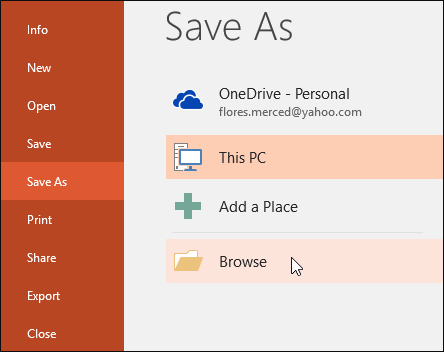
Step 3. Change the file extension last. PPT format should be used if PPTX doesn't work.
Fix 4. Sign out of Your Account in PowerPoint
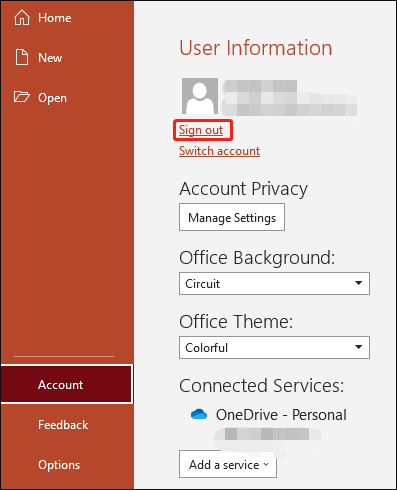
To resolve the issue, try signing out of the Account in PowerPoint by following these simple steps:
Step 1. To select an account in PowerPoint, go to the File menu located in the top left-hand corner of the screen.
Step 2. To log out of your Microsoft account, click the Signout icon.
Fix 5. Check if the File is Opened Somewhere Else
If you're unable to save a presentation in PowerPoint, check if another program has opened the file. If so, close any applications utilizing the file before attempting to save the presentation. This will ensure that the file is available for saving without any conflicts.
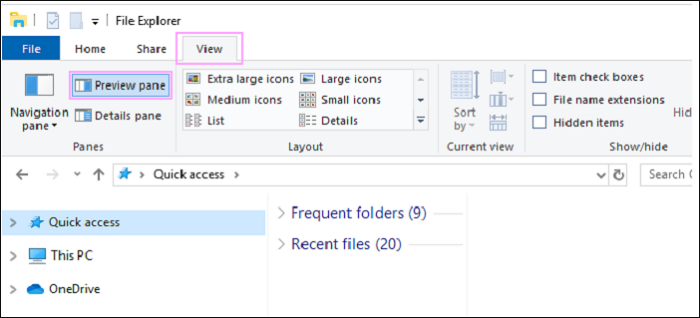
Some users have reported that their files open in read-only mode when the Preview Pane is active in File Explorer, and have suggested turning off the Preview Pane as a possible solution.
Fix 6. Verify Your PowerPoint For Corrupted Slides/Images
To troubleshoot save issues in PowerPoint, focus on identifying specific slides or elements, such as charts or graphics, that might be causing the problem. This targeted approach can help resolve the issue more efficiently.
To resolve the "an error occurred when PowerPoint was saving the file pdf" issue, remove all charts and graphics from slides that cannot be copied and pasted before saving the file. This will help prevent the error from occurring.
You may also like:
Fix 7. Get Rid of ActiveMovie Control From Microsoft Visual Basic Userform
In your presentation, you must eliminate any Visual Basic UserForms containing ActiveMovie controls. Here are some steps to follow;
Step 1. You can cancel the save operation when an error warning appears while saving the PowerPoint file by clicking on the "Cancel" button in the error message dialog box. This will abort the save operation and prevent any further changes from being saved.
Step 2. To create a UserForm with an ActiveMovie control, select the Visual Basic Editor option under Tools and then press Macro. From there, choose UserForm with ActiveMovie control.
Step 3. To remove a UserForm from a VBA project, click Yes in the dialogue box that asks if you want to export the UserForm, then go to the File menu and choose Remove UserForm. After that, you will be prompted to choose a location to save the exported UserForm.
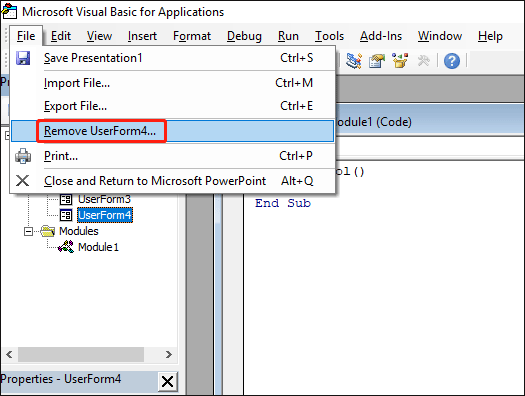
Step 4. To close and return to Microsoft PowerPoint, go to the File menu and select "Close and Return to Microsoft PowerPoint."
If you're experiencing an error while trying to save your PowerPoint presentation, try closing all other programs and background applications, then reopen PowerPoint and try saving again. You can also try saving the presentation to a different location, such as a cloud storage service like OneDrive, or to a different drive on your computer. If the issue persists, you may want to try reinstalling PowerPoint or checking for any updates to the software.
Fix 8. Repair Microsoft PowerPoint
The Microsoft PowerPoint application needs to be fixed if there are any issues. This is the guidance:
Step 1. To access the Run dialogue, press the Win + R key. Then, enter appwiz.cpl to launch the Programs and Features window.
Step 2. To uninstall Microsoft Office or Microsoft 365, look for the app in Programs and Features, click on it, and then click Change. From there, you can select the option to uninstall the app.
Step 3. If the UAC asks you to continue, click Yes, select Quick Repair, and press Repair to put it into action.
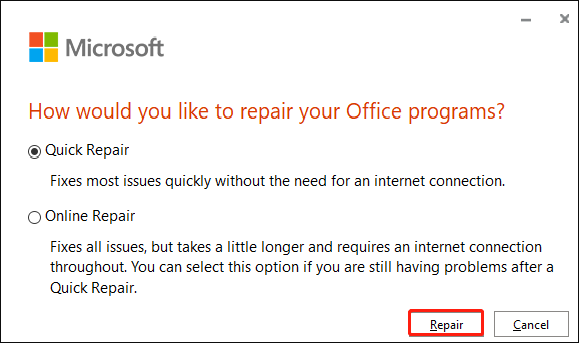
Step 4. I'll wait until the fix is complete before restarting your computer. This will ensure the issue has been resolved. I'm ready when you are.
Fix 9. Reinstall PowerPoint Application
To resolve the issue, try reinstalling the PowerPoint application. You can do this by going to the Microsoft Store, searching for PowerPoint, clicking on the app, and selecting the "Uninstall" option. Once uninstalled, go back to the Microsoft Store, search for PowerPoint again, and click on the "Install" option to reinstall the app.
Step 1. Open the control panel and choose "Programs".
Step 2. To uninstall Microsoft Office, locate the app in the Apps & Features pane, select it, and then choose Uninstall. After that, click Uninstall on the confirmation screen that appears.
Conclusion
If you're experiencing an error when saving a PowerPoint file, there are nine potential fixes to try. Each of these solutions can be explored individually, providing a range of options to resolve the issue.
If you've been struggling to find a solution to your issue, you may have finally found a way to restore your unsaved PowerPoint files. After trying various approaches, you've likely discovered a method that works for you.
If you enjoyed this article, feel free to share it and post a comment below if you need help using Qiling Disk Master or have any suggestions.
FAQ About PowerPoint Can't Save File Error
Are you still facing an issue? You can go through the FAQ section to resolve other issues. Hope it can help.
1. How do I enable saving in PowerPoint?
To save your presentation, navigate to the desired folder, click File, then select Save, enter a desired name in the File name box, and finally click Save.
2. Can you recover a corrupted PowerPoint File?
To recover a corrupted PowerPoint file, right-click on the hard drive containing the damaged presentation, select Properties, go to the Tools tab, and under Error-checking, check the box next to "Check for bad sectors" and "Automatically fix file system errors". This may help repair the file and make it usable again.
3. How do I save a PPTX File?
To save a presentation, select a folder, click File, then Save, enter a desired name in the File name box, and click Save. It's also a good habit to save your work regularly, often using Ctrl+S. This ensures your progress is saved and can be retrieved if needed.
Related Articles
- 7 Solutions to Fix Mac Camera Not Working in 2023
- [Solved] Your Computer Is Low on Memory Windows 7/8/10 in 8 Ways
- Windows Solution: Can't Create Restore Point Windows 10
- Guide on Diskpart Create FAT32 Partition | How to Create FAT32 Partition with Diskpart
- How to Solve LG TV Not Recognizing USB [Ultimate Guide]
Fix LG TV not recognizing USB. Check USB format, drive compatibility, ports, firmware, file system, and simple troubleshooting steps. - What Is the Best LG TV USB Format & How to Set It? [Step-by-Step Guide]
this guide will hely you to choose the suitable format for LG TV USB. And you will also be familiar with the three simplest ways to set the best LG TV USB format.
Products
Articles & Tutorials
- Data Recovery
- Data Backup
- File Recovery
- File Backup
- System Backup and Restore
- Disk and Partition Clone
- Technical articles
- Mobile articles
- Disk Master Help
- Windows Data Recovery Tutorials
- Windows Secure Delete Tutorials
- Windows Partition Management Tutorials
- Windows File Backup and Restore Tutorials
- Windows System Backup and Restore Tutorials
- Windows Disk Backup and Restore Tutorials
- Windows Clone Tutorials