[Fixed] How to Resolve Error Code 43 on Mac with 4 Workable Plans
To fix error code 43 on Mac, you can refer to the chart below to check the specific method, or click "Full steps" to skip to the method. The four ways to fix error code 43 include the methods below.
| Workable Solutions | Step-by-step Troubleshooting |
|---|---|
| 1. Rese NVRAM on Mac | Turn off your Mac by clicking "Shut Down" in the Finder...Full steps |
| 2. Use Disk Utility | Activate mac restart. If you want to access the Apple menu, you may do so by Restart...Full steps |
| 3. Delete Locked Files |
Open and run Terminal on Mac. Type chflags -R nouchg and click Spacebar...Full steps |
| 4. Force Quit Finder | Select Force Quit from the Apple menu, find Finder, and click Relaunch...Full steps |
Error Code 43 on Mac Overview
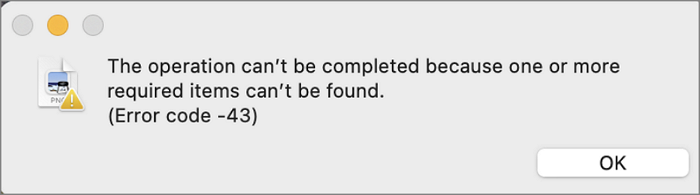
Mac users may encounter problems such as error 43, error code 36, and error code 1309, despite the streamlined and safe macOS base system, with error 43 being shown when an operation is unable to be finished due to one or more needed objects being unable to be discovered.
On a Mac, error code 43 may occur when trying to delete, copy, or transfer images to an external disk, or even when trying to remove anything on the Mac itself. This issue will be explained and resolved in the article.
Why Does Error Code 43 Appear on Mac
The macOS error code 43 may occur at any time, but is most often seen when transferring files from a USB device, such as removing files from a flash drive or moving them to the Mac's storage.
Error code 43 on a Mac can be caused by various factors, including a faulty or malfunctioning USB device, a corrupted system file, a software conflict, or an issue with the USB port itself. It can also occur when the system is unable to communicate with the USB device, or if the device is not properly initialized.
- This error can occur if the location on the disk where your files are stored doesn't have any shared points.
- That's correct. The files you're trying to access may have been deleted, moved, or are no longer available due to various reasons such as server issues, file corruption, or intentional removal.
- There's a risk that the disk or partition where your data is stored may become unusable or corrupted.
- Error code 43 can occur when trying to access a file with a name containing special symbols that are not allowed in Mac.
How to Fix Error Code -43 on Mac [4 Proven Ways]
If the causes of the issue are not the actual reason for the error, you may still encounter the problem. To repair the mac code 43 error while copying files, you can try the following specific solutions. These steps can help you quickly resolve the issue.
Fix 1. Reset PRAM and NVRAM on Mac
Your Mac's PRAM or NVRAM firmware may generate error 43 due to faulty PRAM or NVRAM, which store system configurations, causing errors like error code 43 USB. Resetting PRAM or NVRAM can resolve the issue.
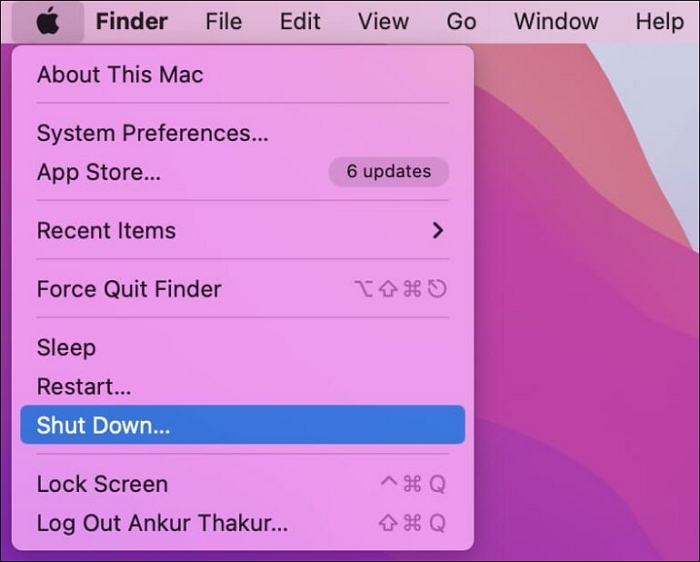
Step 1. To turn off your Mac, click on the Apple logo in the top left corner of the screen, then select "Shut Down" from the drop-down menu in the Finder. This will immediately power down your computer.
Step 2. Wait for your Mac to shut down, then restart it by pressing the Power button. As it restarts, press and hold the Command, Option, P, and R keys for 20 seconds.
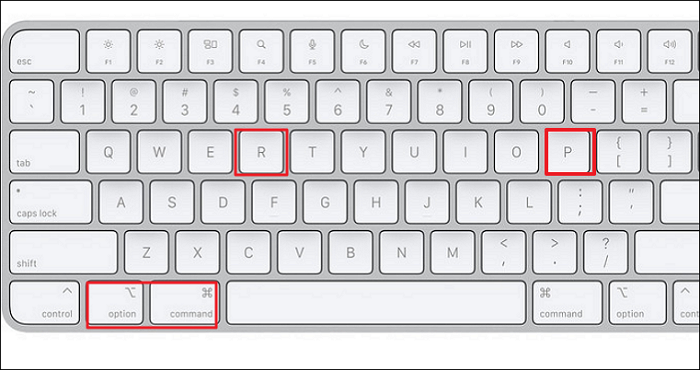
Step 3. When the system chime sounds again, Mac's PRAM will be restored. You can let go of the keys and let your Mac restart normally.
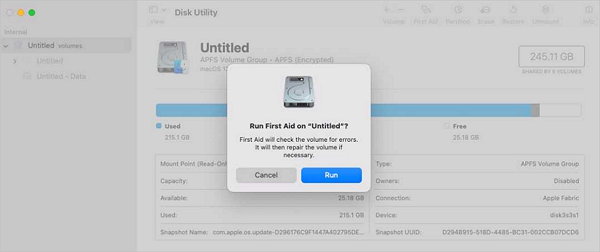
Fix 2. Use Disk Utility with First Aid to Solve Error Code 43
Mac error code 43 is often caused by corrupted or missing files. To resolve the issue, it's recommended to check for directory or file permission corruption. Booting your Mac into Disk Utility can easily fix the problem.
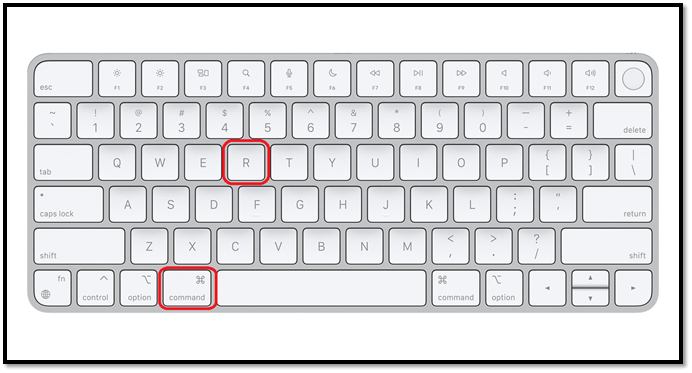
Step 1. To restart your Mac, click on the Apple menu, then click on Restart. This will immediately restart your computer. Alternatively, you can also use the keyboard shortcut Command (⌘) + R to restart your Mac.
Step 2. To enter recovery mode on your Mac, press and hold the Command + R keys as your Mac is starting up. This will display the Apple logo.
Step 3. To access Disk Utility, go to the Utilities folder within the Applications folder on your Mac, then click on Disk Utility and press Continue.
Step 4. In the left panel, select the disk you want to repair, then click the First-Aid button, and finally click the Run button.
Fix 3. Delete Locked Files in Trash with CMD
Copying unintentionally locked files may result in error 43, and locked files can also affect other files in the same folder. To avoid this, using the Mac Terminal to force delete Mac files can be a useful solution. By following the steps for using Mac Terminal to unlock files, you can resolve any issues caused by locked files and ensure a smooth file management process.
Step 1. Open and run Terminal on Mac.
Step 2. To resolve the "Trash error 43" issue, type chflags -R nouchg and press the Spacebar, then proceed to the next step. If that doesn't resolve the issue, go back to step 3.
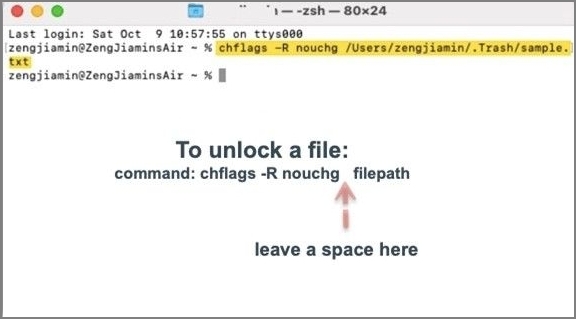
Step 3. Drag the locked file to Terminal in Finder, then press Enter to unlock it.
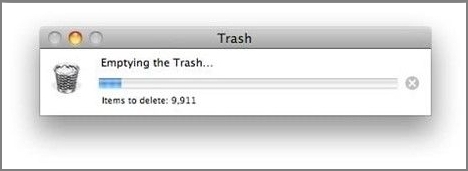
Step 4. To unlock all locked folder files, start by launching Trash, then press Command + A to select all locked folder files. Next, drag and drop them to Terminal, and finally press Enter while entering your account password.
Step 5. Right-click Trash files, choose "Delete immediately", and then click "Delete".
Fix 4. Force Quit Finder on Mac to Fix Error Code 43
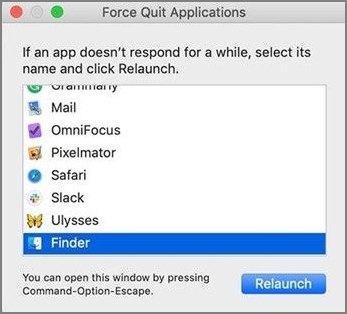
If an app stops responding on a Mac, choose its name and press the Force Quit button.
To fix the issue with Finder, select "Force Quit" from the Apple menu, then find Finder in the list of applications and click "Relaunch".
Bonus Tip: How to Fix OneDrive Error Code 43 on MacBook
Mac users may encounter error code 43 when using OneDrive, which can be caused by issues with the OneDrive app, corrupted files, or permissions problems. To resolve this issue, users can try restarting the OneDrive app, checking the file's permissions, and verifying the file's integrity. If the problem persists, users may need to reinstall the OneDrive app or seek further assistance from Microsoft support.
To resolve OneDrive Error Code 43 issues on a MacBook, users can try restarting their computer, updating OneDrive, checking for corrupted files, and resetting OneDrive. They can also try deleting the OneDrive cache and settings, reinstalling OneDrive, and checking for any conflicts with other cloud storage services.
Method 1. Fix Error Code 43 by Checking Your Applications Folder
Step 1. Navigate to the Applications folder on your computer and check to see if there are any other OneDrive installations present.
Step 2. Delete the duplicates and preserve one app version.
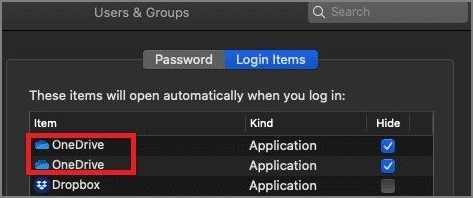
Note: Updating or reinstalling an app on a Mac can lead to multiple copies of the program being created, causing the operating system to become uncertain about which version to use.
Method 2. Use OneDrive in Safari, Chrome, or Edge
If the problem still exists, try these things:
Step 1. Log out of your desktop app and shut OneDrive.
Step 2. You can't access OneDrive Live in a new tab. OneDrive Live is a feature that allows you to access your OneDrive files from the browser, but it's not a standalone website that can be accessed in a new tab.
Step 3. Verify that error 43 still appears, as it's unacceptable for OneDrive Online to have the same bugs as the desktop client. To resolve the persistent issue, try switching to a different web browser, such as Safari, Chrome, or Microsoft Edge.
Method 3. Check the File Name to fix OneDrive Error Code 43
OneDrive may not discover files with brackets, signs, or apostrophes. To resolve this issue, you need to replace troublesome characters in file names and paths.
Note: OneDrive may not support certain characters that a Mac supports, and it can get confused by file names that have spaces at the end, unlike a MacBook which handles them normally.
Method 4. Reset OneDrive to Resolve Error Code 43
To resolve Error 43, reset OneDrive settings and start a new sync from scratch, which won't result in data loss.
Step 1. Turn off OneDrive entirely.
Step 2. Afterward, open OneDrive by going to the Applications folder.
Step 3. Select the option to View Contained Files from the app's context menu.
Step 4. Select the Resources subfolder from Contents.
Step 5. To reset OneDrive, double-click on the "ResetOneDriveApp" command, while OneDrive standalone users should run the "ResetOneDriveAppStandalone" command instead.
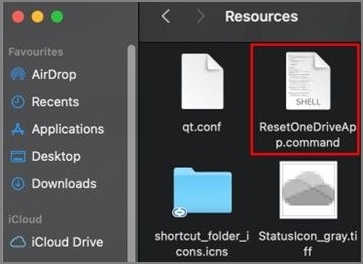
Step 6: Restart OneDrive and see if anything has changed.
Recover Permanently Deleted Files After Fixing Error Code 43 on Mac
While fixing error code 43 on Mac, you may have to delete some files. If the issue is resolved, you can recover permanently deleted files using a professional file recovery tool like Deep Data Recovery.
If you encounter error code 43 on an external USB flash drive and Disk Management can see your device, you can recover data from the drive using software like Deep Data Recovery for Mac. This tool allows you to restore lost files from various storage devices, including local Macs, SD cards, cameras, and memory cards.
This recovery program can help you retrieve lost files in just three steps, regardless of whether they were lost due to deletion, formatting, partition loss, a system crash, or a virus attack.
Step 1. Search for lost files
Choose the disk location where you lost your files and click the "Search for lost files" button.
Note: Before attempting data recovery, it's recommended to create a backup of your HDD/SSD by clicking "Disk Backup" in the left sidebar to prevent further data loss. This backup can then be used for data recovery, and the original HDD or SSD can be reused.

Step 2. Go through the scanning results
This software will immediately scan your selected disk volume and display pictures, documents, audio, videos, and emails on the left pane.

Step 3. Select the file(s) and recover
You can preview the data by clicking on it, and then click the "Recover" button to restore it.

Summary
If you're experiencing Error 43 on your Mac, don't worry! It's likely due to a damaged, locked, or partially downloaded file, or one with system-prohibited special characters in its name. To resolve the issue, try the suggested approach above.
If you're experiencing Mac errors and want to prevent data loss, use Deep Data Recovery for Mac to keep your Mac in good condition and recover data from various storage devices, including hard drives, lost or deleted partitions, memory cards, external hard drives, and SD cards.
Error Code 43 FAQs
To know more about error code 43, you can read the following questions and answers:
How do I get rid of a file that won't delete Mac?
If you're having trouble deleting files on your Mac, there are four ways to force delete them. You can try using the "Move to Trash" method, but if that doesn't work, you can try using the "Secure Empty Trash" feature, which permanently deletes the file without sending it to the Trash. If that still doesn't work, you can try using the Terminal command "rm" to delete the file, or if all else fails, you can try booting your Mac in Safe Mode and then deleting the file.
- 1. Force quit and delete the files on Mac.
- 2. Change the permissions from read-only to read and write.
- 3. Unlock the locked files and then delete them.
- 4. Use Terminal to delete files forcefully.
How do I fix error code 43 on Mac when copying files?
To fix error code 43 on Mac, start by restarting your Mac in Safe Mode to isolate the issue. Then, update your operating system to the latest version and check for any software updates for your graphics card drivers.
- 1. Press the power button on your Mac to turn it off. Then, press the power button again to restart it.
- 2. Press and hold the Option, Command, P, and R keys on your Mac keyboard for about 20 seconds. This will reset your Mac.
- 3. You may stop pressing the keys when you hear the second starting sound or see the Apple logo appear and vanish twice.
What is error code 43 on Macbook Air?
The macOS error code 43 may occur at any time, often when transferring files from a USB device, and can be triggered by actions like removing files from a flash drive or moving them to the Mac's storage.
How do I fix error code 43 on the USB?
Follow the steps below to fix error code 43 on the USB:
- 1. Try a different USB port or unplug and reconnect the device.
- 2. If the cable is damaged, you can get a replacement and try reconnecting the device to the computer.
- 3. To resolve the issue, unplug the problematic device, restart your computer, and then check the device once the computer has restarted.
Related Articles
- 5 Ways to Fix a Corrupted User Profile in Windows 10/8/7
- [Solved] How to Show Hard Drives on Mac Desktop
- How to Restore Mac to a Previous Date with Time Machine/Migration Assistant/Recovery Software
- How to Split Your Screen on a Windows 10/11? [Step by Step]
- How to Fix "Unable to Connect to Virtual Disk Service" Windows 10/11
5 ways to fix corrupted user profile in Windows 10/8/7 without data loss. Repair via new profile creation, Registry Editor, SFC/DISM commands, data recovery software and Windows updates. - Easy Ways to Fix "Unrecognized Database Format" Error
Learn how to show hard drives on the Mac desktop and Finder, including internal disks and external drives.
Products
Articles & Tutorials
- Data Recovery
- Data Backup
- File Recovery
- File Backup
- System Backup and Restore
- Disk and Partition Clone
- Technical articles
- Mobile articles
- Disk Master Help
- Windows Data Recovery Tutorials
- Windows Secure Delete Tutorials
- Windows Partition Management Tutorials
- Windows File Backup and Restore Tutorials
- Windows System Backup and Restore Tutorials
- Windows Disk Backup and Restore Tutorials
- Windows Clone Tutorials