How to Fix MacBook Keeps Shutting Down | 2023 Updated
Why My MacBook Keeps Shutting Down
Your MacBook may be shutting down randomly due to various reasons, such as overheating, software conflicts, or hardware issues, which can be frustrating, especially when working on important tasks and losing unsaved data.
If your MacBook keeps shutting down, there are several potential fixes. You can try resetting the System Management Controller (SMC) and the Power Management Unit (PMU), as these components can sometimes get stuck. Additionally, checking for software updates and running a disk cleanup and repair can help resolve any software-related issues.
| Workable Solutions | Step-by-step Troubleshooting |
|---|---|
| 1. Fix MacBook Keeps Shutting Down by Completing a Proper Shutdown | Turn on the system. Check and see if the apps are working correctly. Press and hold the...Full steps |
| 2. Remove Computer Viruses or Malware on MacBook to Prevent MacBook from Shutdown | Viruses are the most common cause of unexpected device shutdowns. This malware is designed...Full steps |
| 3. Exit High CPU Apps in Activity Monitor to Fix MacBook Issue | Go to Mac Finder. Click "Go" on the Finder menu, followed by Utilities from the drop...Full steps |
| 4. Reset SMC on MacBook to Troubleshoot Shutdown Issue | Shut down the system. Press the right Shift key, left Option key, and left Control key and...Full steps |
| More Solutions | Go to the Apple menu. Click "System Settings". Go to the Lock Screen. You will find it on the...Full steps |
The MacBook Air/Pro may shut down due to various reasons, and understanding these potential causes is crucial to apply the right solutions. Some of the possible reasons include software issues, overheating, battery problems, faulty power management, and hardware malfunctions, among others. Knowing the underlying cause is essential to take the necessary steps to resolve the issue and prevent future shutdowns.
| 🔥Overheating and thermal management | To prevent the MacBook from shutting down due to overheating, it's essential to ensure the fan is functioning properly. If possible, using the device in an air-conditioned room can help maintain a comfortable temperature, reducing the risk of shutdown. This simple precaution can help prevent unexpected shutdowns and ensure the MacBook runs smoothly. |
| 🔋Battery problems and power supply issues | The MacBook shutting down due to battery drainage is a common issue. To resolve this, first, check if your system has sufficient power. If not, plug it into the power supply right away. If the system still isn't charging, inspect the power cord to ensure it's in good condition. |
| 🚫Operating system glitches | Device shutdowns can be caused by issues with the operating system, such as having an outdated or corrupted OS, which can lead to the device shutting down unexpectedly.macOS version on your system can cause this problem. |
| 📱Incompatible or faulty applications | ensure that all the apps you install on your device are compatible with each other. You can check the system requirements for each app before installing it to avoid any potential conflicts. Additionally, you can also check the app's reviews and ratings to see if other users have experienced any issues with the app. By taking these precautions, you can minimize the risk of encountering the "Unfortunately, App has stopped" error.uninstall applications Your operating system cannot support certain apps, so check the compatibility before installing them to prevent the issue. |
1. Fix MacBook Keeps Shutting Down by Completing a Proper Shutdown
Properly shutting down the Mav instead of forcing shut down Mac can resolve temporary issues or glitches. To do this, follow these steps:
Step 1. Turn on the system.
Step 2. Check and see if the apps are working correctly.
Step 3. Hold the Control, Option, and Esc keys simultaneously to force shut down the system. This is a way to quickly and safely shut down your Mac when it's not responding.
Step 4. Go to the Apple menu.
Step 5. Click on the Shut down option.
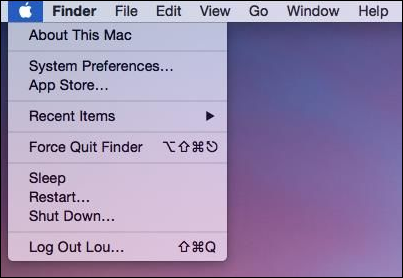
Step 6. Wait for the device to turn off.
Step 7. After a few seconds, please turn it on again.
If you think this method is helpful and want to mark this page without adding the bookmarks, you can share this article on social media.
2. Remove Computer Viruses or Malware on MacBook to Prevent MacBook from Shutdown
Viruses are the most common cause of unexpected device shutdowns, and can lead to data breaches. To prevent this, it's recommended to install anti-virus software, such as TotalAV protection software, to check for existing malware.
 TOTALAV
TotalAV is an award-winning antivirus and security software that offers real-time protection against viruses, malware, and online threats.
Antivirus Protection Enabled
Malware can remain undetected and slowly destroy your system, but various anti-virus software solutions are available to choose from based on features.

3. Exit High CPU Apps in Activity Monitor to Fix MacBook Issue
To identify apps that are causing your Mac to overheat and shut down unexpectedly, follow these steps: Check the Activity Monitor, which can be found in the Applications/Utilities folder or by using Spotlight. Sort the processes by CPU usage to see which apps are consuming the most resources. Look for apps that are using an unusually high amount of CPU, and consider closing or uninstalling them if necessary.
Step 1. Go to Mac Finder.
Step 2. To access the Utilities folder on a Mac, click the "Go" button located in the top menu bar, then select "Utilities" from the drop-down menu.
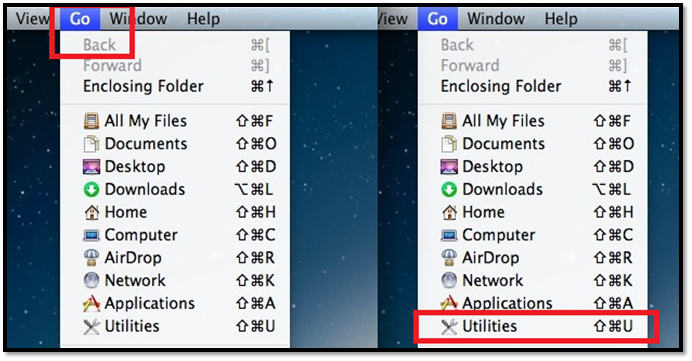
Step 3. To open Activity Monitor, click on the Apple menu, select System Information, and then click on the System Report button. Alternatively, you can also use Spotlight to search for Activity Monitor and launch it directly.
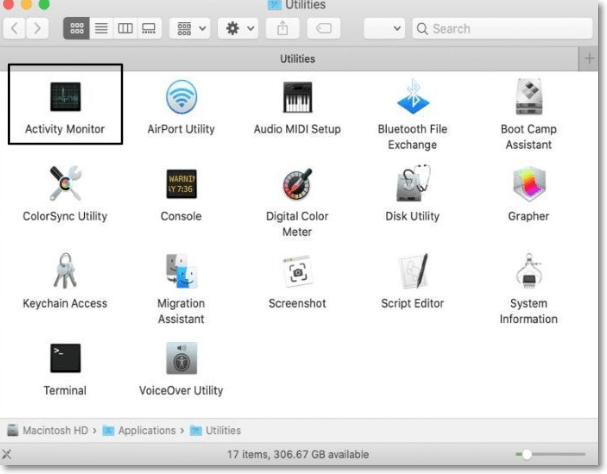
Step 4. Select CPU.
Step 5. You can filter by using % CPU.
Step 6. Here, you are presented with a list of applications sorted by the percentage of CPU usage, providing an at-a-glance view of which apps are consuming the most system resources. This allows you to quickly identify and potentially close resource-intensive apps to free up system resources and improve overall performance.
Step 7. To quit an app, click "X".

To resolve the issue of WindowServer high CPU on a Mac, you can try the following steps:
If your Mac is running macOS Ventura, Monterey, or Big Sur and you're experiencing high CPU usage from WindowServer, there are a few potential fixes to try. First, check for any recently installed software or updates that may be causing the issue.
The WindowServer on Mac is a process that can cause high CPU usage, but don't worry, there are solutions. To resolve the issue, you can try closing unnecessary apps, disable animations, turn off Bluetooth, disable GPU acceleration, or reset the System Management Controller (SMC). These steps can help you identify and fix the problem, and get your Mac running smoothly again.
4. Reset SMC on MacBook to Troubleshoot Shutdown Issue
The System Management Controller (SMC) is a critical component of a MacBook, responsible for managing various system functions. Resetting the SMC may resolve shutdown issues, but the process differs depending on the MacBook model.
For Macs with T2 chips:
Step 1. Shut down the system.
Step 2. Press the right Shift key, left Option key, and left Control key and hold them. This is a common keyboard shortcut that can be used to boot in safe mode, or to access the boot menu on some Macs.
Step 3. At the same time, press and hold the Power button.
Step 4. After a few seconds, release all the keys.
Step 5. Turn on the system.
For Apple Silicon Macs:
Step 1. Restart the system.
Step 2. Press the power button.
To ensure your iPhone stays charged and connected, make sure the power cord remains plugged into the wall outlet and the MagSafe power adapter is securely connected to the phone. This stable connection will keep your iPhone powered on and ready to use.
The resetting method for your Mac might vary depending on the model.
Reset SMC MacBook Pro | System Management Controller
To reset the System Management Controller (SMC) on a MacBook Pro, follow these steps: 1) Shut down your MacBook Pro. 2) Locate the power button, battery indicator, and keyboard backlight button on the keyboard. 3) Press and hold the power button, battery indicator, and keyboard backlight button simultaneously for 10 seconds. 4) Release the buttons and press the power button again to turn it back on.
5. Fix MacBook Keeps Shutting Down by Adjusting Sleep Settings
Using sleep mode on a MacBook might cause it to shut down due to incorrect settings, and adjusting these settings can resolve the issue.
Check out these steps:
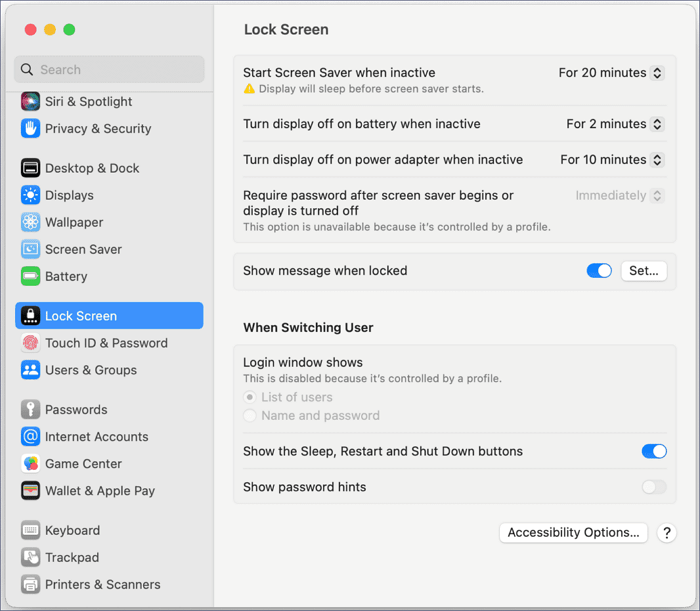
Step 1. Go to the Apple menu.
Step 2. Click "System Settings".
Step 3. To access the Lock Screen, go to the Settings app on your device, then scroll down and tap on the "Display" option, which is usually located on the left-hand side of the screen.
Step 4. Once you click "Lock Screen" on the right-hand side, you can customize the settings according to your preference.
Here's a passage about how to stop Mac from sleeping:
To prevent your Mac from sleeping, you can take several steps. First, go to System Preferences > Energy Saver and adjust the settings to keep your Mac awake for a longer period.
To prevent your Mac from sleeping, you can try methods such as adjusting the sleep settings in System Preferences, disabling the automatic sleep feature, or using a third-party app to keep your Mac awake. You can also try using a USB device, such as a keyboard or mouse, to keep your Mac from sleeping. Additionally, you can use a script or a tool like "caffeinate" to keep your Mac awake. If you're still experiencing issues, you can try resetting the System Management Controller (SMC) or the Power Management Unit (PMU).
6. Reset PRAM to Fix MacBook Keeps Shutting Down Issue
Another method to fix the MacBook keeps shutting down issue is to reset PRAM, which is responsible for keeping various minor preferences safe.
Take a look at these steps:
Step 1. Click on the Apple menu.
Step 2. To turn off the system, click the Shut Down option from the drop-down menu.
Step 3. To reset your Mac, press and hold the power button and the following keys at the same time: Command, Option, P, and R. This will initiate the reset process, and your Mac will restart.

Step 4. Release these keys when you hear the startup sound.
7. How to Update macOS to the Latest Version on MacBook
Here is how you can update the macOS to the latest version: Updating the system leads to fewer chances of a shutdown. To update the macOS, click on the Apple logo in the top left corner, then click on "System Preferences" and select "Software Update". This will check for any available updates and install them automatically.
Step 1. Go to the Apple menu.
Step 2. Click on "System Settings".
Step 3. Go to System Preferences, then choose "General", followed by "Software Update" on the right side.
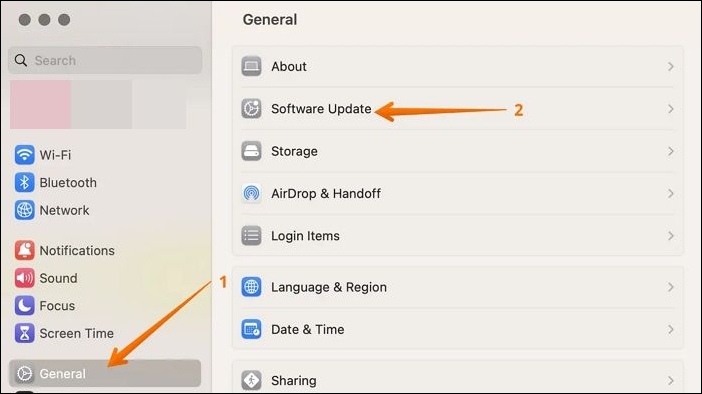
Step 4. To stay up to date with the latest software updates, keep an eye out for notifications. If you receive an update, download and install it to ensure your device runs smoothly and securely.
The article provides a step-by-step guide on how to update your Mac, covering topics such as checking for updates, downloading and installing the latest software, and troubleshooting common issues that may arise during the process. It also offers tips and recommendations for ensuring a smooth and efficient update experience.
How to Update Mac [Detailed Written and Video Tutorials]
Updating your Mac can be a complex process that requires some careful precautions and steps. Read more to learn about the intricacies involved.
8. Reinstall macOS to Solve MacBook Keeps Shutting Down
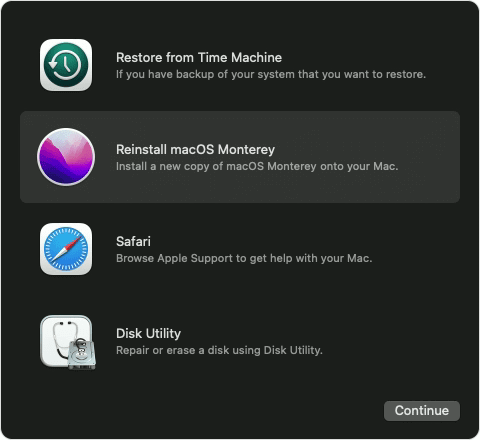
To resolve the issue of a MacBook shutting down, you can reinstall macOS by entering the Recovery Mode, which can be accessed differently depending on the MacBook model.
For Intel-based Macs:
Step 1. Go to the Apple menu.
Step 2. Select "Restart".
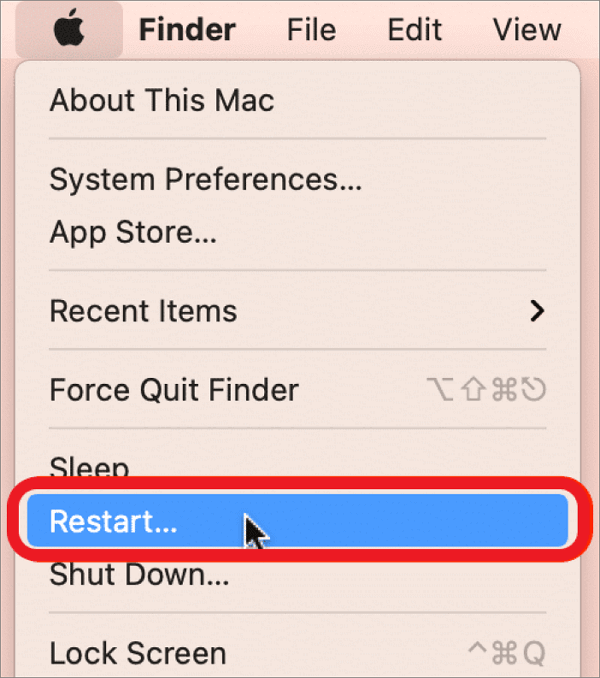
Step 3. Press Command and R keys and hold them.
Step 4. Release them when you see the Apple logo.
For Silicon-based Macs:
Step 1. Go to the Apple menu.
Step 2. Select Restart.
Step 3. Press the power button and hold it.
Step 4. When you see the startup options window, release it.
Step 5. Click Options.
Step 6. Select Continue.
When you enter Recovery Mode, select the "Reinstall macOS" option and follow the on-screen instructions to complete the process.
Recover Lost Data When MacBook Keeps Shutting Down
Losing data on your MacBook can be a stressful experience, especially if you have critical files that you can't afford to lose. To avoid this anxiety, it's essential to maintain a backup of your essential data, ensuring that your files are safe even if your MacBook shuts down unexpectedly.
If the above solution doesn't work, you can try using professional data recovery software like Deep Data Recovery for Mac, which is a highly efficient and easy-to-use tool for users to restore lost data.
Here are some possible scenarios where you can use this tool:
- 🖥️This software can recover data if your device shuts down unexpectedly during a crucial task.
- 👿Malware attacks can be devastating, but a reliable data recovery program can help recover deleted files and minimize the damage.
- 🗑️Accidental deletion of data can occur, and emptying the Trash might make it irretrievable. However, data recovery tools can help recover deleted files from the Trash on a Mac.
- 😢Using this tool, you can recover data from a damaged or corrupted hard drive, even if your Mac is unbootable, which can be a lifesaver in case of data loss due to drive damage.
Summary
Imagine your MacBook shutting down unexpectedly during a crucial presentation - a disastrous scenario! Various factors can contribute to this issue, including overheating, virus attacks, incompatible apps, and more. To avoid such a situation, it's essential to know how to troubleshoot and fix the problem when your MacBook keeps shutting down.
To fix issues with a Mac, consider installing anti-virus software, resetting the PRAM, removing High CPU apps, or upgrading to the latest macOS version. If data is lost, a data recovery software such as Deep Data Recovery for Mac can be used to recover it.
MacBook Keeps Shutting Down FAQs
There are several reasons why a MacBook may keep shutting down. Some possible causes include a faulty power adapter, a dead battery, or an overheating issue. Additionally, a MacBook may shut down if it's not receiving enough power or if the battery is not calibrated correctly.
1. How to fix Mac keeps crashing?
To fix a Mac that keeps crashing, start by updating the macOS to the latest version, and then run Apple Diagnostics or First Aid to repair any issues that may be causing the problem.
2. Why does my Mac keep shutting down randomly?
Your Mac may be shutting down randomly due to various reasons such as software issues, macOS errors, incompatible apps, or overheating of the system, and identifying the cause will help you implement the right solution.
3. How to troubleshoot MacBook shutting down unexpectedly?
To troubleshoot a MacBook shutting down unexpectedly, you can try resetting the System Management Controller (SMC) or Parameter RAM (PRAM), updating or reinstalling macOS, and checking for malware.
4. MacBook shutting down suddenly. How to recover lost data?
You can use professional data recovery software like Deep Data Recovery for Mac to recover lost data from a MacBook that shut down suddenly.
Related Articles
- How to Fix Mac Error Code 1407 on MacBook Pro/Air [6 Practical Fixes]
- [Detailed Answer] Is Cloning A Hard Dive Safe & How to Clone
- How to Delete Search Engines on Google Chrome on Windows, Mac, Android, and iPhone
- How to Fix Zsh Command Not Found Brew Error [Mac Terminal Guideline]
This article addresses the zsh command not found brew error on Mac or Linux, providing five fixes to resolve the issue. It offers step-by-step instructions to resolve the zsh command not found brew problem on a Mac using the terminal. - Working With Thumb Drive& Get the Difference Between It and a Flash Drive
This article provides a comprehensive introduction to the thumb drive. Later are contents about what a thumb drive is, how to use it, and the distinction between a thumb drive and a flash. Some caring tips are also attached at the end. - [Tracing IP Address] How to Trace An IP Address?
Tracing an IP address is an easy process, and there are multiple ways how to trace an IP address. Tracing the IP address using command prompt and raw email data. Make use of the best IP tracking tools to discover the locations of the IPs approximately.
Products
Articles & Tutorials
- Data Recovery
- Data Backup
- File Recovery
- File Backup
- System Backup and Restore
- Disk and Partition Clone
- Technical articles
- Mobile articles
- Disk Master Help
- Windows Data Recovery Tutorials
- Windows Secure Delete Tutorials
- Windows Partition Management Tutorials
- Windows File Backup and Restore Tutorials
- Windows System Backup and Restore Tutorials
- Windows Disk Backup and Restore Tutorials
- Windows Clone Tutorials