Clone a Drive with a PCIe NVMe Adapter Card
A desktop with a single M.2 slot can still gain a second NVMe drive through a PCIe adapter card. It is a cheap alternative to an enclosure, and it keeps both drives inside the case at full speed.
The catch is that slot choice and firmware support decide whether the new drive only stores data or can also boot. This guide covers both cases.
PAGE CONTENT
- Pick the Right Card and Slot
- Install the Card and Confirm Detection
- Clone and Set the Boot Order
- Clone with Qiling Disk Master
- Understand Speed and Boot Caveats
- PCIe Adapter Questions
- Back Up Before You Clone
Pick the Right Card and Slot
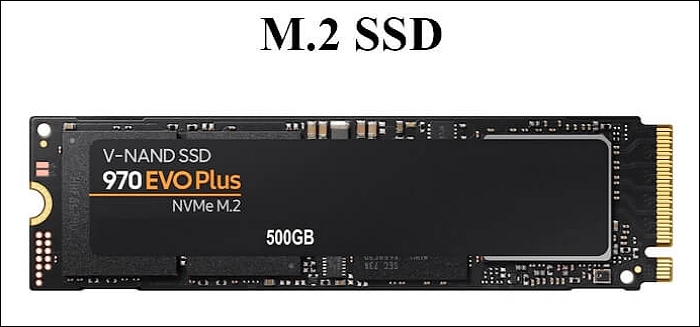
- Card type. Single-drive cards are usually x4, while some cheap models are x1. An x1 card works but caps the drive far below its rated speed.
- Slot width. A card fits in an x4, x8 or x16 slot, but the slot must supply at least four lanes for full speed. A physical x16 slot wired as x4 is fine.
- Bifurcation. Only multi-drive cards need PCIe bifurcation, and only some motherboards support it. A single-drive card does not need it.
- Generation. A PCIe 4.0 drive in a 3.0 slot runs at 3.0 speed. Check the board manual for the generation and the lane count of each slot.
- Clearance. Cards with a heatsink can block a graphics card or a bottom fan. Measure the space before you buy.
Check your motherboard manual for the lane layout, because two slots often share bandwidth and installing a card can slow another device.
Install the Card and Confirm Detection
- Power off. Shut down, unplug the power cable, and press the power button once to drain the board before you open the case.
- Seating. Fit the M.2 drive on the card first, then seat the card firmly in the slot and secure the bracket.
- Device Manager. Boot and check that the drive appears under Disk Drives. A missing entry points to seating, power or a disabled slot.
- Disk Management. Initialize and format the new drive if it is empty, or confirm that the clone target is visible if you plan to copy now.
- Quick test. Run a short read or write test to confirm that the card is not dropping the link under load.
If the drive does not appear, try another slot before you assume the card is faulty, since shared lanes and disabled slots are common.
Clone and Set the Boot Order
- Clone mode. Use an intelligent clone that copies used data and can resize the target partition when the new drive is larger.
- EFI partition. Confirm that the EFI system partition is included, because a data-only copy of the Windows volume will not boot.
- Keep the original. Leave the old drive installed and bootable until the adapter drive starts Windows on its own.
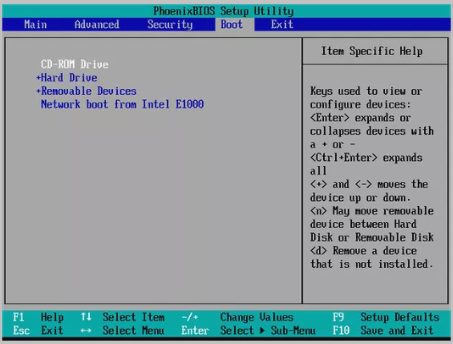
- Boot order. Enter the firmware setup and set the adapter drive first. Some boards list it under a separate NVMe entry.
- Drive letters. After the first boot, check that the old drive did not take the C letter and confuse installed programs.
Test the new boot with the old drive still connected but lower in the boot order, so you can fall back without opening the case again.
Clone with Qiling Disk Master
Qiling Disk Master sees both the board slot and the adapter drive as normal disks, so it can clone the system, resize the target and align it for the SSD. It also handles the backup step at the end.
Watch the video tutorial below to clone the drive step by step with Qiling Disk Master.
Step 1. Open Qiling Disk Master, choose Clone, and then select Disk Clone.

Step 2. Select the source disk and click Next.

Step 3. Select the destination SSD and confirm that its data will be replaced.

Step 4. Choose the clone mode and adjust the partition size if the target is larger.

Step 5. Click Proceed, wait for the copy to finish, then shut the machine down before you remove any cable.

Understand Speed and Boot Caveats
- Lane limit. An x1 card limits the drive to a single lane, which is far slower than a board M.2 slot. Check the card spec before you expect full speed.
- Generation limit. A 4.0 drive in a 3.0 slot still works, but the link runs at 3.0 rates. The drive is not damaged, only capped.
- Bifurcation. Multi-drive cards need the slot split into x4 groups in firmware. Without that support, only one drive on the card is visible.
- Boot support. Some older boards cannot boot from an NVMe drive on an adapter without a firmware update or an option ROM.
- Shared lanes. Installing the card may disable a SATA port or reduce the graphics slot width, depending on the board layout.
Decide early whether the adapter drive is storage only or the new system disk, because that choice determines how much firmware work the project needs.
PCIe Adapter Questions
Can a PC boot from a drive on an adapter card?
Often yes on modern boards with NVMe boot support, but older boards may need a firmware update or can boot from the adapter at all. Check the manual and test before you erase the old drive.
Do I lose speed with an adapter card?
Only if the card or slot has fewer lanes or an older generation than the drive needs. A single-drive x4 card in a 4.0 x4 slot can run the drive close to its rated speed.
Do I need bifurcation for one drive?
No. A single-drive card uses the whole slot as one link. Bifurcation matters only when one card carries several M.2 drives.
Why is the adapter drive not detected?
Check the seating, the slot lane sharing and the firmware setting for the slot. Some boards disable a slot when another device uses the same lanes.
Can I keep the original drive after cloning?
Yes. Keep it as a fallback, then remove or wipe it once the adapter drive has booted several times without problems.
Back Up Before You Clone
An adapter adds a card, a slot and a firmware setting to the equation, and a clone that fails halfway can leave the system unbootable. Keep a system image on a separate disk so a bad slot or card costs you time, not data.
Watch the video tutorial below to back up Windows and restore it if the clone fails.
Step 1. Open Qiling Disk Master and select System Backup to include the boot partitions.

Step 2. Save the image to a drive other than the target disk and start the backup.

Step 3. Click Proceed to start the system backup and wait patiently until it finishes. You can also tick Shut down the computer when the operation is completed to power off automatically.

Step 4. If the clone fails, restore the image and check the source disk before you retry.

Conclusion
A PCIe adapter is a practical way to add a second NVMe drive to a desktop with one M.2 slot. Verify the lane width, the generation and the boot support first, and keep the original drive installed until the adapter drive has started Windows on its own.
For related guides, see Clone a SATA SSD to an NVMe SSD, Clone to a PCIe 5 SSD, Clone a Boot Drive with Multiple EFI Partitions, and 4K Alignment When Cloning an SSD.
Related Articles
- Clone an M.2 SSD When the PC Has One Slot
An enclosure or an adapter card can both add a temporary second slot when the board has only one M.2 port. - Clone an NVMe SSD to a Larger NVMe SSD
Resize the partition during the copy so the extra capacity of the larger NVMe drive is available at once. - Clone Windows to a PCIe 4 SSD
Check that the slot and the drive both support generation 4 before you expect full speed from the new SSD. - SSD Not Detected After Cloning
Seating, lane sharing and firmware slot settings are the first places to look when a cloned SSD disappears. - Fix a Cloned Drive That Will Not Boot
Boot order, EFI partition and boot mode explain most failures when a copied drive will not start Windows.
Products
Articles & Tutorials
- Data Recovery
- Data Backup
- File Recovery
- File Backup
- System Backup and Restore
- Disk and Partition Clone
- Technical articles
- Mobile articles
- Disk Master Help
- Windows Data Recovery Tutorials
- Windows Secure Delete Tutorials
- Windows Partition Management Tutorials
- Windows File Backup and Restore Tutorials
- Windows System Backup and Restore Tutorials
- Windows Disk Backup and Restore Tutorials
- Windows Clone Tutorials