Clone a Drive With Secure Boot and TPM Enabled
Modern PCs boot through UEFI with Secure Boot enabled, and Windows 11 expects a TPM 2.0 chip. A clone copies the disk, but it cannot copy the chip, and it can disturb the keys that Secure Boot checks, so the new drive sometimes refuses to start.
This guide explains what carries over in a clone, what stays on the motherboard, and how to copy a drive without breaking Secure Boot, TPM binding, or BitLocker.
PAGE CONTENT
- What Secure Boot and TPM Check
- Prepare Firmware and Encryption
- Risks and Tricky Spots
- Clone the Drive Safely
- Boot and Confirm Security Settings
- FAQs About Secure Boot Cloning
- Back Up Before the Change
What Secure Boot and TPM Check
- Secure Boot verifies signatures. The firmware checks the bootloader before it runs.
- The TPM holds keys. BitLocker and Windows Hello seal data to the chip.
- A clone keeps the boot files. The disk content moves; the chip does not.
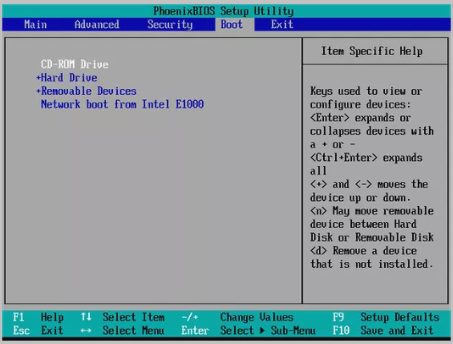
- Firmware settings stay put. The Secure Boot state lives on the motherboard.
- BitLocker reacts to changes. A new disk can trigger a recovery prompt.
Cloning inside the same machine usually keeps everything working, because the TPM and the firmware do not change. Moving the drive to another PC is where the problems start.
Prepare Firmware and Encryption
- Suspend BitLocker. Pause protection so the clone is not locked out.
- Note the Secure Boot state. Record whether it is on before you start.
- Update the firmware. A current BIOS handles new drives more reliably.
- Disable fast startup. A clean shutdown avoids a dirty file system.
- Back up the recovery key. Save the BitLocker key before any change.
Suspend BitLocker, shut down fully, and connect the target. Do not change the Secure Boot setting until the clone finishes and the system boots.
Risks and Tricky Spots
- TPM binding breaks on new hardware. A drive moved to another PC asks for the recovery key.
- Secure Boot rejects unsigned loaders. Some clone tools add their own boot entries.
- BitLocker recovery loops. Repeated failed unlocks can lock the drive.
- Firmware updates reset keys. A BIOS update can clear the TPM and force reactivation.
- Measured boot changes. New boot files alter the values the TPM records.
Keep the recovery key within reach before the first boot. If Windows asks for it, the drive is intact and only the key is missing.
Clone the Drive Safely
Qiling Disk Master copies the EFI partitions along with Windows, so the new drive keeps a complete boot chain. Run the clone after BitLocker is suspended, not before.
Watch the video tutorial below to clone the drive step by step with Qiling Disk Master.
Step 1. Open Qiling Disk Master, choose Clone, and then select Disk Clone.

Step 2. Select the source disk and click Next.

Step 3. Select the destination SSD and confirm that its data will be replaced.

Step 4. Choose the clone mode and confirm the system partition gets the C letter on the target.

Step 5. Click Proceed, wait for the copy to finish, then shut the machine down before you remove any cable.

Boot and Confirm Security Settings
- Boot with only the new drive. Remove the old disk for the first start.
- Check Secure Boot. The firmware should still show it enabled.
- Resume BitLocker. Turn protection back on once Windows settles.
- Confirm the TPM. The tpm.msc console should show the chip ready for use.
- Check activation. Windows should report an active license.
A prompt for the recovery key is not a failed clone. Enter the key, resume BitLocker, and the drive continues exactly as before.
FAQs About Secure Boot Cloning
Does cloning a drive affect Secure Boot?
Not on the same PC. The firmware setting stays as it was; only the disk content changes.
Will BitLocker ask for a recovery key after cloning?
It can, especially on new hardware. Suspend protection before the clone and keep the key ready.
Does a clone copy the TPM?
No. The TPM is a chip on the motherboard; the clone only copies the disk.
Can I clone a BitLocker drive to a new PC?
Yes, but you must enter the recovery key and rebind the TPM on the new machine.
Why does the cloned drive fail Secure Boot?
The boot entries may point at the old disk. Rebuild them or select the new drive in firmware.
Back Up Before the Change
Encryption and firmware settings can lock a working drive. Image the system before you clone so a recovery key or a rollback is always available.
Watch the video tutorial below to back up Windows and restore it if the copy fails.
Step 1. Open Qiling Disk Master and select System Backup to include the boot partitions.

Step 2. Save the image to a drive other than the target disk and start the backup.

Step 3. Click Proceed to start the system backup and wait patiently until it finishes. You can also tick Shut down the computer when the operation is completed to power off automatically.

Step 4. If the clone or the boot repair fails, restore the image and then reassign drive letters or rebuild the boot records from Windows Recovery.

Conclusion
Secure Boot and the TPM protect the boot chain, and a clone keeps that chain intact only if the EFI partitions come along. Suspend BitLocker, keep the recovery key, and confirm the firmware still trusts the new drive before you retire the old one.
For more on encrypted and firmware-bound drives, see Clone a BitLocker Encrypted Drive, Clone an SSD With VeraCrypt, Clone a Drive Before a Motherboard Upgrade, and Switch From IDE to AHCI After Cloning.
Related Articles
- Clone Windows 11 to a New Laptop
Move the system to fresh hardware. - Cloned Drive Won't Boot? Fix It
Repair the boot after a failed clone. - Fix Drive Letter After Cloning
Restore C and the boot record. - Windows Not Activated After Cloning
Reactivate Windows after the swap. - Clone an SSD on a Copilot+ PC
Keep modern security features working.
Products
Articles & Tutorials
- Data Recovery
- Data Backup
- File Recovery
- File Backup
- System Backup and Restore
- Disk and Partition Clone
- Technical articles
- Mobile articles
- Disk Master Help
- Windows Data Recovery Tutorials
- Windows Secure Delete Tutorials
- Windows Partition Management Tutorials
- Windows File Backup and Restore Tutorials
- Windows System Backup and Restore Tutorials
- Windows Disk Backup and Restore Tutorials
- Windows Clone Tutorials