Clone an SSD on a Copilot+ PC: What Changes
Copilot+ PCs are Windows laptops with a neural processing unit, and most current models run on Snapdragon X hardware. Cloning still follows the same idea as any SSD upgrade, but encryption, drive size and drivers need extra attention.
This guide covers the parts that differ: the compact M.2 slot, device encryption that is on by default, ARM64 software and the firmware boot order.
PAGE CONTENT
- Know the Hardware Before You Buy
- Decrypt the Drive Before Cloning
- Clone and Swap the SSD
- Clone with Qiling Disk Master
- Check ARM Drivers and Activation
- Copilot+ PC Questions
- Back Up Before You Clone
Know the Hardware Before You Buy
- Processor type. Snapdragon X laptops run Windows on ARM64, which means some cloning tools and drivers need an ARM64 build. Check support before you install anything.
- Drive length. Many Copilot+ laptops use a compact M.2 drive, often 2230 length, but this varies by model. Check your model and measure the installed drive before you order.
- Slot count. Thin laptops usually have one M.2 slot, so the copy has to happen over USB before the swap.
- Soldered parts. Memory is often soldered and not upgradeable. The SSD is the main component you can change, which makes a careful clone more valuable.
- Firmware. These laptops use UEFI with Secure Boot and a firmware TPM. Note the current boot mode before you touch the drive.
Write the model number, the drive length and the processor type on a note. Those three facts decide which enclosure and which tool you need.
Decrypt the Drive Before Cloning
- Device encryption. Many Copilot+ PCs enable BitLocker device encryption automatically when you sign in with a Microsoft account. Assume the drive is encrypted until you confirm otherwise.
- Recovery key. Find the recovery key in your Microsoft account or print it before you start. A hardware change can trigger a key prompt.
- Suspend or decrypt. Suspend BitLocker for one reboot, or fully decrypt the volume if the tool cannot copy locked sectors. Full decryption is slower but simpler.
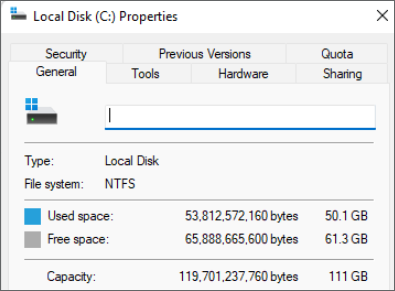
- Confirm status. Check the BitLocker control panel and make sure the system volume reports as fully decrypted or suspended before the clone begins.
- Re-enable later. After the new drive boots, turn protection back on and confirm that the recovery key was saved again.
An encrypted clone can complete and still fail to boot, because the new hardware fingerprint does not match the protector. Deal with encryption first, not last.
Clone and Swap the SSD
- Enclosure. Fit the new SSD in a USB NVMe enclosure that matches its length, then connect it to the laptop.
- Clone. Copy the disk with an intelligent clone that resizes the main partition for the larger target and keeps the EFI and recovery partitions.
- Verify. Check the target layout in Disk Management before you open the laptop, and confirm that no partition is missing.
- Swap. Shut down, disconnect the battery according to the service manual, then replace the drive and refit the shield and screws.
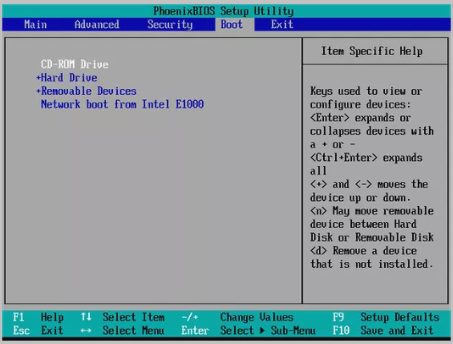
- Boot order. Power on and confirm that the firmware lists the new drive first, or select it once from the boot menu.
Follow the service manual for the battery connector, because some thin laptops route the connector under a ribbon that is easy to damage.
Clone with Qiling Disk Master
Qiling Disk Master clones a disk or a partition, resizes the target and keeps the boot partitions in place on supported Windows systems. Confirm that your build supports ARM64 before you install it on a Snapdragon laptop.
Watch the video tutorial below to clone the drive step by step with Qiling Disk Master.
Step 1. Open Qiling Disk Master, choose Clone, and then select Disk Clone.

Step 2. Select the source disk and click Next.

Step 3. Select the destination SSD and confirm that its data will be replaced.

Step 4. Choose the clone mode and adjust the partition size if the target is larger.

Step 5. Click Proceed, wait for the copy to finish, then shut the machine down before you remove any cable.

Check ARM Drivers and Activation
- ARM64 drivers. Windows on ARM needs ARM64 drivers. If a device shows a warning after the swap, use Windows Update or the laptop maker utility rather than an x64 driver package.
- Activation. The digital license is tied to the device. Confirm activation after the first boot, and use the troubleshooting option only if the status is wrong.
- Firmware updates. Install BIOS and firmware updates through the vendor tool after the system is stable, not during the first boot.
- Encryption. Re-enable device encryption and verify that a new recovery key was saved to your account.
- Performance check. Confirm that the new drive runs at the expected link speed, since a slow enclosure or a wrong slot can hide a good SSD.
Run Windows Update to completion, then restart twice before you judge the upgrade.
Copilot+ PC Questions
Can I use a regular x64 cloning tool on a Snapdragon laptop?
Windows on ARM can emulate some x64 programs, but disk-level tools need low-level drivers that may not work in emulation. Use an ARM64 build or a bootable tool that supports the platform.
Why is BitLocker already on?
Many Copilot+ PCs enable device encryption automatically after you sign in with a Microsoft account. Check the status and save the recovery key before you change any hardware.
Can I clone to a larger SSD?
Yes, if the tool can resize the target partition. Keep the drive within the capacity and the length that your model supports, and check the slot type first.
Will Windows still be activated after the swap?
The digital license is linked to the device hardware, so a drive change usually keeps it. Confirm the status in Settings before you remove the original SSD.
What if the new drive is not detected at boot?
Check the seating, the firmware boot order and the Secure Boot state. If the drive appears in the firmware but not in Windows, the clone or the partition layout is the likely cause.
Back Up Before You Clone
A thin laptop has one slot, an encrypted drive and ARM drivers, which is three reasons a clone can go wrong. A system image on an external drive lets you restore Windows even if the new SSD never boots.
Watch the video tutorial below to back up Windows and restore it if the clone fails.
Step 1. Open Qiling Disk Master and select System Backup to include the boot partitions.

Step 2. Save the image to a drive other than the target disk and start the backup.

Step 3. Click Proceed to start the system backup and wait patiently until it finishes. You can also tick Shut down the computer when the operation is completed to power off automatically.

Step 4. If the clone fails, restore the image and check the source disk before you retry.

Conclusion
A Copilot+ SSD upgrade changes less than it seems: you still clone over USB, swap one compact drive and confirm the boot. The differences are encryption that is already on, ARM64 drivers and a firmware boot order that may need a nudge.
For related guides, see Clone a 2230 NVMe SSD, Clone an NVMe SSD to a Larger NVMe SSD, Clone an SSD to a Larger SSD, and Windows Not Activated After Cloning.
Related Articles
- Clone a BitLocker Encrypted Drive
Suspend or decrypt the volume first, keep the recovery key, and re-enable protection after the new drive boots. - Clone an M.2 SSD When the PC Has One Slot
An enclosure supplies the second slot for thin laptops that cannot hold two drives at once. - Clone a Drive with an NVMe Enclosure
Match the enclosure to the drive length, then clone over USB before you open the laptop. - SSD Not Detected After Cloning
Seating, firmware boot order and encryption state are the first checks when the new SSD disappears. - Fix a Cloned Drive That Will Not Boot
Work through boot order, EFI partition and clone mode when the copied drive will not start Windows.
Products
Articles & Tutorials
- Data Recovery
- Data Backup
- File Recovery
- File Backup
- System Backup and Restore
- Disk and Partition Clone
- Technical articles
- Mobile articles
- Disk Master Help
- Windows Data Recovery Tutorials
- Windows Secure Delete Tutorials
- Windows Partition Management Tutorials
- Windows File Backup and Restore Tutorials
- Windows System Backup and Restore Tutorials
- Windows Disk Backup and Restore Tutorials
- Windows Clone Tutorials