Clone a Hard Drive Over a Network: Windows Guide
Cloning a hard drive over a network sounds simple: one computer holds the source disk, another machine receives an exact copy, and no screwdriver is needed. In practice, Windows clone tools read a disk attached to the local computer, so a shared folder cannot act as a clone target. The destination disk must still be visible to the machine that runs the clone.
This guide explains when a network clone makes sense, how to wire both computers, which risks to avoid, and how to copy a disk from one machine to another with Qiling Disk Master.
PAGE CONTENT
- When a Network Clone Makes Sense
- Prepare the Hardware and the Link
- Risks and Tricky Spots
- Clone the Drive with Qiling Disk Master
- Verify the Copy and Switch Over
- FAQs About Network Disk Cloning
- Back Up Before a Network Clone
When a Network Clone Makes Sense
- The tool runs on the source PC. Cloning software reads the source disk locally.
- A share is not a disk. Mapped folders cannot receive a bootable clone.
- A second PC can host the target. iSCSI or a USB adapter exposes it as a local disk.
- Bandwidth sets the pace. A 1 Gbps link is far slower than a direct SATA cable.
- Large drives take hours. A full 4 TB copy can run overnight and longer.
Network cloning fits cases where the source machine cannot be opened or where the target disk already sits in another computer. It does not fit cases where you simply want to write the clone into a shared folder.
Prepare the Hardware and the Link
- Use a wired connection. Ethernet survives multi-hour transfers better than Wi-Fi.
- Place the target disk. Fit it in the second PC or connect it through a USB adapter.
- Expose it over iSCSI. Windows can present a remote disk as a local block device.
- Clear the target first. The destination is erased, so move needed files away.
- Confirm capacity. The target must hold the used data of the source disk.
Give both machines a fixed IP address, disable sleep on the source PC, and keep the second machine powered on until the copy reports completion.
Risks and Tricky Spots
- Boot files stay behind. A clone sent to a remote share keeps files but not bootability.
- A dropped session aborts. An iSCSI disconnect can leave the target half written.
- Sleep ends the job. Power saving can stop a long transfer without a warning.
- Signatures collide. Two disks carrying the same ID confuse Windows.
- Never wipe early. Keep the source until the copy has booted twice.
The safest pattern is to install the target disk in a second machine, expose it over iSCSI, and run the clone from the source computer. Use a UPS for both machines on long jobs.
Clone the Drive with Qiling Disk Master
Qiling Disk Master runs on the computer that holds the source disk. When the target sits in another machine, expose it over iSCSI first so the software lists it as a local disk.
Watch the video tutorial below to clone the drive step by step with Qiling Disk Master.
Step 1. Open Qiling Disk Master, choose Clone, and then select Disk Clone.

Step 2. Select the source disk and click Next.

Step 3. Select the destination SSD and confirm that its data will be replaced.

Step 4. Choose the clone mode and confirm the system partition gets the C letter on the target.

Step 5. Click Proceed, wait for the copy to finish, then shut the machine down before you remove any cable.

Verify the Copy and Switch Over
- Test the target alone. Move it into the source PC for the first boot.
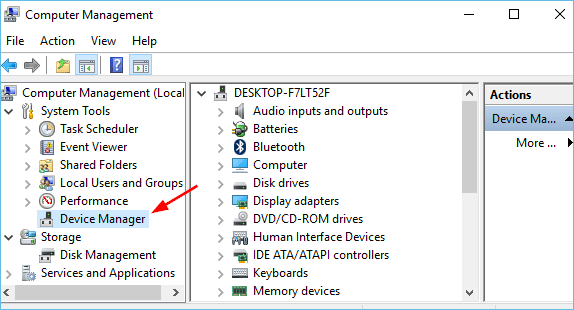
- Check the device list. Windows should show the new disk with the right size.
- Confirm the boot volume. The diskpart list volume output shows the system drive.
- Open real files. Check a few large documents, photos, and videos.
- Keep the old disk. Retire it only after two clean boots.
If the copy refuses to start, its boot records were never written for that disk. Re-clone with the target attached locally and let the tool rebuild the boot files.
FAQs About Network Disk Cloning
Can any cloning tool copy a drive over a network?
Only when the target appears as a local block device. Shared folders cannot hold a bootable clone.
How long does a network clone take?
At 1 Gbps expect roughly two to four hours per terabyte, plus time to verify the copy.
Does a remote clone stay bootable?
Yes, if the target is a real disk exposed to the source PC and the boot files are rebuilt for it.
Can I clone between two computers directly?
Yes. Put the target disk in the second PC, expose it over iSCSI, and start the clone from the source.
What happens if the connection drops?
The copy stops and the target stays incomplete. Delete the partial data and run the clone again.
Back Up Before a Network Clone
A remote clone has more failure points than a local one: the link, the second machine, and the iSCSI session can all break. Take an image first so the source can be restored.
Watch the video tutorial below to back up Windows and restore it if the copy fails.
Step 1. Open Qiling Disk Master and select System Backup to include the boot partitions.

Step 2. Save the image to a drive other than the target disk and start the backup.

Step 3. Click Proceed to start the system backup and wait patiently until it finishes. You can also tick Shut down the computer when the operation is completed to power off automatically.

Step 4. If the clone or the boot repair fails, restore the image and then reassign drive letters or rebuild the boot records from Windows Recovery.

Conclusion
A network clone works only when the destination is a real disk that the source computer can reach, not a shared folder. Prepare both machines, keep the link wired, and test the copy before you erase anything.
For more on copying drives between machines, see Clone a Hard Drive Using Command Prompt, Clone a NAS Drive to a Larger Drive, Clone Windows to Another PC, and Clone a VM Disk to a Physical Drive.
Related Articles
- Clone a Drive With a Docking Station
Copy a disk without opening the case. - Clone a Drive With an NVMe Enclosure
Move data over USB to a new NVMe drive. - Clone a Hard Drive Without Booting Windows
Copy the disk from a rescue environment. - Clone a Disk With WinPE
Build a portable cloning environment. - How Long Does a Disk Clone Take?
Estimate the copy time before you start.
Products
Articles & Tutorials
- Data Recovery
- Data Backup
- File Recovery
- File Backup
- System Backup and Restore
- Disk and Partition Clone
- Technical articles
- Mobile articles
- Disk Master Help
- Windows Data Recovery Tutorials
- Windows Secure Delete Tutorials
- Windows Partition Management Tutorials
- Windows File Backup and Restore Tutorials
- Windows System Backup and Restore Tutorials
- Windows Disk Backup and Restore Tutorials
- Windows Clone Tutorials