How to Use iCloud, What Are iCloud Features | Ultimate Guide 2023
What Is iCloud
The cloud storage service is a great convenience for users to store their files without worrying about forgetting their physical storage devices. And you must be familiar with iCloud if you are working on any Apple devices.
iCloud is a cloud-based storage service developed by Apple, allowing users to store and sync various types of files, including photos, videos, music, and documents, across their Apple devices with the same Apple ID.
And the system requirements of Apple iCloud are as follows:
- iCloud on Macs: OS X Lion 10.7.5 and later macOS.
- iCloud on iPhone/iPad: iOS 5.0 and later.
- iCloud on Windows PC: Windows 7 or later.
Note: Windows PC users should have an Apple device to set up iCloud for Windows.
Apple recommends using iOS 16, iPadOS 16, macOS Ventura 13, and Windows 10 for the best iCloud experience, but some features may not be available on minimum version requirements.
iCloud Features
Here are the main features of iCloud in one paragraph: iCloud allows users to store and access their files from any iOS device, Mac, or PC by logging in with the same Apple ID, providing a cloud-based storage solution via the file hosting service.
💾iCloud Storage
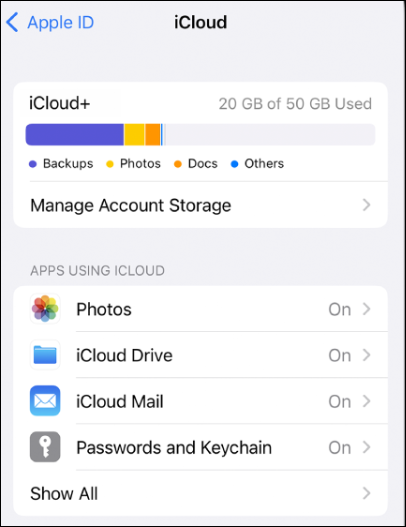
Apple offers 5 GB of free iCloud storage, with the option to upgrade to paid iCloud+ plans for additional storage.
📸iCloud Photo Library
The photo stream service automatically syncs and stores photos and videos on the iCloud Drive app, allowing easy access to them. This feature requires an internet connection and is available on iOS 8.1 or later. It also enables recovery of deleted photos from iCloud on Mac if needed.
🔎iCloud: Find My
Apple preinstalls the Find My app, which helps locate any Apple device with your Apple ID, including Macs, iPhones, and AirPods. Once enabled, the app prevents others from turning off a lost device unless they know the iCloud password. Additionally, you can remotely wipe the device to protect your data from being accessed or leaked.
🔑iCloud Keychain
Keychain is a highly used feature that helps users manage and remember their accounts and passwords for various websites, and is very secure, also assisting in generating strong passwords for new accounts.
With the keychain, you won't need to remember multiple passwords, as they will automatically be saved and synced across your devices with the same iCloud account.
When you enter your account password next, a pop-up will appear, allowing you to unlock your keychain with your fingerprint or face, and then automatically fill in your account and password.
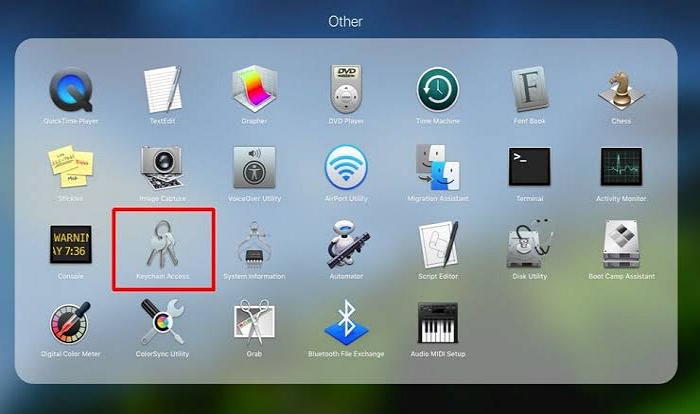
What Is Keychain on Mac, How to Use Keychain
Keychain on Mac is a built-A password management system helps you store and organize your passwords in one secure place, making it easier to keep track of your online accounts and credentials.
⚙️iCloud: Sync Settings, Downloads, and Purchases
Your App Store downloads and purchases are stored in iCloud, allowing your settings to automatically sync across devices, eliminating the need to manually set up a new device.
📁iCloud: Backup and Restore
iCloud can automatically upload your essential files to iCloud storage, allowing you to use it as a backup. This feature will activate when your device is connected to Wi-Fi and its screen is locked, and it will back up your files daily.
And you can restore data from your iCloud backups manually.
How to Use iCloud
Before using iCloud, set it up if you don't have an iCloud account yet. If you're using iCloud on an Apple device and want to sync all your settings and files on another, you can follow the detailed steps to learn how to do it.
📱Use iCloud on iPhone, iPad, or iPod touch
iCloud was preinstalled on iPhones, iPads, and iPod touch, and you can find and update it in Apple's App Store. To enable your iCloud, follow the steps below.
Step 1. To access iCloud, go to Settings, click on your name, and you'll find the iCloud option listed.
Step 2. If your iPhone runs iOS 16 or later, turn on the "Sync this iPhone" option, which allows your iPhone to sync with your computer and transfer data, photos, and more. This feature is available in the Settings app, under "General" and then "Transfer or Reset iPhone.
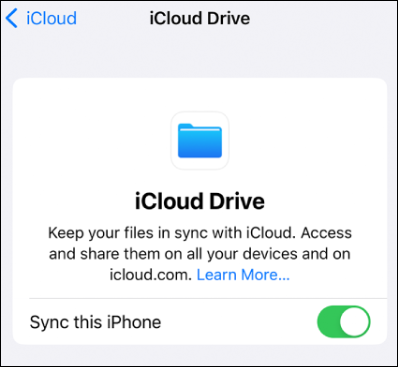
Step 3. To access your iCloud Drive on your iPhone, you should turn on the "iCloud Drive" option. This feature is available on iOS 15 or earlier.
Step 4. To view your files and folders uploaded to your iCloud account, open the "Files" app and navigate to "iCloud Drive".
To share files or folders with others using iCloud on your iPhone, tap the "Share" icon on the selected item, and you will see various options to share it with your contacts, via AirDrop, or through a link.
| System Options/Explanations | View | Edit |
| Only people you invite > Can make changes | only invitees | only invitees |
| Only people you invite > View Only | only invitees | only yourself |
| Anyone with the link > Can make changes | anyone | anyone |
| Anyone with the link > View Only | anyone | only yourself |
🍏How to Use iCloud on Mac
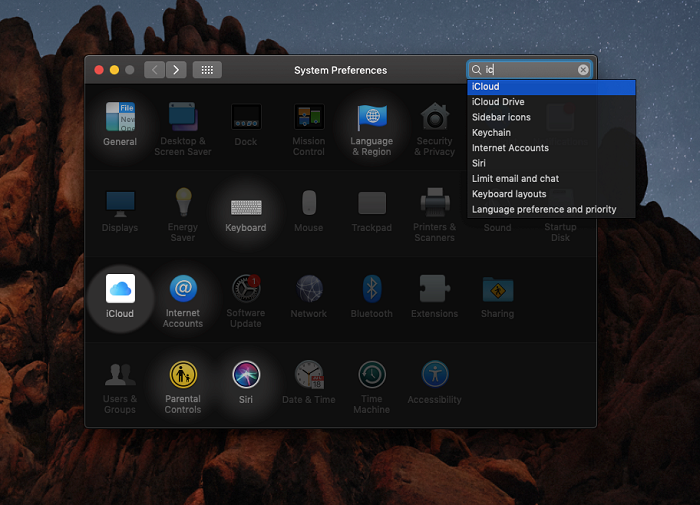
To enable iCloud on your Mac, go to System Preferences, then click on Apple ID, and finally select iCloud from the dropdown menu. From there, you can choose which iCloud features you'd like to enable, such as iCloud Drive, iCloud Photos, or iCloud Backup.
Step 1. Go to the Apple menu, click "System Settings", and tap your name at the top of the sidebar.
Step 2. To sync iCloud Drive on your Mac, click on "iCloud" in the top menu bar, select "iCloud Drive", and then toggle the "Sync this Mac" option to the "on" position.
Step 3. To view your files and folders, open the "Finder" app on your Mac and click on "iCloud Drive" in the sidebar.
🪟How to Use iCloud on Windows
If you're using both macOS and Windows OS, consider using iCloud for Windows, which can be downloaded from the Microsoft App Store, to access your iCloud data and features on your Windows PC.
Follow the steps below:
Step 1. To check if your Windows system is compatible with iCloud for Windows, go to the download page on the Microsoft App Store, scroll down to the system requirements, and verify that your system meets the necessary specifications.
Step 2. Install iCloud on a supported Windows PC.
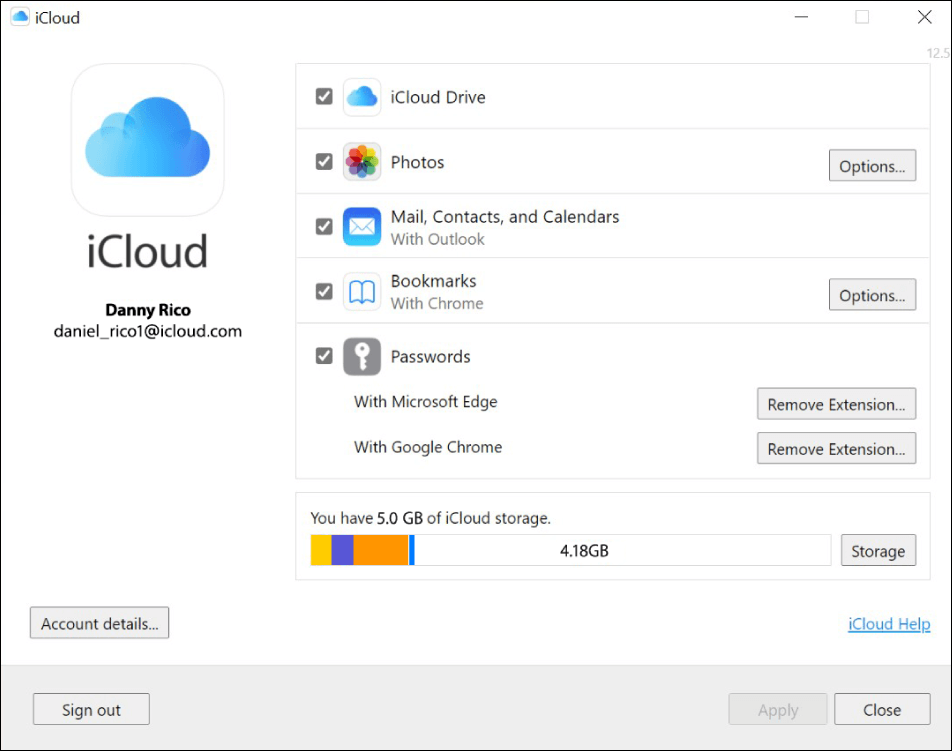
Step 3. To access your files on iCloud Drive, simply log in with your Apple ID. This will give you access to all of your stored files, allowing you to view, edit, and share them as needed.
Once installed and set up, you can access your photos, emails, contacts, calendars, Safari bookmarks, etc., on your Windows PC using iCloud for Windows.
iCloud for Windows allows for seamless use of different operating systems and platforms, making work easier, but it does not support managed Apple IDs.
iCloud vs iCloud+
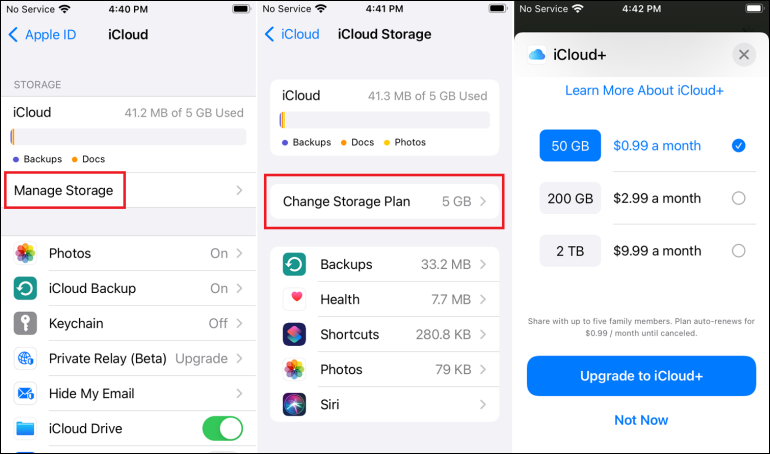
iCloud+ is the upgraded version of iCloud, offering a better cloud-based storage service. With iOS 15, iPadOS 15, and macOS Monterey or later updates, iCloud+ becomes available, providing larger storage space at various price points compared to the standard iCloud.
iCloud+ offers additional features beyond storage, including 50GB/200GB and 2TB storage options.
- iCloud Private Relay keeps your internet activities private and protected when using Safari.
- Hide My Email You can use an anonymous Apple ID to register with certain apps and websites.
- Custom Email Domain This allows you to send and receive iCloud mail using your own custom domain name, giving you a more professional and personalized email experience.
- HomeKit Secure Video supports one/five/no limits number cameras.
You can upgrade the free 5 GB iCloud storage to iCloud+, which offers paid plans on various devices, including iPhone, iPad, iPod touch, Mac, and Windows PC, with prices varying by country and region.
Conclusion
Apple iCloud offers users greater convenience in their daily lives by allowing them to access and manage various aspects of their digital world.
With iCloud Keychain, users can securely store and access their account and password information across all their devices, eliminating the need to remember multiple logins. Additionally, users can easily access and share their photos across all their Apple devices by simply logging in with their Apple ID.
In addition, the paid cloud-iCloud+ offers additional features and increased storage space, and can be updated on various devices including iPhones, iPads, Macs, and PCs.
iCloud FAQs
Here are some questions people also ask when they search for iCloud: What is iCloud? How does iCloud work?
1. How do I get to iCloud on my Mac?
To access iCloud on your Mac, start by clicking on the Apple menu at the top left corner of the screen and selecting System Preferences. From there, click on Apple ID, then select iCloud.
Step 1. Go to "Apple menu > Settings > System Preferences".
Step 2. Click your Apple ID.
Step 3. Select "iCloud" and sign in with your Apple ID.
2. How do I transfer iCloud backup from my iPhone to a new Mac?
Follow the steps below:
Step 1. To set up a new Mac, start by turning it on and connecting to the Wi-Fi network. Then, follow the on-screen instructions to complete the setup process.
Step 2. To restore your iPhone from an iCloud backup, tap "Restore from iCloud Backup" when it appears on the screen, and then sign in to your iCloud account using your Apple ID.
Step 3. Select an iCloud backup that is correct by verifying its date and size to ensure it's the intended backup.
3. How can I access iCloud on my iPhone?
To check how much iCloud Drive storage you're using on your iPhone, go to Settings, tap your name, and then tap "iCloud". From there, you can view your iCloud storage usage and see how much space your iCloud Drive files are taking up.
4. Can I access iCloud online?
To access iCloud online, go to iCloud.com, sign in with your Apple ID, and you can view and manage your iCloud content from there.
5. Where is my iCloud email?
To access your iCloud Mail, go to iCloud.com, sign in with your Apple ID, and you can send and receive emails on your web browser.
Related Articles
- What Is The Difference between Windows 10 Pro and Windows 10 Pro N
- Go Back to Previous Version of Windows in Windows 11 Even After 10 Days
- How to Change Wallpaper on Windows 10
- What Is a USB Flash Drive? All You Need to Know in 2023
- [Detailed Answer] Is Cloning A Hard Dive Safe & How to Clone
Cloning a hard drive can be a safe process if done correctly, but it can also pose risks if not done properly. To clone a hard drive safely, you can use software like Qiling Disk Master, which can create an exact copy of your hard drive, including all files, programs, and settings. - Is It Safe to Buy a Used SSD or Not [Full Guide 2023]
Do you want a used SSD for your PC/laptop/PS4/PS5/Steam Deck/Xbox? However, is it safe to buy a used SSD, or is it a bad idea to buy a used SSD? You will find a correct answer in this article which teaches you to buy a nice used SSD.
Products
Articles & Tutorials
- Data Recovery
- Data Backup
- File Recovery
- File Backup
- System Backup and Restore
- Disk and Partition Clone
- Technical articles
- Mobile articles
- Disk Master Help
- Windows Data Recovery Tutorials
- Windows Secure Delete Tutorials
- Windows Partition Management Tutorials
- Windows File Backup and Restore Tutorials
- Windows System Backup and Restore Tutorials
- Windows Disk Backup and Restore Tutorials
- Windows Clone Tutorials