How To Check Storage on PC [Step-by-Step Guide]
If you've been using your computer to store new information daily, you might be wondering how much space you've used up. To check the storage on your PC, you can go to the storage settings, which shows you the disk and computer usage situation, helping you manage your storage more effectively. In this guide, we'll show you three reliable ways to check storage on your PC, so keep reading to learn more.
How To Check Storage on PC
To check storage on your PC, you can choose one of three operational methods. Before deciding, it's helpful to view the comparison information provided, which highlights the features of each method. Once you've selected the method that suits your needs, you can proceed with the step-by-step guide to learn how to use it. The goal is to find a simple yet comprehensive method that collects detailed storage usage information.
| Comparison | |||
|---|---|---|---|
| ⏰Duration | 3 Minutes | 3 Minutes | 5 Minutes |
| 🧲Difficulty level | Easiest | Easy | Easy |
| 🚁Effectiveness | High | Medium | Medium |
| 👩💻Users | Beginner and Experienced Users | Beginner | Experienced Users |
Editor Review of Checking Storage on PC
Different methods of checking storage are suitable for various requirements, including duration, difficulty level, effectiveness, and user preferences. Users can choose the most suitable method based on their specific needs.
- Qiling Disk Master: If you're short on time and want to thoroughly check your space, use Qiling Disk Master, a top-notch free disk space analyzer that can also help you delete unnecessary files for more storage.
- File Explorer: You can quickly take a glance at the total capacity by opening File Explorer and viewing the total used capacity.
- Windows Settings: The built-in utility can show you more detailed information about files and folders than File Explorer, but it takes longer to load. Additionally, it allows you to delete unused software and files.
Method 1. Check Storage on PC with Qiling Disk Master
To check PC storage, use a professional disk utility like Qiling Disk Master. Its Space Analyzer has a clear and straightforward interface, making it easy for beginners to use. This tool generates a detailed overview of the computer's drive, including the number of files and folders on each drive, total capacity, and last modified time. After analyzing, you can manually delete or modify unwanted files and data directly within the tool.
To analyze the storage on your PC, download this tool and use it to scan and check the storage capacity, disk usage, and other storage-related metrics. This provides you a comprehensive view of your PC's storage situation, allowing you to identify any issues or concerns.
In addition to quickly checking the space, Qiling Disk Master also offers other impressive features to help manage disks and partitions. This tool allows you to explore its capabilities by clicking on the below buttons.
Method 2. Check Storage on PC via File Explorer
To view the drive storage on a PC, open File Explorer and navigate through the detailed information.
To check the storage on your PC using File Explorer, open File Explorer, click on "This PC" in the left sidebar, and look at the total storage capacity and used storage space in the bottom right corner of the window. You can also click on the drive you want to check, such as "C:" or "D:", to see more detailed information about its storage usage.
Step 1. To access the "This PC" section, launch the File Explorer and navigate to the left panel, where you'll find the "This PC" option, or simply type it in the top search box to quickly locate it.
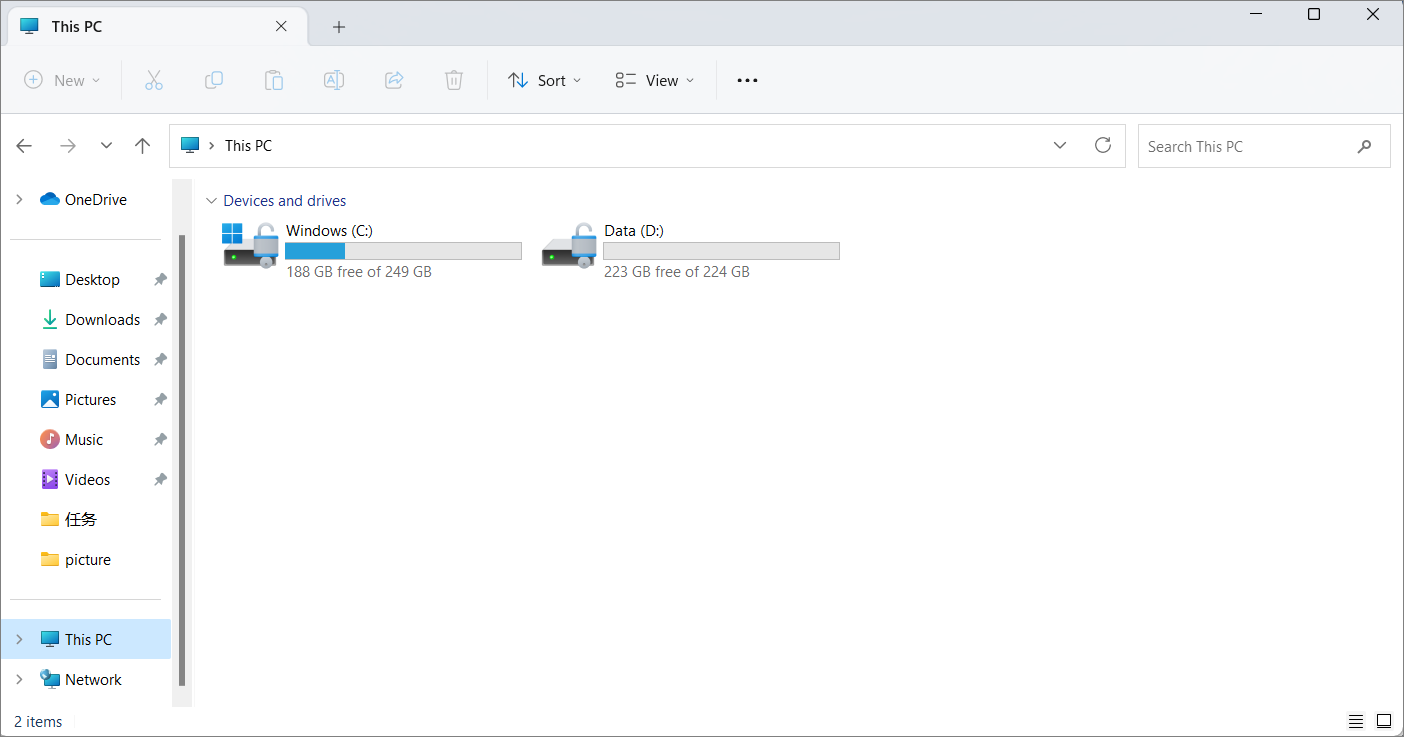
Step 2. The available storage space under each drive is displayed.
In the File Explorer window, you can view the total capacity of each drive, displayed as a thermometer. The blue part represents used space, while the gray part shows available space. If the thermometer turns red, indicating a full storage, take action to free up disk space in the Windows server. For more detailed information, right-click the drive and select "Properties" to check the PC's storage.
Method 3. Use Windows Settings to Check Storage on PC
Windows Settings can provide more detailed information about PC storage usage, including app and temporary file usage, making it a more comprehensive alternative to File Explorer for checking storage.
Follow the guide to using Windows Settings:
Step 1. To access the Settings app on your computer, click the Start button located on the taskbar, then search for and select "Settings."
Step 2. Go to "System" and find "Storage" on the left side.

Step 3. You can click "Show more categories" to view each drive's storage space and double-click the category to see more details.

To check the storage on your PC, you can follow these simple steps. Firstly, click on the Start menu and select the "Settings" option.
If the storage on your PC is full, you can free up space by moving files to an external drive, deleting unnecessary files, and uninstalling unused programs. This will help you manage your disk efficiently and prevent storage-related issues.
What to Do If Storage on PC Is Full?
After checking the storage on your PC, you can see how much space is being used. If the storage is full, you'll need to clean up the space to maintain your computer's high performance. Fortunately, there are various easy and reliable ways to free up the storage space, and you can refer to the below links for more information.
- Delete junk files and uninstall useless applications
- Extend hard drive partitions
- To free up space on the C drive, you can transfer large files to another drive, such as an external hard drive or a different partition on your computer. This can be done by copying the files from the C drive to the new location, and then deleting the original files on the C drive.
- Delete temporary files with Storage Sense
- Permanently delete files from Recycle Bin
If you're experiencing issues with your phone's battery life, try these simple steps to resolve the problem. First, restart your phone to clear out any glitches.
Conclusion
To check storage on your PC, you can use Qiling Disk Master, File Explorer, or Windows Settings. Each method provides an overall view of your storage, but Qiling Disk Master offers comprehensive details to help you determine your computer's capacity. By checking storage regularly with Qiling Disk Master, you can monitor your computer's status and manage it to maintain good performance.
FAQs About How To Check Storage on PC
If you want to know more about checking storage on a PC, we have some additional questions and answers to help you out.
1. How to check my SSD storage?
If your computer has an SSD and you want to check its storage, follow the simplified steps below to learn:
Step 1. Click the Search window on the taskbar.
Step 2. Type "Device Manager" in the window.
Step 3. Double-click "Disk Drives" to see the hard drives list below.
2. How to know if my SSD is full?
You can check if your Solid State Drive (SSD) is full by using the command line. To do this, open a terminal and type `df -h` or `df -H` to view the disk usage.
Step 1. Click the Search box and type CMD, and hit enter.
Step 2. Type the following two commands and hit "Enter" after both.
- WMIC
- diskdrive get status
Step 3. Type exit to quit the project.
3. How to check disk space use situation?
To check the disk space usage, go to Start, then click on Settings, followed by System, and then select Storage. From there, you can find the target drive and view its details.
Related Articles
- Top 5 Best Disk Formatter Software Free Download [Benefits Listed]
- How to Format a USB for Xbox 360 on PC/Mac/Xbox 360 [Newest Solution]
- Is exFAT The Same As FAT32 Format? Everything You Need to Know
- How to Partition A USB Drive Windows 10 [Step-by-Step Guide]
This article shows you how to partition a USB drive Windows 10. You will know three ways to partition a usb, and you can choose the best suitable one to make your USB better used. - How to Fix "Unable to Convert Dynamic Disk to Basic"[2023 Newest Guide]
this guide will tell you why you are unable to convert dynamic disk to basic. After figuring out the reasons, you can find several solutions to fix this problem. - Unable to Install Windows 10 on Dynamic Disk? 3 Fixes 💡
If you can't install Windows 10 on a dynamic disk and get an error saying Windows cannot be installed since the partition contains one or more dynamic volumes, this article can help you convert the dynamic disk to a basic one to install Windows 10.
Products
Articles & Tutorials
- Data Recovery
- Data Backup
- File Recovery
- File Backup
- System Backup and Restore
- Disk and Partition Clone
- Technical articles
- Mobile articles
- Disk Master Help
- Windows Data Recovery Tutorials
- Windows Secure Delete Tutorials
- Windows Partition Management Tutorials
- Windows File Backup and Restore Tutorials
- Windows System Backup and Restore Tutorials
- Windows Disk Backup and Restore Tutorials
- Windows Clone Tutorials