How to Clone or Upgrade a PS5 SSD
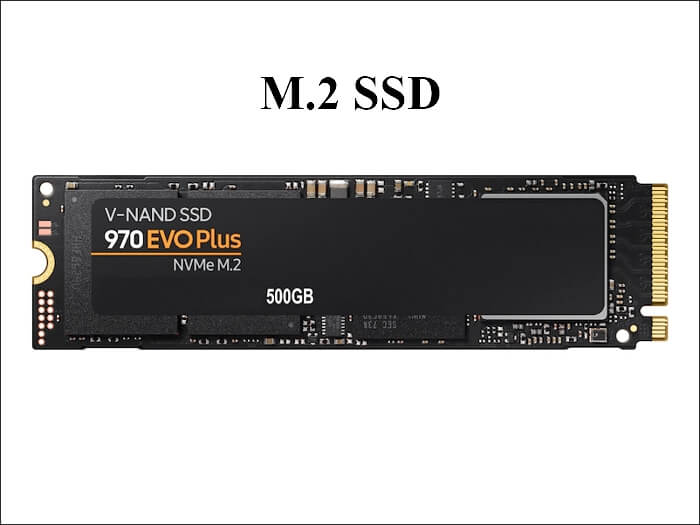
The PlayStation 5 ships with an 825 GB SSD that is soldered to the board and cannot be replaced. Sony added an empty M.2 expansion slot that accepts a PCIe 4.0 x4 NVMe drive from 250 GB up to 8 TB, so you can add storage without opening the system beyond the cover.
This guide explains the PS5 SSD requirements, how to install and format a compatible drive, and how to clone an existing PS5 expansion SSD to a larger M.2 drive on a PC.
PAGE CONTENT
- PS5 SSD Requirements
- Install and Format the M.2 Drive
- Move Games to the Expansion SSD
- Clone a PS5 Expansion SSD with Qiling
- Reinstall and Verify in the PS5
- FAQs About PS5 SSD Upgrades
- Back Up the PS5 SSD Before Cloning
PS5 SSD Requirements
- Internal drive is fixed. The 825 GB SSD inside the PS5 is soldered and cannot be swapped for a larger model.
- Expansion slot spec. The M.2 slot supports PCIe 4.0 x4 NVMe drives with a capacity between 250 GB and 8 TB.
- Form factor. M.2 2280 is required, though shorter 2230, 2242, and 2260 drives also fit if the screw post is moved.
- Heatsink is mandatory. Sony requires a heatsink on the expansion SSD because the slot is not actively cooled inside the console.
- Read speed floor. Sony recommends at least 5,500 MB/s sequential read for the best PS5 game loading experience.
A drive that meets the PCIe 4.0 x4 requirement works even if its raw speed is below the recommended figure, but slower drives will increase load times. SATA M.2 drives are not compatible with the PS5 slot.
Install and Format the M.2 Drive
- Power off and unplug. Remove the base and the side cover to expose the M.2 expansion slot.
- Move the screw post. Set the standoff to match the 2280 length of your SSD before inserting it.
- Seat and screw the drive. Insert at an angle, press down, and tighten the end screw.
- Apply the heatsink. Make sure the thermal pad touches the controller and NAND chips evenly.
- Format with the PS5. The console offers to format the SSD on first boot; only a PS5-formatted drive stores PS5 games.
Do not format the SSD on a Windows PC for PS5 use. The PS5 uses its own file system, so let the console handle formatting after the drive is installed.
Move Games to the Expansion SSD
- Open Storage settings. Go to Settings, Storage, and then M.2 SSD Storage to manage games.
- Move games from internal. Select a game and choose Move to move it to the expansion SSD.
- Download directly to M.2. Set the M.2 SSD as the default download location in Storage settings.
- Keep PS5 games on M.2. PS5 games must run from the internal SSD or the M.2 slot, not from USB.
- Store PS4 games on USB. PS4 titles can live on a USB drive and still play, freeing M.2 space for PS5 games.
Moving a game is much faster than re-downloading it. Use the Move option when you run low on internal storage instead of deleting and reinstalling titles.
Clone a PS5 Expansion SSD with Qiling
If you already have a PS5 expansion SSD full of games and want a larger one, you cannot clone it inside the PS5. Instead, connect both drives to a PC and clone the old expansion SSD to the new M.2 drive, then put the larger one back into the console.
Watch the video tutorial below to clone the drive step by step with Qiling Disk Master.
Step 1. Open Qiling Disk Master, choose Clone, and then select Disk Clone.

Step 2. Select the old PS5 expansion SSD as the source and click Next.

Step 3. Pick the new larger M.2 SSD as the destination and confirm that its data will be replaced.

Step 4. Use sector-by-sector clone to copy the PS5 file system exactly, including the hidden console partitions.

Step 5. Click Proceed, wait for the copy to finish, then install the cloned M.2 drive back into the PS5.

Reinstall and Verify in the PS5
- Power down the PS5. Unplug the console before removing the side cover and the old SSD.
- Swap the M.2 drive. Replace the old expansion SSD with the cloned larger drive and secure the screw.
- Boot the console. The PS5 should detect the M.2 SSD without asking to format it.
- Check game list. Confirm all moved games appear and that their icons are not grayed out.
- Launch one game. Start a PS5 title to verify it loads from the cloned expansion SSD.
If the PS5 asks to format the cloned drive, the sector-by-sector copy did not preserve the PS5 partition table. Restart the clone and make sure you selected the full disk, not a single partition.
FAQs About PS5 SSD Upgrades
Can I replace the internal 825 GB SSD in the PS5?
No. The internal SSD is soldered to the motherboard. You can only add storage through the M.2 expansion slot or a USB drive.
Do I need a heatsink for the PS5 M.2 SSD?
Yes. Sony requires a heatsink on the expansion SSD because the slot has no active cooling inside the console.
Can the PS5 boot from a cloned expansion SSD?
No. The cloned M.2 drive only stores games. The PS5 always boots from its internal soldered SSD.
Why does the PS5 ask to format my cloned SSD?
The clone did not copy the full PS5 partition structure. Use a sector-by-sector clone of the entire disk so the console recognizes the file system.
Can I use a SATA M.2 SSD in the PS5?
No. The PS5 slot only supports PCIe NVMe M.2 drives. SATA M.2 SSDs are electrically incompatible and will not be detected.
Back Up the PS5 SSD Before Cloning
Cloning the PS5 expansion SSD on a PC overwrites the destination and could corrupt the source if a power loss occurs. Back up the disk image first so you can restore if the clone fails.
Watch the video tutorial below to back up Windows and restore it if the clone fails.
Step 1. Open Qiling Disk Master and select Disk Backup to image the entire PS5 expansion SSD.

Step 2. Save the image to a separate large drive and start the backup.

Step 3. Click Proceed to start the disk backup and wait patiently until it finishes. You can also tick Shut down the computer when the operation is completed to power off automatically.

Step 4. If the cloned SSD is not recognized by the PS5, restore the image to a fresh M.2 drive and retry the sector-by-sector clone.

Conclusion
The PS5 internal SSD cannot be replaced, but the M.2 expansion slot accepts a PCIe 4.0 NVMe drive from 250 GB to 8 TB with a required heatsink. Install the drive, let the PS5 format it, and move games from internal storage. To upgrade to a larger expansion SSD, clone the old drive sector by sector on a PC with Qiling Disk Master and reinstall it in the console.
For more M.2 and console cloning guides, see Clone an NVMe SSD to a Larger NVMe, Clone an M.2 SSD to a SATA SSD, Clone Windows to a PCIe 4.0 SSD, and Clone an External Hard Drive to an Internal SSD.
Related Articles
- How to Clone a PS4 Hard Drive to an SSD
Upgrade PlayStation 4 storage to a faster SSD. - How to Clone a Steam Deck SSD
Move games and the OS to a larger Steam Deck SSD. - How to Clone an Xbox One Hard Drive to an SSD
Speed up Xbox One loading with an SSD swap. - Clone an SD Card for Raspberry Pi
Copy a Raspberry Pi OS card to a larger SD card. - Clone an M.2 SSD with Only One Slot
Migrate M.2 drives when the PC has a single NVMe slot.
Products
Articles & Tutorials
- Data Recovery
- Data Backup
- File Recovery
- File Backup
- System Backup and Restore
- Disk and Partition Clone
- Technical articles
- Mobile articles
- Disk Master Help
- Windows Data Recovery Tutorials
- Windows Secure Delete Tutorials
- Windows Partition Management Tutorials
- Windows File Backup and Restore Tutorials
- Windows System Backup and Restore Tutorials
- Windows Disk Backup and Restore Tutorials
- Windows Clone Tutorials