Solved: SSD Not Showing Up in Disk Management on Windows 10/11/8/7
SSDs are a significant upgrade over hard drives, offering faster performance and improved system speed. However, they can sometimes cause issues, such as not showing up in Disk Management, which can be frustrating for users. Fortunately, Qiling has provided four efficient fixes to address this problem, and this article will walk you through them.
Quick Fixes for SSD Not Showing Up in Disk Management
The issue of an SSD not showing up in Disk Management could be due to a hardware or software problem. Fortunately, there are quick solutions to fix this issue, allowing you to resolve the problem and have your SSD detected and visible in Windows Disk Management.
- 1. To check if the SSD is properly installed on the expansion slot, look for the following signs: the SSD is securely fastened with screws, the expansion slot is fully seated with the SSD's connectors aligned, and there are no visible signs of damage or wear on the SSD or the expansion slot. You can also check the system's BIOS or UEFI settings to ensure the SSD is detected and recognized by the system.
- 2. Check Connectors, Ports, and Cables for damage
- 3. To check if the port you are connected to supports the corresponding SSD, you can check the specifications of the port and the SSD. Typically, ports such as SATA, PCIe, and M.
- 4. Check if the motherboard supports the corresponding SSD type
- 5. Connect the SSD to another device to check if the SSD is working properly. If it works fine, the issue might be with the original device.
If the SSD isn't showing up in Disk Management on Windows, we can rule out hardware issues and focus on software settings. To resolve this, we'll explore the steps to troubleshoot and fix the problem through system configurations.
The main reasons why an SSD is not showing up in Disk Management include hardware errors, incorrect SSD configuration, incorrect SATA port, incorrect SSD connection, incorrect BIOS settings, incorrect UEFI settings, incorrect SSD firmware, incorrect SSD driver, incorrect Windows installation, or a malfunctioning SSD controller.
- 🛞SSD is not initialized
- Ⓜ️The drive letter of SSD is missing
- ✂️Disk drivers are outdated
- 🔨Wrong BIOS settings
To resolve the issue of an SSD not showing up in Disk Management on Windows 11/10/8/7, we will address the problem based on four possible reasons. Further reading and learning will provide the necessary guidance to fix this error.
4 Fixes for SSD Not Showing Up in Disk Management on Windows 10/11/8/7
If your Windows 11/10/7 computer doesn't recognize your target SSD and it doesn't show up in Disk Management, you can try the following methods to fix the issue. These methods may help resolve the problem and get your SSD recognized by your computer.
- Fix 1. Initialize SSD
- Fix 2. Assign Drive Letter to SSD
- Fix 3. Update Disk Driver
- Fix 4. Change BIOS Settings
If your SSD is brand new, start with Fix 1 first. Otherwise, you can try the following fixes to resolve the issue: check if the SSD is properly seated in the slot, try using a different SATA cable, ensure the power supply is sufficient, check for any BIOS updates, and finally, try running a disk check and disk clean-up.
Fix 1. Initialize SSD
If the drive is not initialized, Windows won't recognize it, and it won't show up in Disk Management. Qiling Disk Master can help initialize the SSD to MBR or GPT and create partitions, making it usable with a few simple steps.
Step 1. Open Qiling Disk Master and got to Partition Manager.
Step 2. Right-click the target disk, select "Initialize to MBR" or "Initialize to GPT", and click "Yes" to save the changes.
Related Article:
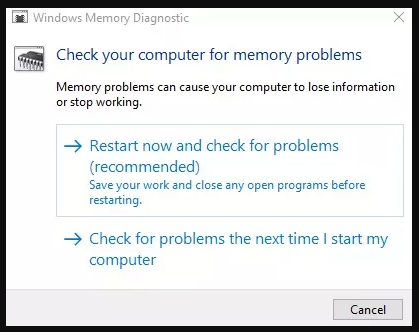
To fix the issue where an SSD shows up in the BIOS but not in Windows, try updating the SSD firmware, checking the SATA port, and ensuring the drive is properly connected to the motherboard. Additionally, verify that the SSD is set as the primary boot device in the BIOS, and that the Windows installation is not corrupted.
Although properly connected to the computer and recognized by the BIOS, a storage device may still not appear in This PC, File Explorer, or Disk Management. This issue is the focus of this article.
Fix 2. Assign Drive Letter to SSD
If Windows doesn't assign a letter to your SSD, you can use Qiling Disk Master to initialize it and assign a drive letter, all without typing any commands. This tool can handle the process for you, allowing you to easily assign a new drive letter to your SSD.
To try Qiling Disk Master, download it by clicking the button above and follow the guide.
Step 1. Run Qiling Disk Master, right-click the target partition, and select "Change Drive Letter" from the menu.
Step 2. In the new window, select a drive letter for the partition from the drop-down menu and click "OK".
Step 3. The Disk Master program changes the drive letter of the selected partition.
Qiling Disk Master is a powerful tool that can also perform various other tasks. To learn more about its features, you can continue reading to discover what else it can do.
- Merge partitions on SSD
- Test SSD read/write speed
- Check SSD health on Windows 10/11.8.7
- Check SSD temperature on Windows 10
- 4K Align to fix SSD slow write speed error
- And more
Qiling Disk Master is a tool that makes managing your SSD and getting it to work properly on your PC easier. Download it to try.
Fix 3. Update Disk Driver
Outdated drivers can also cause problems like freezing, crashing, and hardware malfunction. To resolve this, you can download the latest driver update, which can be done by following these steps:
Step 1. Press Windows + I to navigate to Windows "Settings" menu.
Step 2. To update Windows, click the Windows Update option, then navigate to Advanced Options and select Optional Updates.
Step 3. you can find a list of all available updates for your system in this window, including disk drivers.
Step 4. To help your SSD show up in Disk Management, install available updates. This will ensure that your system is running with the latest drivers and firmware, which can resolve issues related to SSD recognition.
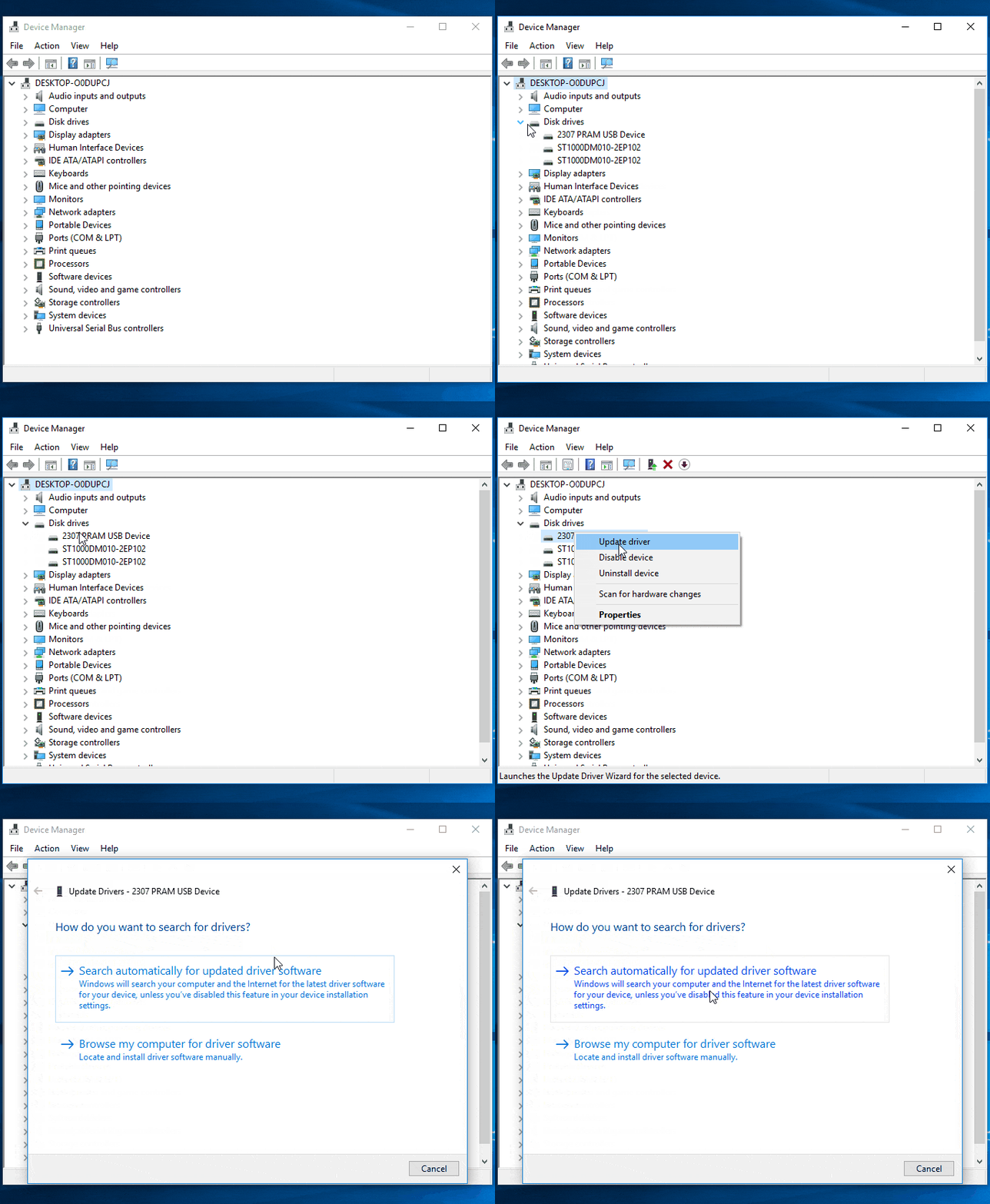
Updating drivers may help your SSD show up in Windows and Disk Management, potentially resolving the issue.
Fix 4. Change BIOS Settings
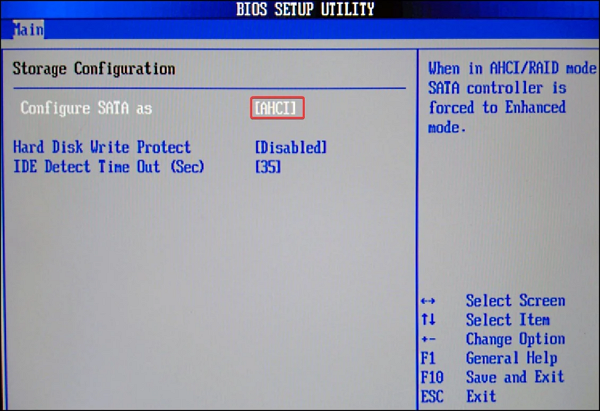
If the SSD doesn't appear in Disk Management, you can change the SATA operation mode in the BIOS to resolve the issue. This involves accessing the BIOS settings, navigating to the SATA settings, and selecting the correct mode for the SSD.
- Notice:
- To open the BIOS window, the process varies depending on the system. You can visit the manufacturer's website for specific instructions on how to access the BIOS settings on your particular device.
Then try the following:
Step 1. Go to System Configuration.
Step 2. To enable AHCI mode on your computer, go into your BIOS settings, select SATA Operations, and set it to AHCI. Then, click Apply and exit the BIOS. This will enable AHCI mode on your system.
You May Also Like the following:
If you're experiencing issues with your phone, such as a frozen screen, overheating, or battery drain, click the corresponding links to learn how to troubleshoot and resolve these problems.
Conclusion
If your SSD isn't showing up in Disk Management, it's likely due to a hardware issue, incompatibility, or a device driver problem. To troubleshoot, first check if your hardware is damaged. If everything checks out, try the four safe fixes mentioned earlier.
In most cases, the issue is caused by the SSD not being initialized or not receiving a drive letter. To resolve this, initializing the SSD and assigning a new drive letter is necessary. Qiling Disk Master can assist with this process by downloading and using the tool.
SSD Not Showing Up in Disk Management FAQs
Have you fixed the SSD not showing up in the Disk Management issue? This part lists some other related questions. Read them to help.
1. Why is the SSD not showing up in Disk Management but showing in BIOS?
An SSD that shows up in the BIOS but not in Disk Management is likely due to an incompatible file format, an uninitialized SSD, old drivers, or missing drive letters. This issue can be resolved by formatting the SSD, initializing it, assigning a drive letter to the SSD, or updating the drivers.
2. Why is my SSD not being detected by BIOS?
If the data cable is damaged or not connected properly, the BIOS won't detect the SSD. Check that the SATA cable is securely connected to the SATA port connection. If not, try changing the BIOS settings to fix the issue.
3. How to fix my external SSD not showing up in Disk Management?
A connected external hard drive that cannot be detected in Disk Management may be caused by several reasons, including Windows 10/11 manually hiding the hard drive, unstable USB interface or cable connection, damaged external SSD, outdated disk driver, or incorrect external drive letter.
Related Articles
- Full Guide on HDD Benchmark on Windows [2023 Newest]
- Difference Between SFC, CHKDSK, and DISM Windows 11
- How to Repartition a Hard Drive on Windows 10/11 [Step-by-Step]
- How to Shrink C Drive without Losing Data [2023 Full Guide]
- Can I Format the System Partition? How to Fix System Partition is Not Allowed to Be Formatted
This article addresses an error message that appears when users attempt to format the system partition, which is not allowed to be formatted. If you're experiencing this issue, reading this article may help you resolve the problem. - The Disk Check Could Not Be Performed" Solutions
If your external hard drive shows 0 bytes in Properties, you may encounter an error message saying that Windows cannot access the disk, preventing a disk check.
Products
Articles & Tutorials
- Data Recovery
- Data Backup
- File Recovery
- File Backup
- System Backup and Restore
- Disk and Partition Clone
- Technical articles
- Mobile articles
- Disk Master Help
- Windows Data Recovery Tutorials
- Windows Secure Delete Tutorials
- Windows Partition Management Tutorials
- Windows File Backup and Restore Tutorials
- Windows System Backup and Restore Tutorials
- Windows Disk Backup and Restore Tutorials
- Windows Clone Tutorials