How to Recover Deleted Videos on Any Device
Videos have become a vital part of our lives, but they can also be lost due to accidental deletion, formatting errors, or corrupt storage media, causing frustration and upset.
Fortunately, there are ways to recover deleted videos on Windows, Mac, iPhone, and Android. We will walk you through several of them right here in this article.
Is It Possible to Recover Deleted Videos?
You can potentially recover deleted videos, but the success rate depends on several factors, including how long ago the video was deleted and the type of file it is.
When a video is deleted, the device doesn't immediately remove the files, but rather marks the occupied space as available for new data. This creates a window of opportunity for recovery using specialized software, but the chances of success decrease with time or if new data is written to the same location.
- Stop using the device to avoid data overwrite.
- Start the data recovery process as soon as possible.
How to Recover Deleted Videos on Windows 10/11
Recovering deleted videos can be a relatively simple task, especially with the right methods and know-how. Depending on the device you're using, there are various methods to try. On Windows 11/10/8/7, you can attempt to recover deleted videos using file recovery software, checking the Recycle Bin, or using built-in tools like the File Explorer's "Previous Versions" feature, which can help you restore deleted files, including videos. By trying these methods, you may be able to recover your deleted videos.
Method 1. Retrieve Deleted Videos from Recycle Bin
To restore deleted videos on Windows 10/11, check the Recycle Bin first as the file may still be there. If not, you can try using video recovery software like Deep Data Recovery, which can scan your computer for deleted files and recover them. Additionally, you can also check your cloud storage services like Google Drive, OneDrive, or Dropbox to see if the deleted video is synced to a cloud backup. If none of these methods work, you can try using a third-party data recovery tool or consult a professional for further assistance.
To find a deleted video in Recycle Bin:
Step 1. Double-click the Recycle Bin icon on the desktop.

Step 2. Locate the video files you want to restore.
Step 3. Right-click the file and select "Restore".
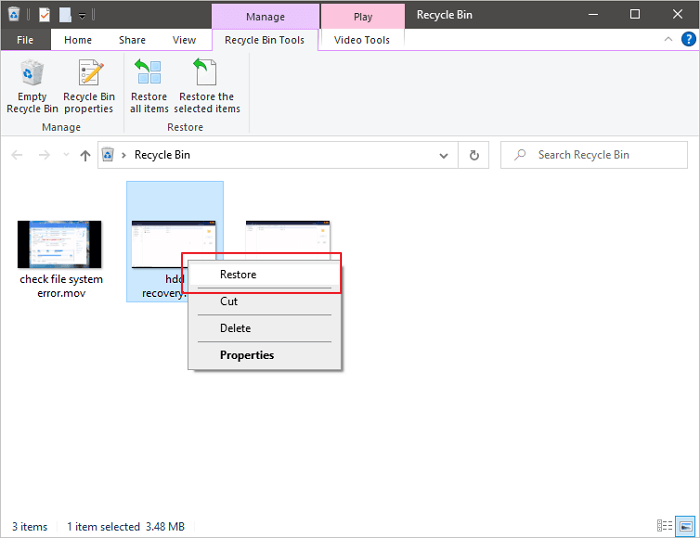
Deleted videos are moved to the Recycle Bin, but not all deleted files go there. If you delete files with Shift + Delete, they are permanently deleted and can't be seen in the Recycle Bin. Other video recovery solutions can retrieve permanently deleted videos.
Method 2. How Do I Recover Permanently Deleted Videos with Software
To recover deleted videos, you can use a data recovery tool, which comes in various options, so choose the best video recovery software compatible with your Windows version, such as Windows 11, 10, 8, or 7.
The data recovery software we recommend the most is Deep Data Recovery, which ranks top for its reliability, performance, and simplicity. Qiling data recovery software is also a reliable and effective tool that can be used to restore deleted videos on Windows 11/10/8/7, offering a simple and intuitive interface that makes it easy to select the desired file type and location. Its features include a user-friendly interface, ability to recover deleted files, and support for various file types.
- Flexible search options
- Preview function
- Easy-to-use interface
- Advanced settings for customizing the recovery process
Qiling data recovery software is an ideal tool for recovering deleted videos on Windows 10, thanks to its features. To recover video files with data recovery software on Windows, follow these steps:
Step 1. Select a specific hard disk or location.
Choose the drive or partition where you deleted files, and select a specific location to scan, such as the Recycle Bin, Desktop, or a folder. Click the Scan button to start finding deleted files.
Step 2. Start a quick or advanced scan for lost data.
The time to scan depends on file size and disk health, and the results can be filtered by file type after completion.
Step 3. Preview and recover the files you need.
After scanning, you can verify if the recovered file is the one you were looking for. Once confirmed, click the "Recover" button to save the recovered files.

Method 3. Get Back Deleted Videos from File History Backup
If you've accidentally deleted a video file on your Windows 10 computer, you can recover it if you have enabled File History. To do this, go to the Start menu, type "File History" in the search bar, and select the top result. Then, click on "Restore your files" and follow the prompts to select the folder where the deleted file was stored.
Step 1. Click the Search box and type file history.
Step 2. Click "Restore your files from File history" from the search results.
Step 3. Then, you will go to the File History window.
Step 4. You can select the video files you want to restore and preview them to confirm they are the correct ones.
Step 5. Click the green "Restore" button.
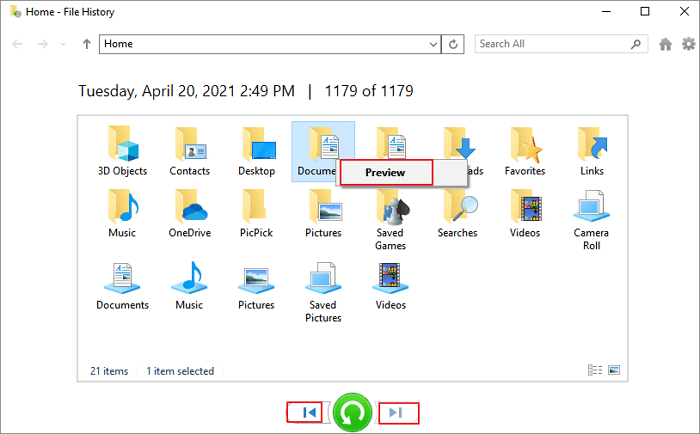
File History will now restore the selected video file to its previous location. If the file was saved elsewhere, choose that location when prompted. After restoration, you can work with the file as usual.
Full Guide
If you're experiencing issues with video recovery on Windows 10, you may need to troubleshoot or seek additional support. You can try checking the event logs, reinstalling the video drivers, or running the built-in System File Checker (SFC) and DISM tools to identify and fix any corrupted system files. If the problem persists, you may want to consider seeking further assistance from Microsoft Support or a professional computer technician.
How to Recover Deleted Videos on Mac
If you delete a video on macOS, don't panic. You can recover deleted videos on Mac using various methods, which are similar to those for Windows but with different operation steps.
Method 1. Check Mac Trash
If the video is in the Mac Trash, you can restore it by right-clicking on the file and selecting "Put Back". This will move the file back to its original location.

Method 2. Use Data Recovery Software for Mac
If the deleted videos are not in the Trash, you can try using a data recovery tool like Qiling Mac data recovery software, which is easy to use and can recover videos from various storage devices, including hard drives, SSDs, USB flash drives, and memory cards.
- Download and launch the program, then select the drive where your video was deleted to begin the recovery process.
- The software will scan the selected drive and display all of the recoverable files.
- Select the video (or videos) you want to recover and save them to a new location.
Method 3. Recover from Time Machine
If Time Machine is enabled on your Mac, you can use it to restore a previous version of your hard drive and recover the deleted video.
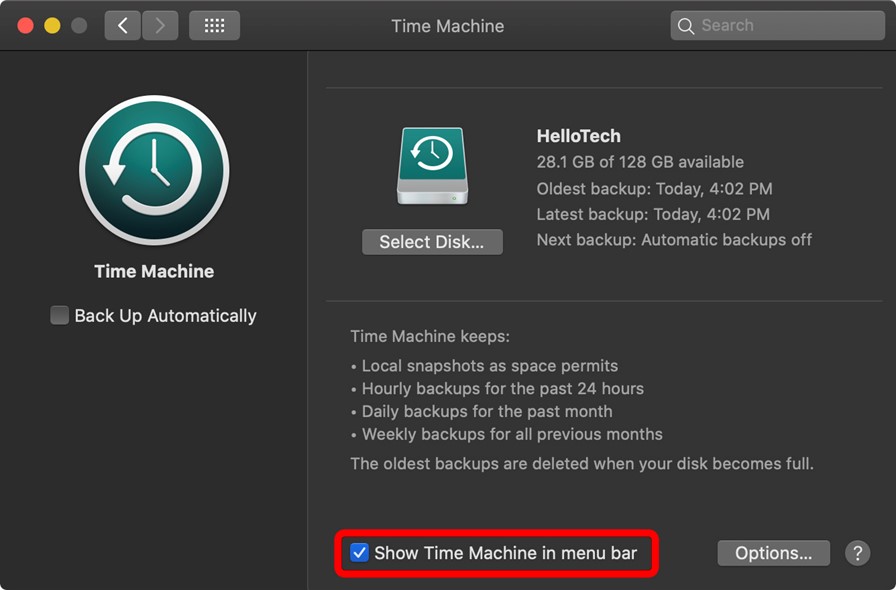
You successfully recovered your lost video files. If not, there are other methods to recover deleted videos on a Mac that you can look into.
How to Recover Deleted Videos on iPhone
Losing important videos on your iPhone can be frustrating, whether it's due to accidental deletion or a phone crash that wipes them out. However, there are steps you can take to try and recover deleted videos on your iPhone.
Step 1. Check the Recently Deleted Folder
When you delete a video on your iPhone, it's moved to the Recently Deleted folder, where it stays for up to 40 days. To undelete a video, go to the Albums tab and select the Recently Deleted folder.
Step 2. Check Your iCloud or iTunes
Check if you have a backup of your videos, either through iCloud or iTunes, to potentially restore them.
Step 3. Use an iPhone Video Recovery App
If you don't have a backup, you can use data recovery software to scan your iPhone and try to recover lost files, including videos, using a Windows or Mac computer with software like Qiling MobiSaver. This process is simple and can help you retrieve permanently deleted videos from your iPhone.
Full Guide
To recover deleted videos from an iPhone, start by connecting the device to a computer and launching the iTunes program. Then, select the iPhone from the top left corner of the iTunes window and click on "Restore iPhone" while holding the Shift key on a PC or the Command key on a Mac.
How to Recover Deleted Videos on Android
Videos have become increasingly popular, with a 50% growth in video content on social media platforms in the past two years, but sometimes users may accidentally delete or lose access to videos, and need to know how to restore them on Samsung, Xiaomi, OnePlus, or OPPO devices.
To retrieve deleted videos on Android, you can try using an Android data recovery app, which scans your device for lost or deleted files and attempts to recover deleted videos. However, this may require rooting your Android phone before the recovery process can begin.
To recover deleted videos on an Android device, you can try using a data recovery app, connecting your device to a computer and using Android data recovery software, or restoring from a backup if one exists.
Full Guide
If you're not sure how to proceed, check this guide to recover deleted videos from Android.
If you've lost videos on your iPhone, don't worry, you can try a few things to recover them. First, check your Recently Deleted album, as the videos may still be there. If not, try using a third-party recovery app like Deep Data Recovery or PhoneRescue, which can scan your iPhone and recover deleted files. If these methods don't work, you can try restoring your iPhone from a backup, if you have one.
How to Protect Important Videos
Video recovery is a time-Losing videos can be frustrating, but there are steps you can take to avoid this unpleasant experience. To prevent data loss, follow these tips:
Make Copies:
To ensure your videos are safe, make multiple copies of them and store them in different locations. This way, if one copy is lost or damaged, you'll still have others to fall back on.
Upload to Cloud Drive:
Upload your videos to a cloud drive such as Google Drive or Dropbox, ensuring they remain safe even if your computer is damaged.
Share Videos:
Share your videos with friends or family members so they can also keep copies of them.
Export to MP4:
To ensure that you can access your videos even if the original file is lost or corrupted, you can create a copy of the video file, which can be stored separately from the original. This way, you have a backup of your video and can still view it if something happens to the original file.
To preserve your videos, make sure to store them in a cool, dry place away from direct sunlight. This will prevent damage from heat and light.
Recover Deleted Videos FAQs
If you've accidentally deleted a video, don't worry! You can still recover it on various devices. Below, we'll cover some key topics related to deleted video recovery, providing a full guide to help you retrieve your lost video. Whether you're using a smartphone, computer, or other device, we've can help.
1. How do I recover permanently deleted videos?
To recover permanently deleted videos, you'll need to use data recovery software, followed by the steps below to restore deleted videos using Deep Data Recovery.
- Download and install Deep Data Recovery.
- To recover a deleted video, select the drive that contains the deleted video and click the "Scan" button.
- Use the search bar to find wanted video files.
- Select the video file and click "Recover".
- Once you've finished recovering your video, you can open it on your device and watch it.
2. Where can I find a video I deleted?
You can try checking the YouTube video's original upload page, where it might be available in the "Deleted videos" section. If that doesn't work, you can also try searching for the video's title and keywords on the platform, or looking for it on other video-sharing sites.
- Check your Recycle Bin or Trash folder, as the video may still be there if it was accidentally deleted.
- If you're unable to find the video on YouTube, try searching for it on your hard drive. It's possible that the video was not permanently deleted and is still present on your computer.
- To recover a deleted video, first check your device's trash or recycle bin to see if the video is still there. If it's not, try looking in any cloud storage services you may have used to store the video. If you can't find it there either, check any external hard drives or other storage devices you may have used to back up your videos. Finally, check any backups you may have made of your videos, as they may still be stored in one of these backups.
3. How to recover deleted TikTok videos?
Here are the steps to recover deleted TikTok videos on your iPhone:
Step 1. Access iCloud.com, and sign in to your account.
Step 2. choose "Settings".
Step 3. In the "Advanced" section, click "Recover Files".
Step 4. Select files you want to recover.
Step 5. Tap "Restore".
4. How to recover deleted YouTube videos?
If you've accidentally deleted a YouTube video, there are a few ways to potentially recover it.
Step 1. Check your Trash folder.
On YouTube, deleted videos are saved in the Trash folder for 30 days before being permanently deleted, giving users a chance to restore them with just a few clicks if needed.
Step 2. Contact YouTube directly.
If you have proof that you are the owner of the video, YouTube may be able to help you recover it.
Step 3. Recover from backup.
If you have a backup of your video on another storage device, you may be able to restore the video from there, making it easily retrievable with some effort.
5. How to recover lost videos from an SD card?
To recover deleted videos from an SD card, first, stop using the card immediately to prevent overwriting of data. Next, download and install a reliable SD card recovery software, such as Deep Data Recovery or Qiling file recovery software.
- Connect the SD Card with your PC.
- Install the SD card video recovery tool for free.
- Select the SD Card to scan for deleted videos.
- Recovering deleted video from the SD card.
6. Can I recover deleted/lost PS4 videos?
Most PS4 videos are recorded on memory cards or hard drives, so you can recover them using video recovery software like Deep Data Recovery.
7. Can I recover permanently deleted videos from Android?
You can recover permanently deleted videos from your phone as long as you act quickly, and Qiling MobiSaver for Android is the tool to use. To get started, follow these instructions.
- Install Qiling MobiSaver for Android.
- Connect the phone to your PC and start the scan.
- Select the videos you want to recover, then tap "Recover".
- Choose where you want to store your video files.
8. How to recover deleted ring videos?
If you've accidentally deleted a Ring video, don't panic - you can likely recover it using Qiling data recovery software, which is designed to help Ring users restore lost or deleted videos.
To recover deleted videos, simply install this video undelete tool and follow the on-screen instructions. Once you've recovered your videos, be sure to save them in a safe place so that you can access them in the future.
Conclusion
Recovering deleted videos depends on the device you're using. For Windows and Mac computers, data recovery programs can help, while iPhones have a built-in feature in the Photos app to recover recently deleted photos and videos. For Android devices, third-party data recovery apps can assist in recovering lost or deleted files.
If you've accidentally deleted a video, don't worry, you can likely recover it with some effort.
Related Articles
- Ultimate Guide on SD Card Recovery in 2022
- [2022] Recover Deleted Files on Mac with Expert Approved Guide
- (July 2022) Ultimate Guide to Mac Time Machine Backup
- Chrome History: How to View, Delete, and Recover
- Recover Files from SSD: Easy Steps to Retrieve Your Lost Data
In this post, we will explore a powerful Windows data recovery tool to recover files from SSD on Windows 11, 10, 8, and 7, ensuring you have the best chance of retrieving your valuable data. - 5 Ways to Recover Lost Files After Windows 10 Update in 2023
Where are my files after Windows 10 update? Can I recover lost files after installing Windows 10? This post provides you with five proven ways to recover lost files after Windows 10 update.
Products
Articles & Tutorials
- Data Recovery
- Data Backup
- File Recovery
- File Backup
- System Backup and Restore
- Disk and Partition Clone
- Technical articles
- Mobile articles
- Disk Master Help
- Windows Data Recovery Tutorials
- Windows Secure Delete Tutorials
- Windows Partition Management Tutorials
- Windows File Backup and Restore Tutorials
- Windows System Backup and Restore Tutorials
- Windows Disk Backup and Restore Tutorials
- Windows Clone Tutorials