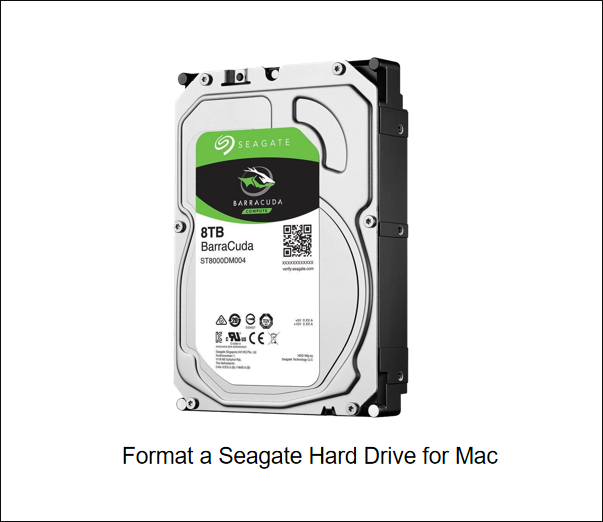
How to Format Seagate Hard Drive for Mac [Fast & Full Guide]
To format a Seagate hard drive for a Mac, you can use the built-in Disk Utility app. Connect the drive to your Mac, open Disk Utility, select the drive in the sidebar, click the "Erase" button, and choose "Quick Erase" or "Security Erase" depending on your needs. This will erase the drive and make it ready for use with your Mac.
Formatting a Seagate hard drive for Mac can be a daunting task, especially if you're new to it. However, with the right guidance, you can easily format your Seagate hard drive for use with your Mac.
How Do I Format a Seagate Hard Drive for a Mac?
To format a Seagate hard drive for Mac, you can use the Disk Utility and Terminal to erase and reformat the drive, making it compatible with your Mac.
Before diving into the process of deleting apps on your Mac, it's essential to create a backup of your device. You can find a link to help you back up your Mac. Once you have a backup, you can proceed with opening the Launchpad or searching for the apps you want to delete using Spotlight.
To create a backup of your files, you should connect your Seagate hard drive to your Mac, select the files you want to back up, and then use the built-in Backup feature in your Mac or a third-party backup software to transfer the files to your Mac's hard drive or an external drive. Once you have backed up your files, you can safely format your Seagate hard drive. To format your Seagate hard drive for Mac, you can use the built-in Disk Utility app on your Mac.
Method 1. How to Format Seagate Hard Drive for Mac - Disk Utility
The Disk Utility is a tool used to manage and format the volume of external drives, create an image of your Mac, check and repair drives if errors occur, and create a RAID if you have multiple hard disks.
The Disk Utility is a comprehensive tool for all your internal and external hard disk needs, and now that you know what a Disk utility is and what you can use it for, here is how to format your Seagate hard drive for a Mac on a Mac.
Step 1. Connect your Seagate hard drive to your Mac, and open Spotlight search.
Step 2. Type "Disk Utility" to open the Disk Utility.
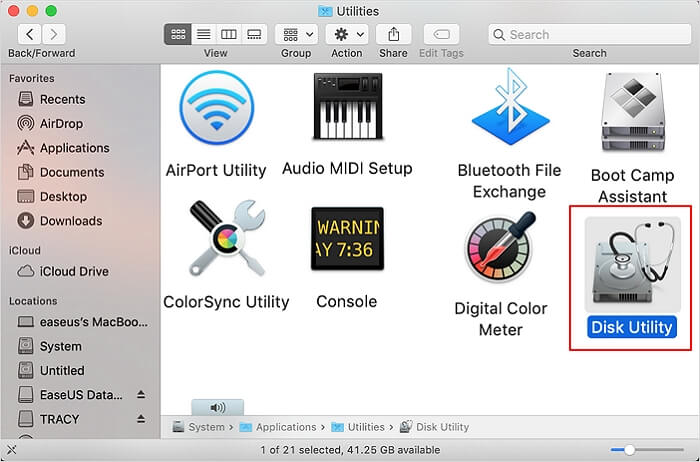
Step 3. Select your Seagate hard drive and click on "Erase."
Step 4. Give your drive a name, select the format and scheme, and click the "Erase" button again.
If you're unsure about which format to choose, first decide if you'll be using your external drive with other devices or just your Mac. If it's just your Mac, choose APFS. If you'll be using it with other devices, select exFAT or FAT32.
Since FAT32 has a file size limit of 4GB, it's not recommended. Choose exFAT instead. Select Master Boot Record (MBR) for the scheme.
Well, there is a link for you since you may run into some problems during the format process such as:
How to Format Seagate Hard Drive for Mac - Terminal Command
You can also format a drive using the Terminal, which may be more suitable for those who frequently use the command line. This method allows you to format the drive using Terminal commands, providing an alternative to using the Disk Utility.
If you're not tech-If you're new to Mac or haven't used the Terminal before, don't worry - it's easier than you think! The Terminal is a powerful tool that lets you control your Mac from the command line, but it can seem intimidating at first.
The Terminal on a Mac is similar to the command prompt on Windows, allowing users to execute commands to interact with their computer and modify settings, reset configurations, and format the hard drive to the best format for Mac.
To format your Seagate hard drive using Terminal on a Mac, first, you need to identify the drive's name using the `diskutil list` command. Once you know the drive's name, you can use the `diskutil eraseDisk` command to format it.
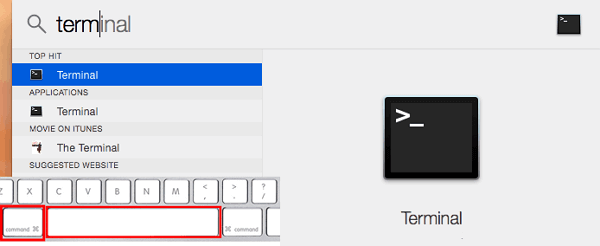
Step 1. To open Terminal, you can either search for it in Spotlight, or navigate to the Applications folder in Finder and select Terminal under Utilities.
Step 2. To list all available disk partitions, open the Terminal and type the "diskutil list" command, then press Enter.
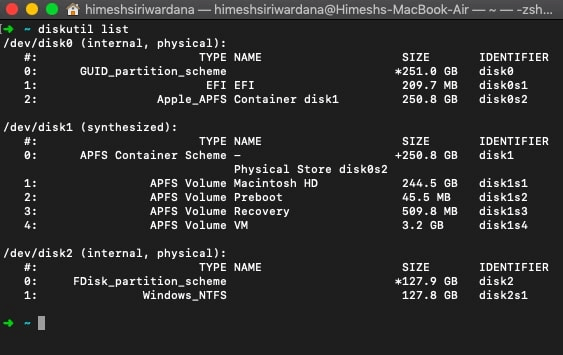
Step 3. You will find a list with a list of drives. Pick your Seagate drive and then type the command "diskutil eraseDisk APFS (LABEL)" in Terminal, replacing "(LABEL)" with the name you want to give this new drive.
Step 4. Once you have entered the command, your Seagate drive will be formatted, which means it will be prepared for use with your computer. This process will erase any existing data on the drive, so make sure to back up any important files before proceeding.
In this way, you have formatted the Seagate hard drive for a Mac. However, do you know how to format Seagate hard drive for Mac on Windows? You can find an answer in the next part.
Bonus Tip: How to Format Seagate Hard Drive Windows 10/11
If you want a tool that offers more features than Disk Utility and the Terminal, Qiling Partition Master Free is a great option. It can be a helpful tool if you need to format a Seagate hard drive on Windows efficiently.
Now, let's see how to use this tool to format Seagate hard drive.
Step 1. To format a hard drive partition, open Qiling Partition Master, right-click the partition you want to format, and select "Format" from the context menu.

Step 2. To format a partition, open a new window and set the partition label, file system (NTFS, FAT32, EXT2, EXT3, EXT4, exFAT), and cluster size for the partition to be formatted. After configuring these settings, click the "Proceed" button to initiate the formatting process.

Step 3. After running the command, you will see a warning window. Click "Yes" in it to proceed with formatting the partition on your hard drive.
Qiling Partition Master is a powerful tool that not only allows you to easily format your drive but also enables you to copy and move your OS and data to another drive. This program comes with various functions, making it a comprehensive solution for managing your partitions.
What Can Qiling Partition Master Do?
Qiling Partition Master is a professional and reliable format tool that offers several specific functions. It allows users to format partitions, including NTFS, FAT32, and exFAT, among others, to prepare them for use.
- Convert FAT32 to NTFS
- Convert MBR to GPT without data loss
- Check bad sectors and file system errors
- Merge partitions, create/delete or resize/move partitions
- Formatting external hard drives, such as hard drives, USB drives, and SD cards, involves preparing them for use by deleting all existing data and reorganizing the file system. This process, also known as low-level formatting, can be done on most external storage devices.
This program is available for free download on Windows, and for those who use both Mac and Windows, it can be used to format hard disks on both platforms. Its user-friendly interface makes it easy to use, providing a clear and simple experience.
Conclusion
Formatting a Seagate external hard drive on a Mac is a straightforward process that can be completed in a few simple steps. To start, connect the Seagate hard drive to your Mac using a USB cable. Once connected, go to the Finder window and click on the "Applications" folder.
FAQ About How to Format Seagate Hard Drive for Mac
Here are a few questions to which we think you will want to know the answers about formatting your Seagate hard drive for Mac.
1. Why is my Seagate hard drive not showing up on my Mac?
If your Seagate hard drive isn't showing up on your Mac, first check that the cables are securely connected. If that's in order and it still doesn't appear, open Disk Utility, go to "View" in the menu bar, and select "Show all devices."
2. Is the Seagate external hard drive compatible with the Mac?
The Seagate external hard drive is compatible with your Mac, just like any other drive, and can be used to store and transfer files between your computer and other devices.
3. How do I get my Seagate hard drive to work on my Mac?
To use your Seagate hard drive on a Mac, simply connect it and format it, which will allow you to copy and move files onto the drive. If you don't format it, the drive will be read-only.
Related Articles
- How to Boot Computer from USB and Make A Portable OS
- How to Fix Cannot Delete a Protected Partition in Diskpart [Ultimate Guide]
- Google Chrome Windows 7&8.1 End of Support: What Should You Do
- What Does Format Disk Mean? [Most Detailed Answer 2022]
- How to Find IE Account and Password? Look Here!
Are you looking for IE Account and Password? Do you want to remove it? The guideline below will help you locate the IE account and password. - How to Find or Recover Microsoft Office 2010 Product Key Already Installed
If you're reinstalling Office 2010 and need the 25-character product key, but can't find it, you can try various methods to recover it.
Products
Articles & Tutorials
- Data Recovery
- Data Backup
- File Recovery
- File Backup
- System Backup and Restore
- Disk and Partition Clone
- Technical articles
- Mobile articles
- Disk Master Help
- Windows Data Recovery Tutorials
- Windows Secure Delete Tutorials
- Windows Partition Management Tutorials
- Windows File Backup and Restore Tutorials
- Windows System Backup and Restore Tutorials
- Windows Disk Backup and Restore Tutorials
- Windows Clone Tutorials