How to Install Windows 10 on New PC Without Operating System
Preparing a new PC for use can generate excitement, yet the absence of an operating system could appear as a challenging hurdle. Nevertheless, installing Windows 10 on a fresh PC can be a smooth undertaking by following the appropriate instructions and utilizing a handful of essential tools, which will be carefully guided by Qiling through each process step, demonstrating how to install Windows 10 on a new PC without an operating system.
This guide provides a comprehensive overview of preparing the installation media and configuring BIOS settings, making it easier to unleash the full potential of your new PC by streamlining the Windows 10 installation process.
| ⏱️Duration | More than 10 minutes |
| ⛏️Required Tools | Windows 10 Installation Media Tool - Qiling Partition Mater |
| 🧑💻Suitable Users | For users who want to install an operating system, including those running Windows 10/11/7, the process typically involves creating a bootable installation media, such as a USB drive or CD/DVD, and then following the on-screen instructions to complete the installation. This may involve formatting the drive where the OS will be installed, selecting the desired language and timezone, and choosing the installation type, among other steps. |
| 👣Steps |
1️⃣Stage 1. Download Windows 10 ISO File 2️⃣Stage 2. Create Windows 10 Installation Media |
How to Install Windows 10 on a New PC Without an Operating System
Installing Windows 10 on a new computer without an OS is simpler than it seems. To start, prepare a USB drive and format it as FAT32. Next, download the ISO burner, Qiling Disk Master, to create a bootable installation USB. With these straightforward steps, you'll be well on your way to successfully installing Windows 10 on your new computer.
To install Windows 10 on a new PC without the operating system, start by creating a bootable USB drive with the Windows 10 installation media. Next, ensure your PC is set to boot from the USB drive in the BIOS settings.
1️⃣Stage 1. Download Windows 10 ISO File
To install Windows on your new PC, first download the operating system from Microsoft's official website or a trusted third-party site. Select the correct version and language of Windows 10, then start the download process either as an ISO file or through the media creation tool. The official website is available from the official download source or the instructions below.
Official Website Link: https://www.microsoft.com/en-us/software-download/windows10
Third-Party Website Link: https://windows-10.en.uptodown.com/windows/download
2️⃣Stage 2. Create Windows 10 Installation Media
Creating installation media is a crucial step in setting up a new PC, and Qiling Disk Master Professional stands out as the best software to achieve this. With its efficient features, users can easily create installation media, making the process quick and hassle-free.
Qiling Disk Master enables users to burn an ISO file to a USB drive, creating a bootable installation media for a new PC, allowing for easy Windows 10 installation with no technical expertise required.
To create Windows 10 installation media using Qiling Disk Master, follow these steps. This tool is one of the most efficient for this purpose. First, download and install Qiling Disk Master on your computer.
Step 1. Launch Qiling Disk Master and go to the Tools section, then click "Create Bootable Media".

Step 2. Select the target USB as destination.

Step 3. Click "Proceed" to execute the operation.
If you encounter errors while installing the Windows operating system, you can also use Qiling Disk Master to resolve them, including issues like Windows not detecting the installation media, failing to boot from a USB drive, or encountering errors during the installation process.
3️⃣Stage 3. Change BIOS Boot Order
To install Windows OS on your new PC, you'll need to change the boot order from the BIOS settings to boot from the bootable USB of Windows 10 you created. This involves altering the system's preference to boot from a specific sequence, which can be done by accessing the BIOS settings and making the necessary changes.
Step 1. To access the BIOS settings, start a system restart and consistently press the designated BIOS key, which may vary by computer brand and model, such as "Del," "Esc," "F10," or "F11".
Step 2. Once you can access the BIOS settings, locate the "Boot" option and use the arrow keys to give the bootable USB drive the highest priority.
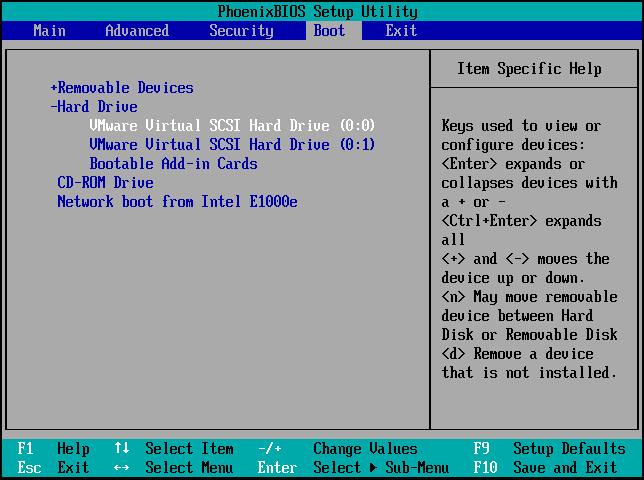
Step 3. After updating the BIOS, confirm and save the changes. Then, reboot your computer and it will boot from the USB with Windows installation media.
To install Windows 10, set the boot order to prioritize the installation USB, then boot from it and successfully install the operating system. This tutorial provides additional tips for a smooth installation process. If you find this guide helpful, click the social buttons to share it with others who may need it.
4️⃣Stage 4. Install Windows on a New PC
To finalize the Windows 10 installation on your personal computer, you'll want to customize the setup to your liking. This involves selecting your preferred language, time and date, and other settings. You'll also need to choose whether to activate Windows 10, which can be done online or offline. Next, you'll be prompted to create a user account, which will be the primary account for your Windows 10 experience.
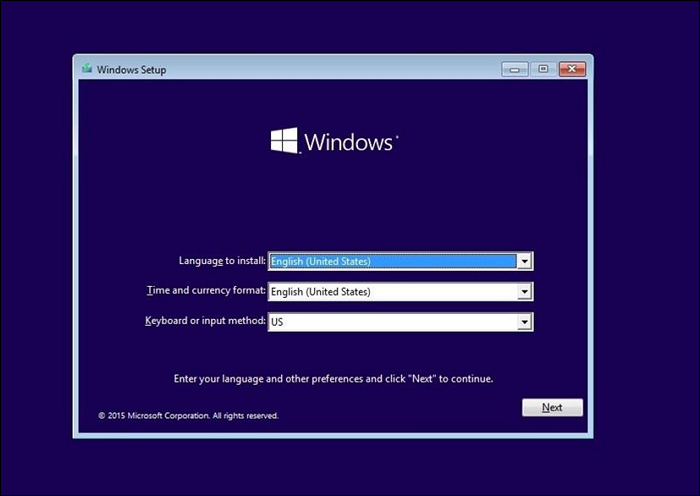
Step 1. To set up the system, start by entering details about the language, time format, and keyboard/input method. Once you've completed this, select the "Next" option. Then, click "Install Now" and on the next screen, enter the "Activation Key."
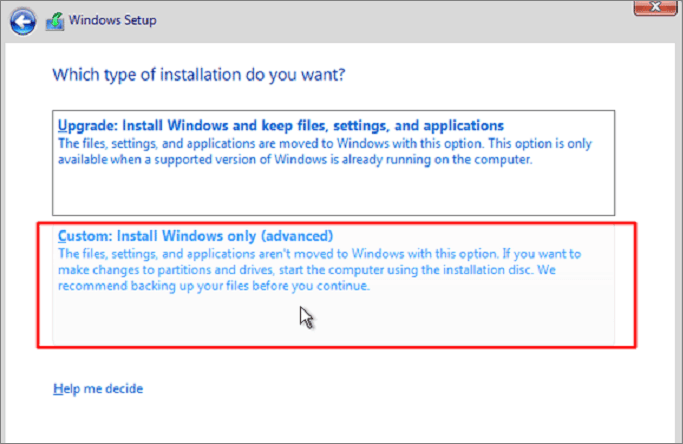
Step 2. If you don't have a Windows installation media, you can skip this step. Otherwise, choose the "Custom: Install Windows Only" option, which will erase all data on the selected drive.
Step 3. To install Windows 10, first choose where you want to install it, then click "Next" to start the installing process. This may take a few minutes to hours to complete, depending on the system.
You May Like:
Conclusion
Mastering how to install Windows 10 on a new PC without an operating system might initially seem complex, but employing the right strategy and tools can simplify the process. By following the essential stages outlined in this guide, including acquiring the Windows 10 ISO file, generating a bootable USB drive, and guiding through the installation procedure, you can successfully install Windows 10 on your new PC.
Qiling Disk Master is a reliable and user-friendly tool that simplifies the process of creating a bootable installation media, making it suitable for users with varying technical expertise. It allows users to easily burn the Windows 10 ISO file to a USB drive.
FAQs About How to Install Windows 10 on New PC Without Operating System
To install Windows 10 on a new PC without an operating system, you can follow these steps: First, ensure your PC meets the minimum system requirements for Windows 10. Then, go to the official Microsoft website and download the Media Creation Tool. Next, use the tool to create a bootable USB drive or CD/DVD with the Windows 10 installation media.
1. Can you install Windows on a PC without an operating system?
You can set up Windows on a computer without an existing operating system by using a bootable Windows installation tool, such as a USB drive or DVD containing the necessary installation files. You can create this tool using Qiling Disk Master, and then proceed with the Windows installation on your desired PC.
2. How can I install Windows 10 on a new computer without a disk?
To install Windows 10 on a new computer without a disk, follow these steps: First, ensure your computer's BIOS is set to boot from a USB drive. Then, create a bootable USB drive with the Windows 10 installation media using a tool like Rufus.
Step 1. To install Windows 10, start by obtaining the Windows 10 ISO file from the official Microsoft or third-party websites. Next, use software like Qiling Disk Master to transfer the ISO file onto a USB drive, turning it into a bootable installation medium. This will allow you to boot from the USB drive and install Windows 10 on your computer.
Step 2. To install Windows 10 on a USB drive, first change the BIOS boot order to prioritize the USB drive. Then, follow the Windows 10 installation process as outlined in the guide, which will guide you through the steps to successfully install Windows 10 on the USB drive.
3. How do you install Windows 11 on a new PC without an operating system?
To set up Windows 11 on a new PC without an operating system, follow these steps: first, ensure your PC meets the minimum system requirements for Windows 11; next, download the Windows 11 installation media from Microsoft's official website; then, insert the installation media into your PC and follow the on-screen instructions to begin the installation process; finally, complete the installation by following the prompts and setting up your user account and preferences.
Step 1. To install Windows 11, download the latest ISO file from the official Microsoft website, then use a tool like Qiling Disk Master to put the ISO file on a USB drive and create bootable installation media.
Step 2. To install Windows 11 from a USB drive, first, change the BIOS boot order to prioritize the USB drive. This can typically be done by entering the BIOS settings (usually by pressing F2, F12, or Del) and navigating to the boot order section. Once changed, save the changes and exit the BIOS settings.
A fresh PC has no installed Windows to migrate; follow the clean Windows 10 installation steps for a PC without an OS.
Related Articles
- PC Slow Down? How to Remove Bloatware on Windows 10/11
- Fix "No Option to Format SSD" in Windows 10/11 [Quick & Easy Methods]
- File Too Large for Destination: How to Copy/Transfer Files Larger than 4GB to FAT32
- How to Resize Partition Using GParted and Its Best Alternative (Your Guide Here)
- How to Wipe Xbox One Hard Drive on Windows - Full Guide
If you need to wipe your Xbox One hard drive on Windows for any reason, this guide will help you and offer you two easy and simple methods to perform this task and achieve this goal. So, this guide read thoroughly to learn the process. - How to Zero Fill A Hard Drive [Efficient]
Writing zero to a hard drive means completely erasing all data on the drive by filling it with zeros, essentially wiping it clean. This process is also known as zero-filling or zeroing out a hard drive.
Products
Articles & Tutorials
- Data Recovery
- Data Backup
- File Recovery
- File Backup
- System Backup and Restore
- Disk and Partition Clone
- Technical articles
- Mobile articles
- Disk Master Help
- Windows Data Recovery Tutorials
- Windows Secure Delete Tutorials
- Windows Partition Management Tutorials
- Windows File Backup and Restore Tutorials
- Windows System Backup and Restore Tutorials
- Windows Disk Backup and Restore Tutorials
- Windows Clone Tutorials